Skip to Main Content
Sam's Club
Sam's Club
All Departments
All Services
Customer reviews for SAMSUNG 58” Class U8000F Series 4K Crystal UHD Smart TV for
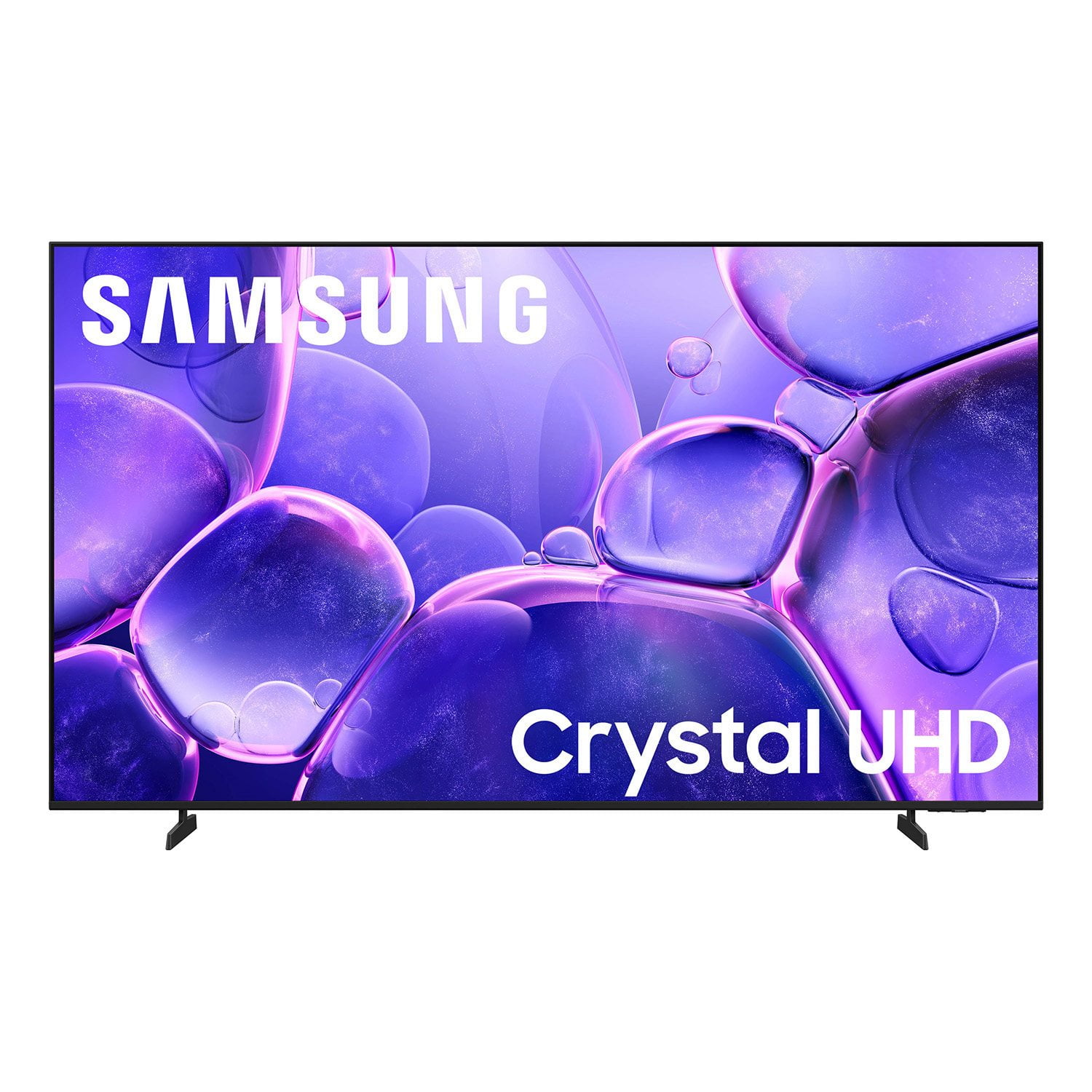
SAMSUNG 58” Class U8000F Series 4K Crystal UHD Smart TV
4.5 out of 5 stars
stars
2,527 ratings2,521 reviews
  1. 5 stars72% (1,823)
  2. 4 stars16% (399)
  3. 3 stars6% (156)
  4. 2 stars3% (70)
  5. 1 star3% (79)

Member photos

  • +766 images
Sort by |
Showing 1,101-1,110 of 2,521 reviews
Jun 23, 2026
Mere
1 out of 5 stars review

Can't install anything

I can't install anything like YouTube I had this tv for my daughter for 3 months and I can't install anything. ATP I ready to send it back

Review from Samsung US
Helpful?1U5QA8D4IAB615677157353
reply from Samsung Advisor

Hi Mere, Thank you for your feedback. Please know the YouTube app is already installed on your TV. You can customize your Home screens by installing, removing or adding your favorite apps to Apps Home and/or For You Home screen. Here's how: Searching for & Installing Apps 1. From the Home screen, press up on the remote’s directional pad. 2. Navigate to and select Search. 3. Using the search bar, enter the content or app you’d like to find. 4. Navigate to and select the app you’d like to install, then select Install. Note: Previously installed apps can be accessed on the Settings screen. Adding & Managing Apps on Home Screen 1. Go to App Settings (these can be found at the bottom of the Apps screen) and select the app you want to move. The following options will be available: a. Add to Home: Move the app to your desired location on the Home screen. b. Delete: Delete app. c. Lock/Unlock: Lock the app with a PIN so only you can use it. When the app is selected again, you will be prompted to enter the PIN to unlock it. d. Reinstall: Reinstall the app. e. View Details: View the app’s information and details. If you need more help with app management, please don’t hesitate to reach Samsung Support at 1-800-SAMSUNG (8AM – 9PM EST Mon – Fri, 8AM – 6PM Sat – Sun), or reach us via text anytime. You can also visit ‘Support’ on our website for: • Live Chat • Manuals, Software, & Warranty Info ~ Samsung Advisor

Jun 1, 2026
Jay_
4 out of 5 stars review

Very good

[This review was collected as part of a promotion.] Very good tv. It will do exactly what you would expect it to do and do it very well.

Review from Samsung US
Helpful?1U5QA8D4IAB615677157353
Jun 3, 2026
FluphyJoe
5 out of 5 stars review

Great TV for the price!

[This review was collected as part of a promotion.] Great TV for the price, super clear picture and easy to use. Looks great too.

Review from Samsung US
Helpful?1U5QA8D4IAB615677157353
Jun 5, 2026
Laya
5 out of 5 stars review

Great TV would buy again

[This review was collected as part of a promotion.] Great TV there is nothing I wouldn't change, picture and sound are great . Channels wonderful

Review from Samsung US
Helpful?1U5QA8D4IAB615677157353
Jun 5, 2026
Chelle
2 out of 5 stars review

No Sound

[This review was collected as part of a promotion.] The sound periodically goes out. I have to reset the sound on the TV at least once a week.

Review from Samsung US
Helpful?1U5QA8D4IAB615677157353
reply from Samsung Advisor

Hi Chelle, Thank you for your review and for sharing your experience with your U8000F TV. If you’re not hearing any sound, whether using TV speakers or an external audio device, here are several steps that can help get things working again. 1. Start with Basic Checks • Make sure the TV isn’t muted and the volume is turned up. • If using an external audio device, ensure it’s powered on, set to the correct source, and the volume is turned up there as well. • Unplug your TV for 30 seconds, then plug it back in and power it on. 2. HDMI ARC / eARC Connection • Use a certified High-Speed HDMI cable with Ethernet. Connect it to the HDMI eARC ports on both the TV and the soundbar/receiver. • Enable these settings: o Settings > All Settings > Sound > Expert Settings > HDMI eARC Mode = Auto o Settings > All Settings > General & Privacy > External Device Manager > Anynet+ (HDMI-CEC) = On • Check the digital audio format: Settings > All Settings > Sound > Expert Settings > Digital Output Audio Format o If you're not sure what your connected device supports, set it to Auto. 3. Optical Audio Connection • Power on the soundbar/receiver before connecting the optical cable. • Select the correct sound output: Settings > All Settings > Sound > Sound Output = Optical • Try a different optical cable if no sound is coming through. 4. Bluetooth Audio Connection • Pair your Bluetooth device: Settings > All Settings > Sound > Sound Output > Bluetooth Speaker List • If your Bluetooth device doesn’t appear or won’t connect, move it closer to the TV, ensure it’s in pairing mode, and select Scan. • If paired but no sound, unpair the device and try reconnecting. 5. Wi-Fi / Wireless Speakers • Confirm the speakers and the TV are on the same Wi-Fi network. Use: Settings > All Settings > Sound > Sound Output > Wi-Fi Speaker Surround Setup • Reboot both the TV and the Wi-Fi speakers, and check your router for connection strength. 6. Other Helpful Tips • Run a Sound Test: Settings > Support > Device Care > Self Diagnosis > Sound Test • Update TV firmware to rule out compatibility issues: Settings > Support > Software Update > Update Now • If using a cable box or external streaming device, double-check that the device’s audio output settings are set to HDMI or the appropriate output. If you still don’t hear sound after following these steps, please don’t hesitate to reach out so we can assist further. You can call Samsung Support at at 1-800-SAMSUNG (8AM – 9PM EST Mon – Fri, 8AM – 6PM Sat – Sun), or reach us via text anytime. You can also visit ‘Support’ on our website for: • Live Chat • Manuals, Software, & Warranty Info ~ Samsung Advisor

Jun 1, 2026
DannyDoja
5 out of 5 stars review

Crystal clear, great picture even in a mostly dark

[This review was collected as part of a promotion.] Great resolution, very clear picture. Brightness is great even in a mostly dark bedroom.

Review from Samsung US
Helpful?1U5QA8D4IAB615677157353
Jun 1, 2026
Lwood58
5 out of 5 stars review

Easy operation

[This review was collected as part of a promotion.] Best tv i have ever had, best picture, very easy to operate

Review from Samsung US
Helpful?1U5QA8D4IAB615677157353
Jun 1, 2026
Anonymous
5 out of 5 stars review

Loved my purchase on this amazing TV

[This review was collected as part of a promotion.] 100000000/10 great product love the quality of the TV

Review from Samsung US
Helpful?1U5QA8D4IAB615677157353
Jun 2, 2026
Movie night
5 out of 5 stars review

Great picture

[This review was collected as part of a promotion.] The resolution on this TV is great whether watching sports, current/older movies.

Review from Samsung US
Helpful?1U5QA8D4IAB615677157353
Jun 5, 2026
Aleja
5 out of 5 stars review

Samsung

[This review was collected as part of a promotion.] Excellent tv. I like smart things and I can see my home from the tv

Review from Samsung US
Helpful?1U5QA8D4IAB615677157353