
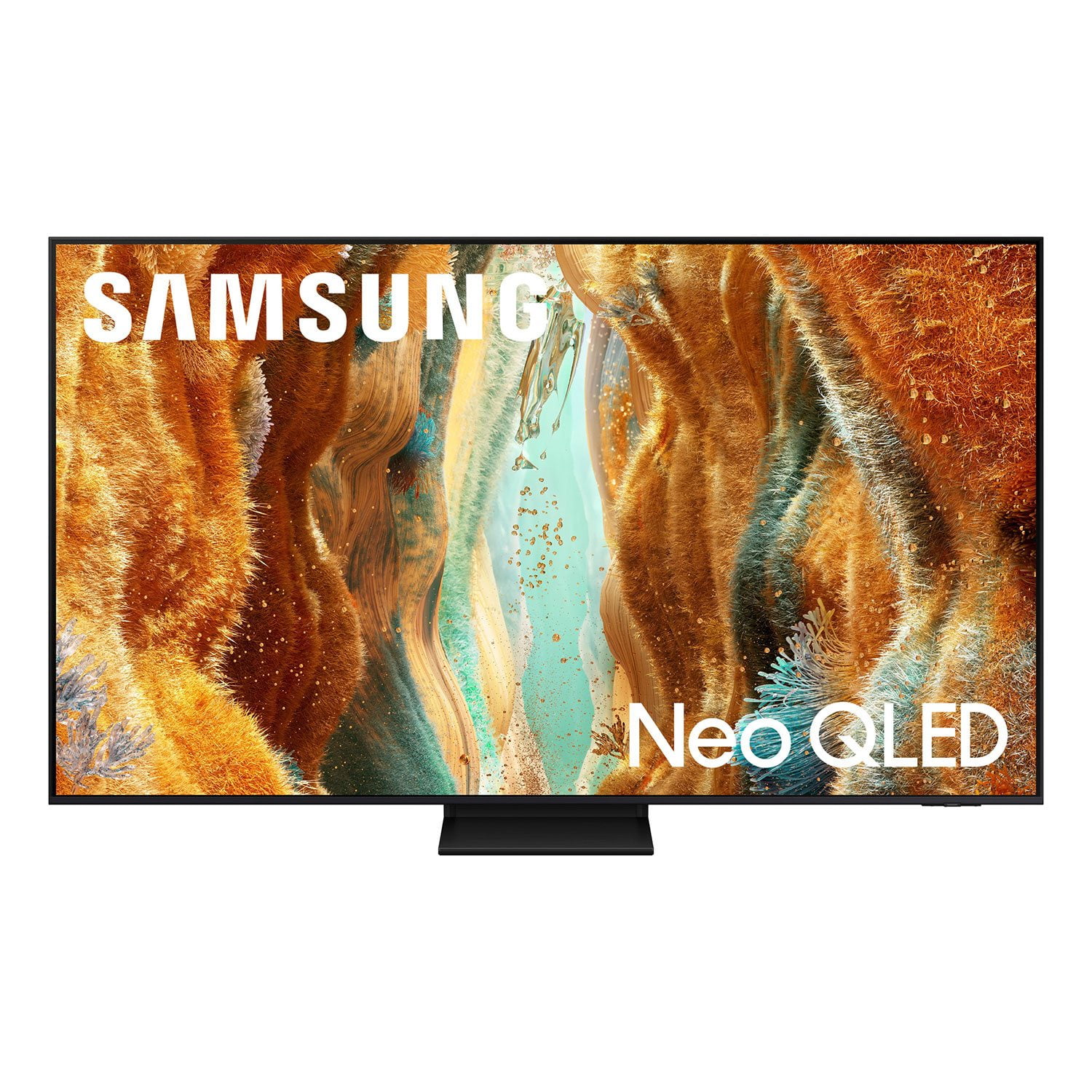
 Customer reviews for SAMSUNG 65" Class QN70FD Series 4K Neo QLED Smart TV for
SAMSUNG 65" Class QN70FD Series 4K Neo QLED Smart TV
4.7 out of 5 stars
stars
958 ratings912 reviews
Member photos
- +328 images




Sort by |
Showing 221-230 of 912 reviews
May 11, 2026
Reviewer name: Chef David
5 out of 5 stars review
Fantastic
Review from Samsung US
Helpful?
Apr 2, 2026
Reviewer name: Money Mike
4 out of 5 stars review
Decent TV

Review from Samsung US
Helpful?
Feb 17, 2026
Reviewer name: dukk
5 out of 5 stars review
this is such an amazing TV
Review from Samsung US
Helpful?
Apr 7, 2026
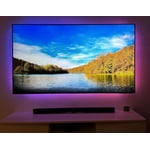
Reviewer name: Filmcrazy
5 out of 5 stars review
Fantastic picture
Review from Samsung US
Helpful?
May 22, 2026
Reviewer name: sbarrera9824
5 out of 5 stars review
Wonderful
Review from Samsung US
Helpful?
Feb 17, 2026
Reviewer name: SpoiledEmployee
5 out of 5 stars review
Especially Nice TV for the price!
Review from Samsung US
Helpful?
Feb 5, 2026
Reviewer name: TV addict
4 out of 5 stars review
Great picture
Review from Samsung US
Helpful?
Feb 17, 2026
Reviewer name: Khrbs
4 out of 5 stars review
Great Living Room TV
Review from Samsung US
Helpful?
Feb 21, 2026
Reviewer name: Jkpn
5 out of 5 stars review
Great
Review from Samsung US
Helpful?
Mar 23, 2026
Reviewer name: Samsung Fan
5 out of 5 stars review
Love the Samsung TV's
Review from Samsung US
Helpful?