Skip to Main Content
Sam's Club
Sam's Club
All Departments
All Services
Customer reviews for SAMSUNG 55” Class Q7FD Series 4K QLED Smart TV for
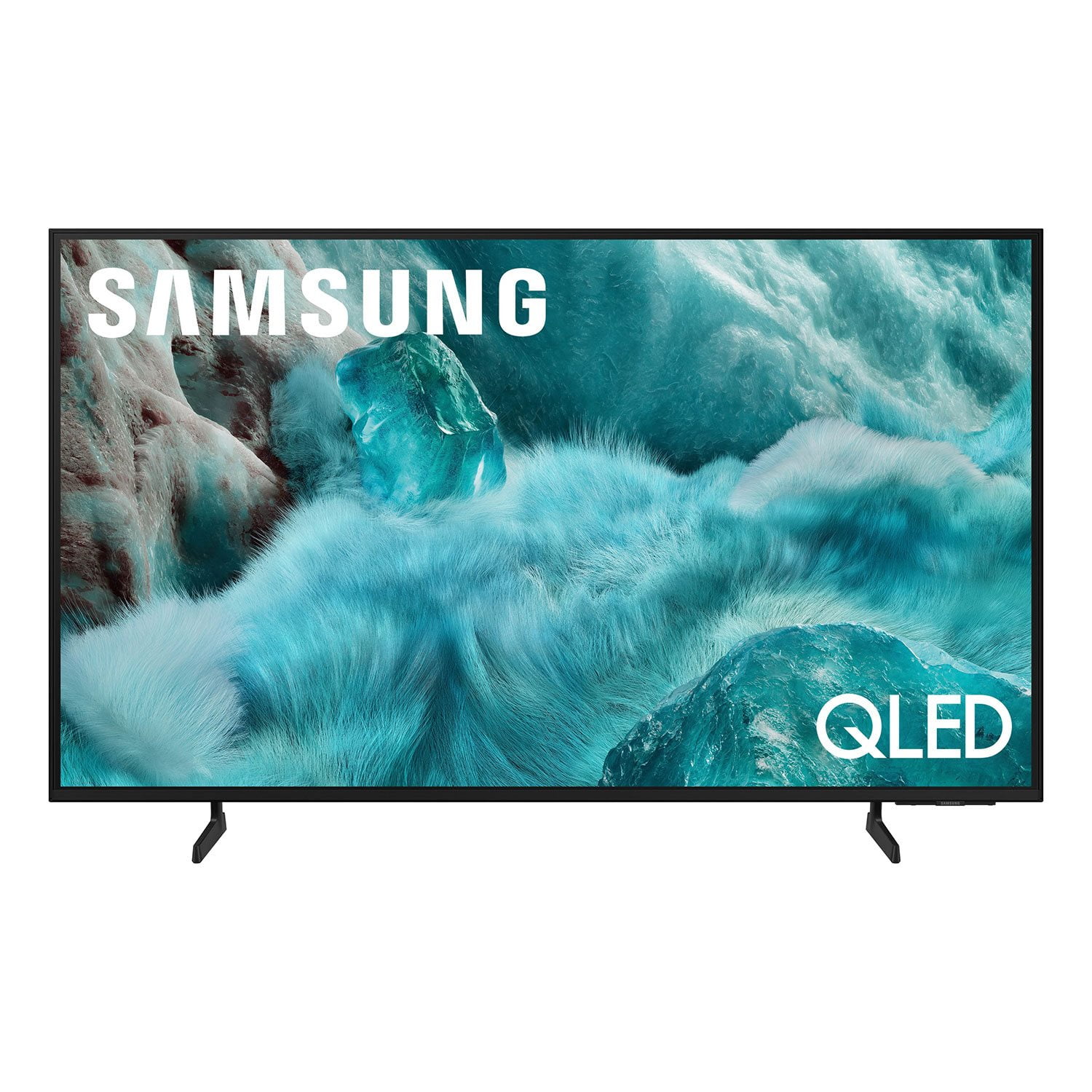
SAMSUNG 55” Class Q7FD Series 4K QLED Smart TV
4.6 out of 5 stars
stars
2,321 ratings2,319 reviews
  1. 5 stars76% (1,775)
  2. 4 stars16% (364)
  3. 3 stars4% (100)
  4. 2 stars1% (31)
  5. 1 star2% (51)
Sort by |
Showing 1,111-1,120 of 2,319 reviews
Mar 6, 2026
Cerdafied
5 out of 5 stars review

Great resolution

[This review was collected as part of a promotion.] Couldn't have asked for a better TV for our area with this size. Resolution is is great and the vibrancy is spot on.

Review from Samsung US
Helpful?1LI0EAPX5OHH15551574995
Mar 1, 2026
gregeder44
5 out of 5 stars review

Love it

[This review was collected as part of a promotion.] Perfect TV for the bedroom, good size and the auto brightness feature really helps at night so the TV isn't too bright

Review from Samsung US
Helpful?1LI0EAPX5OHH15551574995
Jan 5, 2026
Frustrated ed
3 out of 5 stars review

Initial setup

Initial set up was not easy. The remote is to small and poorly labeled. The step-by-srep process is too lengthy and complex using the remote (as noted above) and the tv has not been able to connect with the Samsung interface (whatever that is).

Review from Samsung US
Helpful?1LI0EAPX5OHH15551574995
reply from Samsung Specialist

Hi there, We appreciate you sharing your experience. To help you get the most from your TV and remote functions, you can download the full e-Manual and more by visiting Samsung’s website then navigating to: Support > Manual & Software > TVs & Home Theater. From there, you can search for and select your Q7F TV model to view or download the available guides. The e-Manual & Remote Control Guide are also conveniently built into your TV: Settings > Support > Tips and User Guides. For additional guidance, your TV also includes Accessibility features designed to assist with navigation and remote use. • Learn Menu Screen provides audio guidance for on-screen menus by announcing the name and function of each item as you scroll – without making any changes. This is especially helpful for users who are visually impaired or new to Smart TV menus. Enable via: Settings > All Settings > General & Privacy > Accessibility > Learn Menu Screen. To exit, press the Return key twice. • Learn TV Remote helps users become familiar with the layout and function of each button on the Samsung remote. Pressing a button (other than Power) will prompt the TV to announce its name and purpose, again without affecting TV operation. Enable via: Settings > All Settings > General & Privacy > Accessibility > Learn TV Remote. To exit, press the Return key twice. If you’d like more assistance with these features, please reach Samsung Support at 1-800-SAMSUNG, available 8AM – 12AM EST, 7 days a week. LiveChat agents are also available through the ‘Support’ link on our website. ~ Samsung Specialist

Feb 17, 2026
Angelordemon
5 out of 5 stars review

Perfect Tv

[This review was collected as part of a promotion.] is a television with a perspective quality perfect Perfect perfect designs a lot of good graphics so perfect for every occasion

Review from Samsung US
Helpful?1LI0EAPX5OHH15551574995
Mar 28, 2026
Sandspider
3 out of 5 stars review

QLED

[This review was collected as part of a promotion.] Basic TV nothing fancy. Not good for gaming. Blacks are bright just fyi. If i had a choice id go with the new OLEDs with a super high refresh rate.

Review from Samsung US
Helpful?1LI0EAPX5OHH15551574995
reply from Samsung Specialist

Sandspider, Thanks for your review. If there’s anything we can assist with, please don’t hesitate to call us at 1-800-SAMSUNG (8AM – 9PM EST Mon – Fri, 8AM – 6PM Sat – Sun), or reach us via text anytime. You can also visit ‘Support’ on our website for: • Live Chat • Manuals, Software, & Warranty Info ~ Samsung Specialist

Feb 19, 2026
Brystn1
5 out of 5 stars review

The best t v the money can buy

[This review was collected as part of a promotion.] The picture is absolutely amazing.I am so thankful that I went with a Samsung TV.And since going with the Samsung TV I don't think I'll go with any other t v. Thank you

Review from Samsung US
Helpful?1LI0EAPX5OHH15551574995
Feb 17, 2026
Josh
5 out of 5 stars review

Loving the tv

[This review was collected as part of a promotion.] I have been loving the large screen and the quality of images. The interface makes it easy to go through the apps.

Review from Samsung US
Helpful?1LI0EAPX5OHH15551574995
Dec 21, 2025
John0267
5 out of 5 stars review

Tons of features

[This review was collected as part of a promotion.] Loving my new TV. It has a lot of useful features. Also, it's very fast, smooth and user friendly.

Review from Samsung US
Helpful?1LI0EAPX5OHH15551574995
Jan 20, 2026
Unhappy
2 out of 5 stars review

Regretful Purchase

We do not like this TV. While the picture quality is fine the software and remote both seem to have been designed by a 5 yr old. Very disappointing. Wish we had not bought it.

Review from Samsung US
Helpful?1LI0EAPX5OHH15551574995
reply from Samsung Specialist

Unhappy, We appreciate you sharing your experience. To help you get the most from your TV and remote functions, you can download the full e-Manual and more by visiting Samsung’s website then navigating to: Support > Manual & Software > TVs & Home Theater. From there, you can search for and select your Q7FD TV model to view or download the available guides. The e-Manual & Remote Control Guide are also conveniently built into your TV: Settings > Support > Tips and User Guides. For additional guidance, your TV also includes Accessibility features designed to assist with navigation and remote use. • Learn Menu Screen provides audio guidance for on-screen menus by announcing the name and function of each item as you scroll – without making any changes. This is especially helpful for users who are visually impaired or new to Smart TV menus. Enable via: Settings > All Settings > General & Privacy > Accessibility > Learn Menu Screen. To exit, press the Return key twice. • Learn TV Remote helps users become familiar with the layout and function of each button on the Samsung remote. Pressing a button (other than Power) will prompt the TV to announce its name and purpose, again without affecting TV operation. Enable via: Settings > All Settings > General & Privacy > Accessibility > Learn TV Remote. To exit, press the Return key twice. If you’d like more assistance with these features, please reach Samsung Support at 1-800-SAMSUNG, available 8AM – 12AM EST, 7 days a week. LiveChat agents are also available through the ‘Support’ link on our website. ~ Samsung Specialist

Feb 20, 2026
Willstill
5 out of 5 stars review

Great features

[This review was collected as part of a promotion.] Quality clear TV I would recommend this TV to any and everybodyI love the clear view picture OK OK OK OK

Review from Samsung US
Helpful?1LI0EAPX5OHH15551574995