Skip to Main Content
Sam's Club
Sam's Club
All Departments
All Services
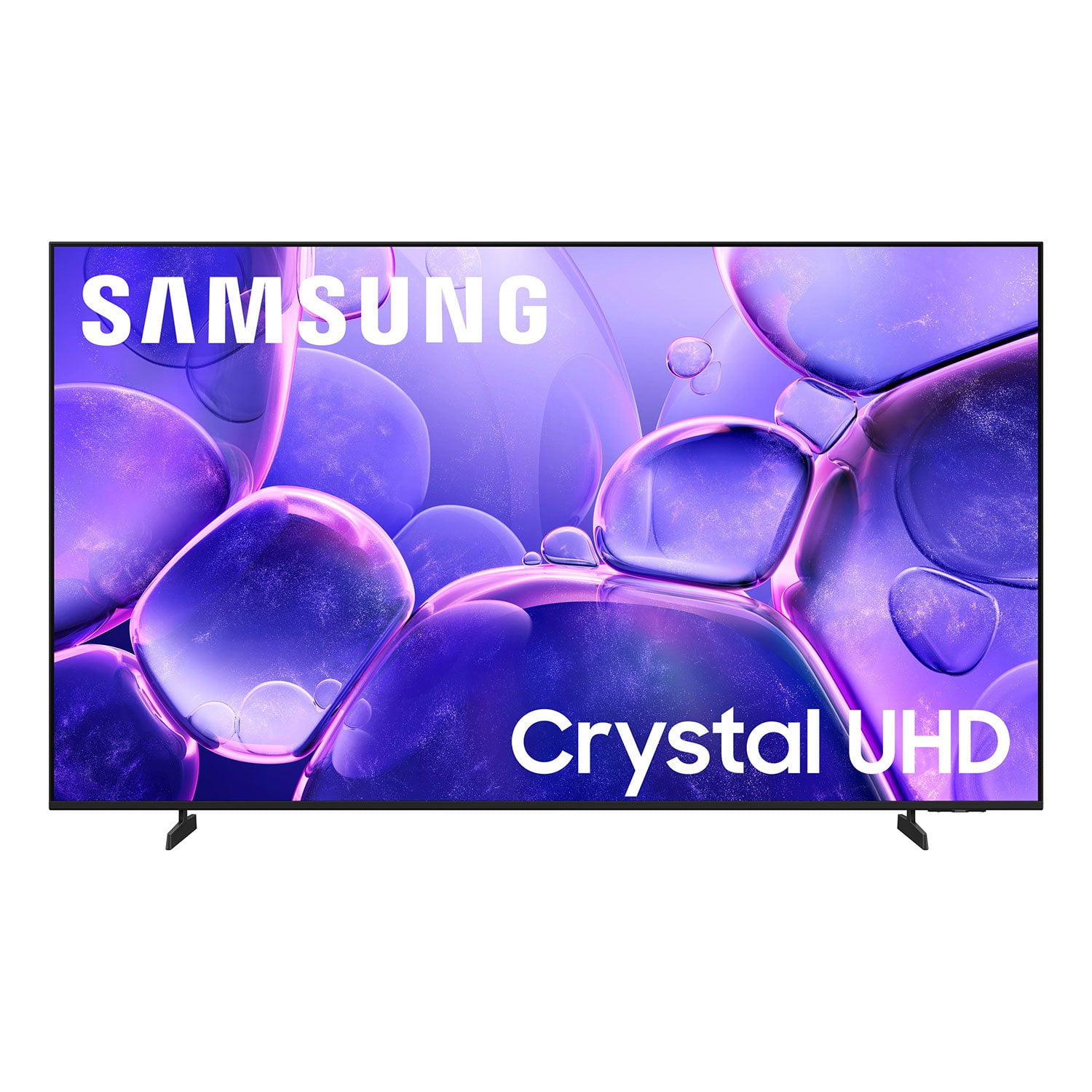
Customer reviews for SAMSUNG 43" Class U8000F Series 4K Crystal UHD Smart TV for
SAMSUNG 43" Class U8000F Series 4K Crystal UHD Smart TV
4.5 out of 5 stars
stars
2,686 ratings2,587 reviews
  1. 5 stars73% (1,959)
  2. 4 stars15% (407)
  3. 3 stars6% (157)
  4. 2 stars3% (78)
  5. 1 star3% (85)

Member photos

  • +776 images
Sort by |
Showing 1,051-1,060 of 2,587 reviews
May 21, 2026
Rowdy
2 out of 5 stars review

NNOT IMPRESSED

[This review was collected as part of a promotion.] Not at all impressed. Mostly due to the high cost for an average TV that could be bought for much less money on another brand.

Review from Samsung US
Helpful?22SEGSGR5O6Z15524966302
reply from Samsung Advisor

Hi Rowdy, We appreciate your feedback on the quality of Samsung’s U8000F TV. If the image you’re seeing isn’t to your liking, there are several picture settings you may want to adjust. First, make sure your TV is up to date. To check for the latest version, go to: Home > Left directional button > Settings > Support > Software Update > Update Now. If the image doesn’t quite match your preferences after updating/checking for updates, there are several settings you can adjust to better suit your viewing environment. To explore picture mode options, go to: Home > Left directional button > Settings > All Settings > Picture > Picture Mode. Available modes include: 1. Standard – Default mode for general viewing 2. Dynamic – Brighter and sharper for well-lit rooms 3. Eco – Optimized for energy saving 4. Movie – Best for dark room viewing 5. Filmmaker Mode – Preserves the director’s intended look and feel (automatically enabled for supported content) You can also fine-tune settings like brightness, contrast, sharpness, and more by navigating to: All Settings > Picture > Expert Settings If you’d like help finding the best setup for your preferences or if there are other features that are leaving you unsatisfied, please don’t hesitate to contact Samsung Customer Support at 1-800-SAMSUNG, available from 8AM – 9PM EST Mon – Fri, 8AM – 6PM Sat – Sun. You can also visit the Samsung website and click on ‘Support’ for: • Live Chat • Manuals, Software, & Warranty Info ~ Samsung Advisor

May 11, 2026
Shaunglen89
5 out of 5 stars review

Best TV ever Samsung rocks.

[This review was collected as part of a promotion.] This tv is great the resolution is perfect. The brightness, contrast and viewing are amazing and the refresh is remarkable. I love this TV and I will always use Samsung for all my Viewing needs

Review from Samsung US
Helpful?22SEGSGR5O6Z15524966302
Jun 22, 2026
Soots
5 out of 5 stars review

Great picture quality

The picture on this TV is awesome its operation is a little challenging in the beginning but once I used it for a bit it was fine

Review from Samsung US
Helpful?22SEGSGR5O6Z15524966302
Jun 6, 2026
Mike
5 out of 5 stars review

Great tv

[This review was collected as part of a promotion.] Great tv.. Bright and Awesome graphics quality.....

Review from Samsung US
Helpful?22SEGSGR5O6Z15524966302
Jun 5, 2026
Eddie
5 out of 5 stars review

Awesome Features

[This review was collected as part of a promotion.] Tv is easy to use and setup. Very happy with it . I am a fan of Samsung tv’s

Review from Samsung US
Helpful?22SEGSGR5O6Z15524966302
Jun 5, 2026
Anonymous
5 out of 5 stars review

Love the tv

[This review was collected as part of a promotion.] Like the tv but the remote control needs improvement need numbers for easy channel control

Review from Samsung US
Helpful?22SEGSGR5O6Z15524966302
Jun 20, 2026
Sobeyda
3 out of 5 stars review

Md

[This review was collected as part of a promotion.] The problem of that T V when you dawn losing the app have pronlen

Review from Samsung US
Helpful?22SEGSGR5O6Z15524966302
reply from Samsung Advisor

Hi Sobeyda, To best assist you, please call us at 1-800-SAMSUNG (8AM – 9PM EST Mon – Fri, 8AM – 6 PM Sat – Sun), or reach us via text 24/7. You can also visit ‘Support’ on our website for: • Live Chat • Manuals, Software, & Warranty Info ~ Samsung Advisor

Jun 1, 2026
Lovablechuck
5 out of 5 stars review

Great features

[This review was collected as part of a promotion.] A great tv it is so clear everything about it is great

Review from Samsung US
Helpful?22SEGSGR5O6Z15524966302
Jun 5, 2026
Chelle
2 out of 5 stars review

No Sound

[This review was collected as part of a promotion.] The sound periodically goes out. I have to reset the sound on the TV at least once a week.

Review from Samsung US
Helpful?22SEGSGR5O6Z15524966302
reply from Samsung Advisor

Hi Chelle, Thank you for your review and for sharing your experience with your U8000F TV. If you’re not hearing any sound, whether using TV speakers or an external audio device, here are several steps that can help get things working again. 1. Start with Basic Checks • Make sure the TV isn’t muted and the volume is turned up. • If using an external audio device, ensure it’s powered on, set to the correct source, and the volume is turned up there as well. • Unplug your TV for 30 seconds, then plug it back in and power it on. 2. HDMI ARC / eARC Connection • Use a certified High-Speed HDMI cable with Ethernet. Connect it to the HDMI eARC ports on both the TV and the soundbar/receiver. • Enable these settings: o Settings > All Settings > Sound > Expert Settings > HDMI eARC Mode = Auto o Settings > All Settings > General & Privacy > External Device Manager > Anynet+ (HDMI-CEC) = On • Check the digital audio format: Settings > All Settings > Sound > Expert Settings > Digital Output Audio Format o If you're not sure what your connected device supports, set it to Auto. 3. Optical Audio Connection • Power on the soundbar/receiver before connecting the optical cable. • Select the correct sound output: Settings > All Settings > Sound > Sound Output = Optical • Try a different optical cable if no sound is coming through. 4. Bluetooth Audio Connection • Pair your Bluetooth device: Settings > All Settings > Sound > Sound Output > Bluetooth Speaker List • If your Bluetooth device doesn’t appear or won’t connect, move it closer to the TV, ensure it’s in pairing mode, and select Scan. • If paired but no sound, unpair the device and try reconnecting. 5. Wi-Fi / Wireless Speakers • Confirm the speakers and the TV are on the same Wi-Fi network. Use: Settings > All Settings > Sound > Sound Output > Wi-Fi Speaker Surround Setup • Reboot both the TV and the Wi-Fi speakers, and check your router for connection strength. 6. Other Helpful Tips • Run a Sound Test: Settings > Support > Device Care > Self Diagnosis > Sound Test • Update TV firmware to rule out compatibility issues: Settings > Support > Software Update > Update Now • If using a cable box or external streaming device, double-check that the device’s audio output settings are set to HDMI or the appropriate output. If you still don’t hear sound after following these steps, please don’t hesitate to reach out so we can assist further. You can call Samsung Support at at 1-800-SAMSUNG (8AM – 9PM EST Mon – Fri, 8AM – 6PM Sat – Sun), or reach us via text anytime. You can also visit ‘Support’ on our website for: • Live Chat • Manuals, Software, & Warranty Info ~ Samsung Advisor

Jun 22, 2026
Momzo
3 out of 5 stars review

Glare

The screen gets a glare unfortunately when its sunny and that is the only thing I do not care for on this tv.

Review from Samsung US
Helpful?22SEGSGR5O6Z15524966302
reply from Samsung Advisor

Hi Momzo, We appreciate your feedback on screen reflections with the Samsung U8000F TV. Room lighting plays a significant role in how reflections appear, and while we aim to reduce glare where possible, complete elimination isn't guaranteed. For improved glare control, we recommend repositioning the TV to avoid direct light or consulting a professional installer. Samsung’s Glare Free screen is available starting with the QN90F Neo QLED 4K, while Anti Reflection technology is included on select models beginning with the S85F OLED and above. If you have any questions about features or setup, our team is here to help at 1-800-SAMSUNG (8AM – 9PM EST Mon – Fri, 8AM – 6PM Sat – Sun), or reach us via text anytime. You can also visit ‘Support’ on our website for: You can also chat with one of our agents by clicking the ‘Support’ link on our website for: • Live Chat • Manuals, Software, & Warranty Info ~ Samsung Advisor