Skip to Main Content
Sams Club
Sams Club
Customer reviews for SAMSUNG 75" Class Q6-Series 4K Ultra HD Smart QLED TV - QN75Q6DAAFXZA for
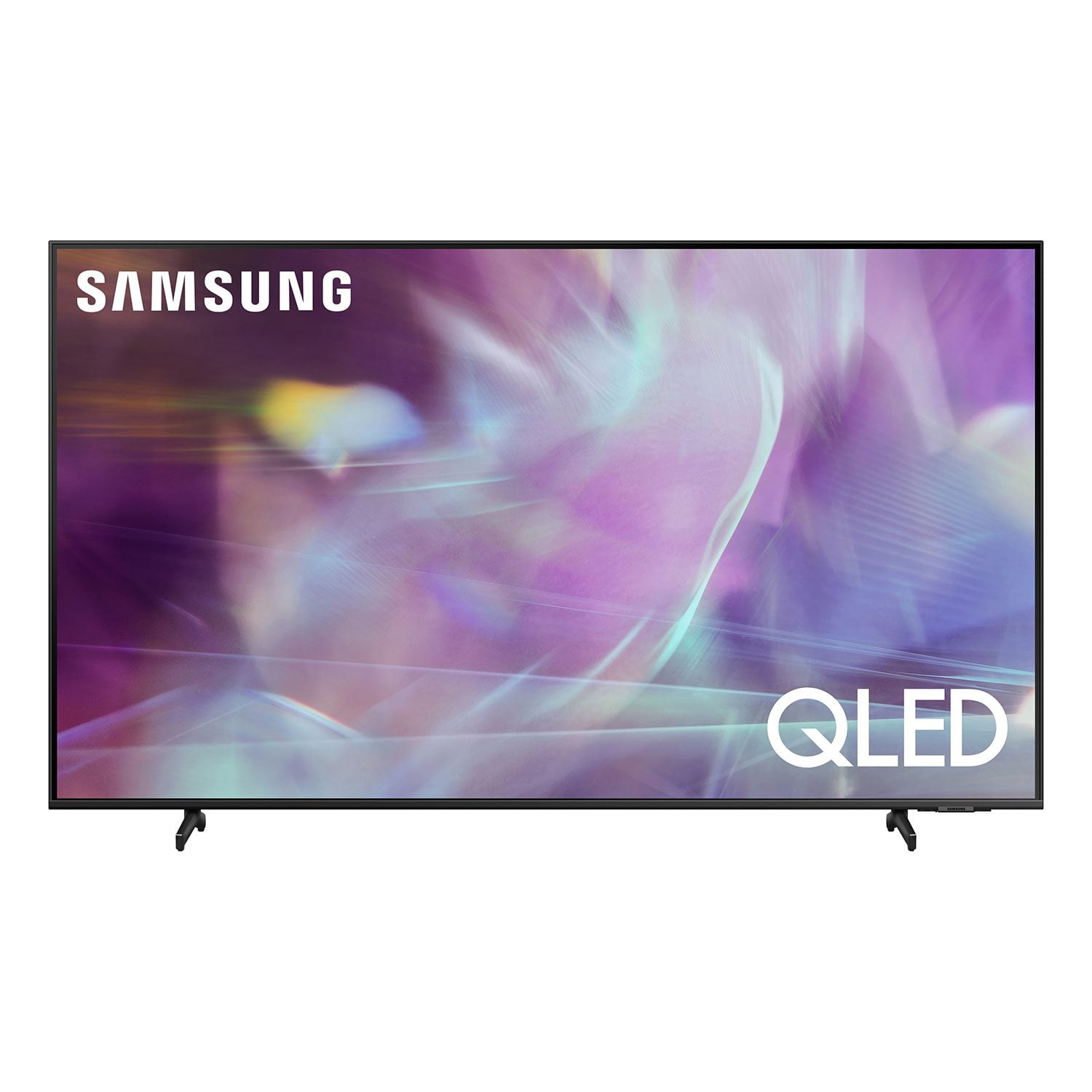
SAMSUNG 75" Class Q6-Series 4K Ultra HD Smart QLED TV - QN75Q6DAAFXZA
4.6 out of 5 stars
stars1,996 ratings1,896 reviews
  1. 5 stars74% (1,478)
  2. 4 stars17% (337)
  3. 3 stars4% (77)
  4. 2 stars2% (31)
  5. 1 star4% (73)
Write a review
Sort by |
Showing 1,271-1,280 of 1,896 reviews
Jul 12, 2022
Mix2022
5 out of 5 stars review

Brilliant TV

I love the clear picture, the sound is ok. So must buy a sound bar. Instant picture when turned on. The quick remote is a handy thing to have as well as the normal remote. All together for a low end priced tv it's brilliant.

Review from Samsung UK
Helpful?20S51SPKF03T15280651920
Oct 5, 2021
jen67
5 out of 5 stars review

my new samsung qled tv

[This review was collected as part of a promotion.] I use for streaming only. I wish I could figure out how to use w/ my alexa echo dot but I'm not high tech enough.

Review from Samsung US
Helpful?20S51SPKF03T15280651920
reply from Samsung Brand Ambassador

Hi jen67, Thank you for choosing Samsung's Q60A TV and for your review. With built-in Samsung Bixby, Amazon Alexa and Google Assistant, you can easily change the channel, play music, control smart home devices and more — all you have to do is ask. In addition to built-in Alexa Voice capabilities, you can also connect other devices such as an Echo speaker, to control compatible smart home devices and some experiences on your TV. Here are the steps: 1. Download both the Amazon Alexa and Samsung SmartThings apps, if you don't already have them. Both are available for iOS or Android devices. 2. Make sure your Alexa device and TV are both connected to the same Wi-Fi network. 3. Your TV must be enabled within the SmartThings app. If not, make sure you are signed in with your Samsung account on the TV. Go to Settings > General, then select System Manager > Samsung Account. 4. Log in to the SmartThings app with the same Samsung account. Tap Devices, and if your TV isn’t already shown, tap + to add it to the app. 5. In the Alexa app, enable the SmartThings skill and sign in to your Samsung account. This will automatically connect your Samsung TV to Alexa and let you use voice commands to control your television. I hope this tip helps! Should you ever have questions or need help, please call us at 1-800-SAMSUNG (ask for TVs), available 8AM - 12AM EST, 7 days a week. For additional support resources, visit us on the Samsung website and click on the ‘Support’ link in the upper right corner of the homepage for: 1) Contact Us: For additional Chat & Text options, choose ‘TVs & Home Theater’ and select your model & topic. 2) Manuals & Software 3) Warranty Info 4) Register a Product: For access to easy warranty support, convenient opt-in to special promos and offers, faster troubleshooting and service, and quick notification of system updates. ~ Samsung Specialist

Sep 24, 2021
Movietime
5 out of 5 stars review

Nice TV!

[This review was collected as part of a promotion.] This is the first big screen I've owned. Picture is very clear, it's easy to use, watch mostly with movies some sports. Great TV so far… had for a couple months.

Review from Samsung US
Helpful?20S51SPKF03T15280651920
Apr 1, 2021
vick
5 out of 5 stars review

Best tv ever

[This review was collected as part of a promotion.] I didn't know how much I was missing before I got this TV. Picture is out of this world even with the older shows

Review from Samsung US
Helpful?20S51SPKF03T15280651920
Oct 11, 2021
Sirach
5 out of 5 stars review

Great visual

[This review was collected as part of a promotion.] I use my Samsung TV for Movies, streaming and cooking shows.The charity and resolution is amazing like being in a movie theater at home.

Review from Samsung US
Helpful?20S51SPKF03T15280651920
May 31, 2022
HappyTV
4 out of 5 stars review

Exciting TV

(This review was collected as part of a promotion.) This is my first adventure in a "SMART" tv. I was amazed at the advancement in technology. Better Instructions on some items would have been better.

Review from Samsung Canada
Helpful?20S51SPKF03T15280651920
reply from Operations

Thank you, Happy TV! We love to hear positive feedback and we’re delighted you’re enjoying your new Samsung TV. 

Aug 5, 2021
Grumps83
2 out of 5 stars review

Worse picture than 5 years old Samsung smart tv

Hugely disappointing. Ultra hd plcture is worse than HD picture and the latter is poor compared to old smart tv. Viewed through Sky Q and would not have purchased had I realised the poor performance. Should not have believed the hype!

Review from Samsung UK
Helpful?20S51SPKF03T15280651920
Jun 30, 2021
Hecz
5 out of 5 stars review

Great features. The picture is great!

[This review was collected as part of a promotion.] The amount of new apps is great! Can stream just about anything from the available apps for the TV.

Review from Samsung US
Helpful?20S51SPKF03T15280651920
Sep 7, 2021
Mar1214
4 out of 5 stars review

Great TV

[This review was collected as part of a promotion.] I haven't bought a tv since my Bravia 10 years ago and was pleasantly surprised about the advances in technology and crisp screen on the Samsung. Great TV!

Review from Samsung US
Helpful?20S51SPKF03T15280651920
Jul 23, 2021
Wood
4 out of 5 stars review

Love the TV !!!

[This review was collected as part of a promotion.] I love this TV but my solar remote died after three weeks and won't charge. Even with the charging cable.

Review from Samsung US
Helpful?20S51SPKF03T15280651920
reply from Samsung Brand Ambassador

Hi Wood, Thank you for your review of Samsung’s Q60A TV and for sharing your experience with your remote not working. If you press any key on the remote, and the LED indicator at the top of your remote stays on for about 3 seconds rather than blinking, please try the following steps to reset your remote: 1) Long press the RETURN key and ENTER key together for about 10 seconds if your remote was once paired already with the TV, you do not need to re-pair it again. However, if it was not paired with the TV, pairing must be done after the reset. 2) The RETURN key is on the left side of your remote and looks like a curved, backwards pointing arrow. 3) The ENTER key is the button in the center of your directional ring. If the issue persists, please contact Samsung TV Support so that we can better troubleshoot this issue and provide steps towards a solution. You can reach us at 1-800-SAMSUNG (ask for TVs), available 8AM -12AM EST M-F (9AM – 6PM EST Sat). Or text HELP to 62913. For additional support resources, visit us on the Samsung website and click on the ‘Support’ link in the upper right corner of the homepage for: 1) More ‘Contact Us’ options – LiveChat, Facebook, Twitter, Samsung Community, Samsung Members app 2) Manuals & Software 3) Warranty Info 4) Product Registration: For access to easy warranty support, convenient opt-in to special promos and offers, faster troubleshooting and service, and quick notification of system updates. ~ Samsung Specialist