reply from OBA
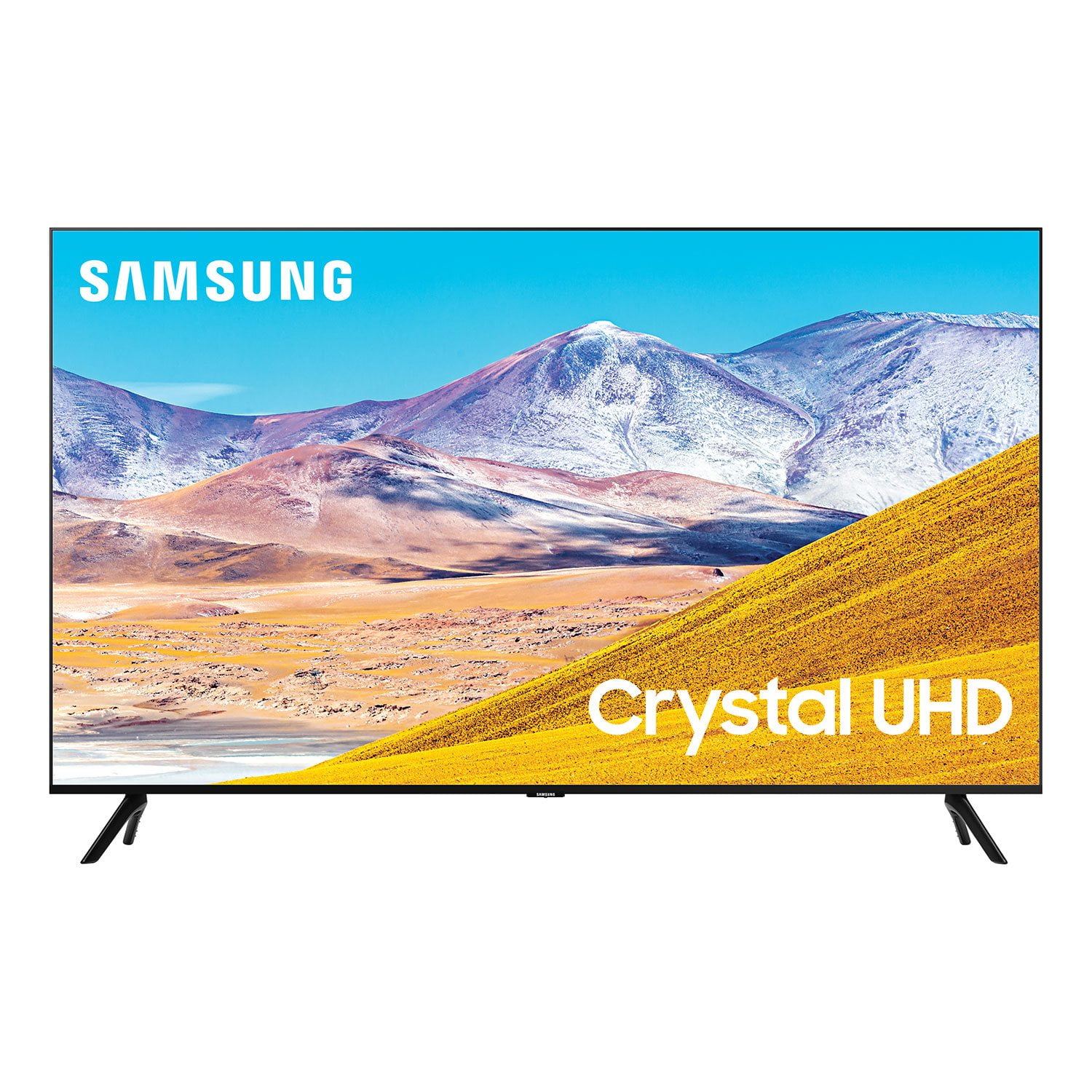
Thank you for purchasing the TU8000 TV and for your review. Please know that the industry standard when measuring screen size refers to the measurement of the screen when measured diagonally. The measurements of a 65” model are 57.1" x 32.7" x 2.4" (WxHxD) when measured without the stand.
I am sorry to hear that you are not happy with the brightness levels of your picture, and you have tried Dynamic Picture Mode which is designed to make pictures brighter and clearer in bright viewing environments. ( Settings > Picture > Picture Mode > Dynamic )
You can also manually adjust the Brightness and other settings to your liking. Press the HOME button on your remote, then navigate to: Settings > Picture > Expert Settings
You may also want to disable Power Saving Mode which automatically adjusts the brightness to reduce the TV’s power consumption.
Go to Settings> General> Eco Solution> Power Saving Mode.
Ambient Light Detection will also automatically adjust the brightness level of the TV, according to the ambient light level, to reduce power consumption. If Ambient Light Detection has adjusted the screen brightness to a too bright or dark level, you can select Minimum Brightness to manually adjust the minimum screen brightness.
Go to Settings> General> Eco Solution> Ambient Light Detection
Please also be sure you are running the latest firmware. You can check to see what software version your TV is using and if there is an available update through the settings on your TV. Go to: Settings>Support>Software Update. (1460.9 released on 12/7/20)
You may want to enable automatic updates for convenience. Select Settings > Support > Software Update, then select Auto Update.
I hope this helps to improve your picture. Should you need further assistance, please contact Samsung Customer Support.
1-800-SAMSUNG (ask for TVs), available 8AM -12AM EST, 7 days a week
Or visit us on the Samsung website and click on the ‘Support’ link in the upper right corner of the homepage for:
1) Contact Us Options (LiveChat, Remote Support, Facebook, Twitter)
2) Product Support
3) Manuals and Downloads
4) Warranty Info
5) Product Registration: Registering your product gives you access to easy warranty support, convenient opt-in to special promos and offers, faster troubleshooting and service, and quick notification of system updates
6) Samsung Community: A great resource for getting help from Samsung moderators and customers and more
7) …and more product, repair, order, and care options
~ Samsung Solutions

 Member ratings & reviews for