reply from Samsung Brand Ambassador
Hi Phillie,
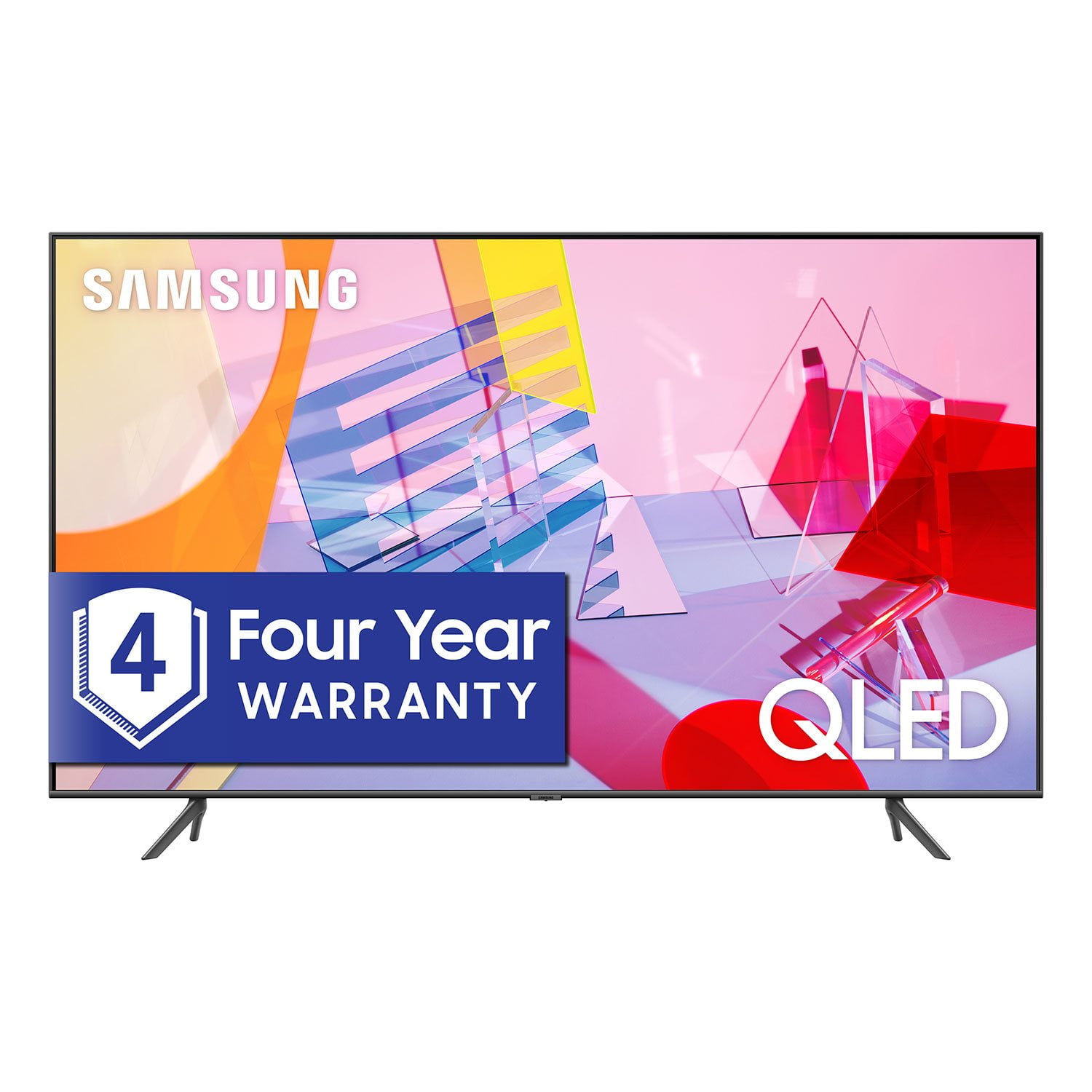
Thank you for purchasing the 82” Q60T TV. Please know that the industry standard when measuring screen size refers to the measurement of the screen when measured diagonally. The measurements of your 82” model are 72.1" x 41.1" x 2.5" (WxHxD) when measured without the stand.
Measurements can be found on the product page on the Samsung website by clicking on SPECS and then on SEE ALL SPECS.
Samsung Smart TVs let you sync with Google Home, allowing you the convenience of using voice commands for certain functionalities, such as power on/off, volume up/down, channel change, input source change, and playback control.
Here is a step-by-step guide for syncing with Google Home:
1) Make sure you have the SmartThings app on your mobile device. Add your TV device to the SmartThings app.
2) Open the Google Home app on your phone. If you do not have the app on your phone, you can search for Google Home in the Google Play Store and download the app.
3) Select the Add button. On the next screen select Set Up Device.
4) Press on the text under the title Works with Google. Here you will see a list of accounts. Scroll down until you see SmartThings and select it or search SmartThings by pressing the search icon in the top right-hand corner.
5) Once you have selected SmartThings , press the “Sign in with Samsung Account”’ and use the same Samsung Account which you used to sign in on the SmartThings app on your mobile.
6) The TV will be added automatically.
If you have not already set up your TV's voice assistant functions, the TV must be connected to the internet. Go to Settings > General > Voice > Voice Assistant to select which Voice Assistant you would like to help control your TV (Bixby, Amazon Alexa, or Google Assistant)
To use the Voice Assistant, follow the instructions on the TV screen to enable the selected Voice Assistant. To enable the Settings menus for each Voice Assistant, log into each Voice Assistant.
To run your selected Voice Assistant, press and hold the button, say a command, and then release the button to run Voice Assistant. The Samsung Smart Remote may not recognize your voice when it is far away from you, turned upside down, or located in an environment with loud ambient noise. Use the Samsung Smart Remote less than 2 feet (1.5 m) from you with the remote control buttons facing upward.
If you have already set up your Voice Assistant, your issue might be with your remote. For further assistance, please contact Samsung Customer Support. You can call us at 1-800-SAMSUNG (ask for TVs), available 8AM -12AM EST, 7 days a week. Or text HELP to 62913.
For additional support resources, visit us on the Samsung website and click on the ‘Support’ link in the upper right corner of the homepage for:
1) More ‘Contact Us’ options – LiveChat, Facebook, Twitter, Samsung Community, Samsung Members app
2) Manuals & Software
3) Warranty Info
4) Product Registration: For access to easy warranty support, convenient opt-in to special promos and offers, faster troubleshooting and service, and quick notification of system updates.
~ Samsung Specialist