Skip to Main Content
Sams Club
Sams Club
Member ratings & reviews for
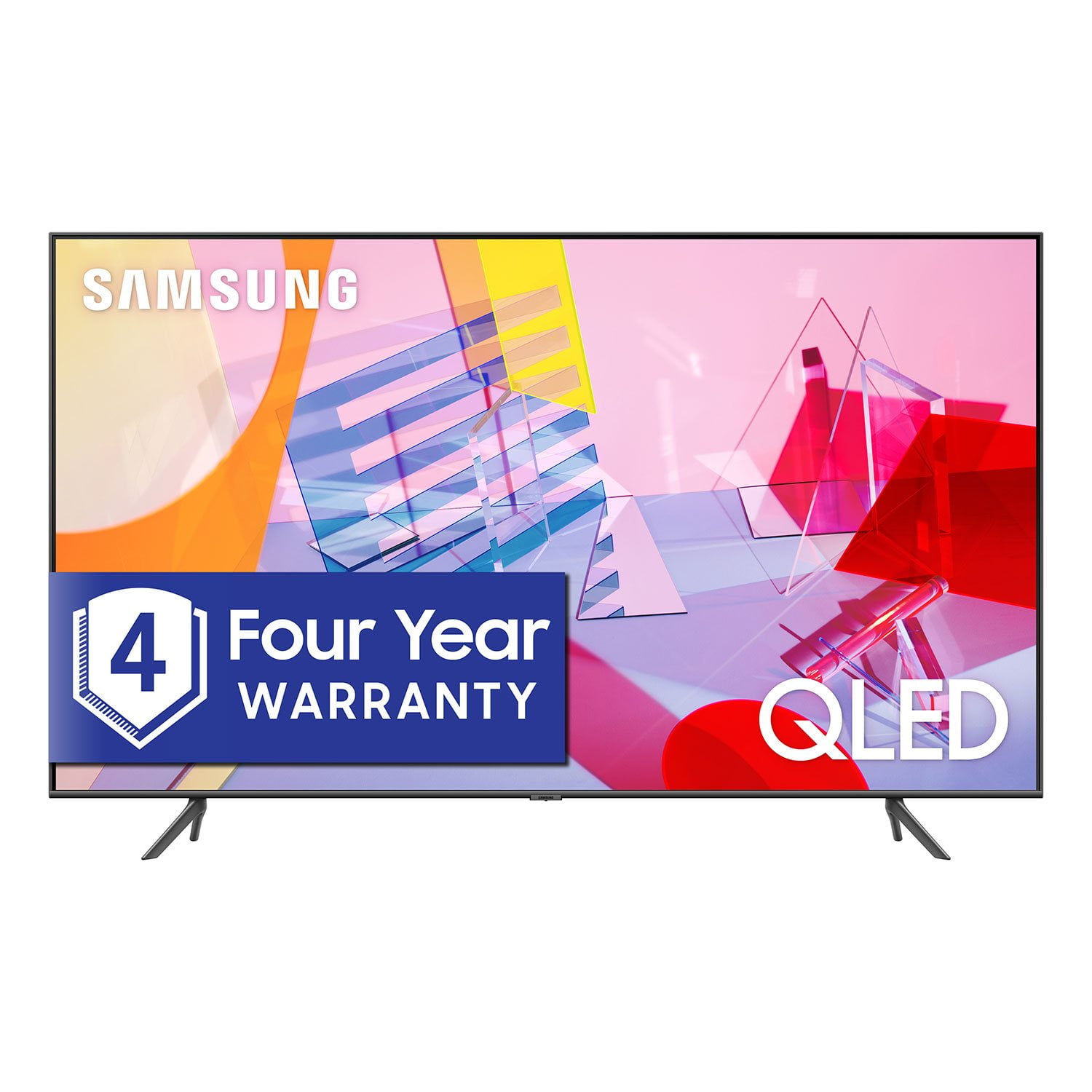
SAMSUNG 55" Class Q6DT-Series 4K Ultra HD QLED Smart TV - QN55Q6DTAFXZA (2020 Model)
4.7 out of 5 stars
stars2,111 ratings2,037 reviews
  1. 5 stars78% (1,656)
  2. 4 stars15% (321)
  3. 3 stars3% (56)
  4. 2 stars1% (22)
  5. 1 star3% (56)

Member photos

  • +13 images
Sort by |
Showing 1,251-1,260 of 2,037 reviews
Jul 23, 2021
Samsungsrock
5 out of 5 stars review

This tv picture is very clear and we love it!

[This review was collected as part of a promotion.] We use our tv for Netflix and Roku! Lots of Disney plus and amazing movies all around! Definitely a tv to look into getting

Review from Samsung US
Helpful?2NS8KJIS3KAL15252270711
Sep 22, 2020
Hoopit
5 out of 5 stars review

Easy setup and great functionality

[This review was collected as part of a promotion.] This tv makes is easy to switch between streaming services. Setup was easy...pretty much ready to go out of the box.

Review from Samsung US
Helpful?2NS8KJIS3KAL15252270711
Oct 26, 2020
Boss
5 out of 5 stars review

Wow!

[This review was collected as part of a promotion.] I have owned many tvs and this one by far the best!. The picture quality is amazing and the menu is so easy to use. I always wanted to try this qled and I'm very happy with my decision.

Review from Samsung US
Helpful?2NS8KJIS3KAL15252270711
Sep 15, 2020
Greattv
5 out of 5 stars review

Great features and picture!

[This review was collected as part of a promotion.] Love the TV and the features. We love all the apps that are included in the TV. Wish we would have went for the next larger one!

Review from Samsung US
Helpful?2NS8KJIS3KAL15252270711
Aug 5, 2020
WALLACE DAVIS
5 out of 5 stars review

If i didn't have a OLED first

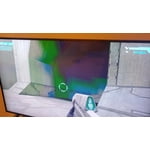
was very dissappointed with this tv looking slightly @ a angle color just start to fades badly. got it for gaming cause no burn in. would be very upset if was my entertaining tv

Review from Samsung US
Helpful?2NS8KJIS3KAL15252270711
reply from OBA

WALLACE DAVIS, Thank you for sharing your feedback. For optimal vieiwng angle, you may want to consider our Q80T and Q90T Series, featuring Ultra Viewing Angle engineered to reduce glare and enhance color for a vibrant picture no matter where you sit. Do you know that your Q60T QLED TV is guaranteed against burn-in for 10 years by our Q Guarantee ? You can rest assured that you will always have an incredible viewing experience. No need to worry about screen burn in with the health meters, status bars, and level maps of your favorite games. If there is anything else we can do to assist you and provide solutions to improve your experience, please contact Samsung Support at 1-800-SAMSUNG (available 8AM -12AM EST, 7 days a week) Or visit us on the Samsung website and click on the ‘Support’ link in the upper right corner of the homepage for: 1) Contact Us Options (LiveChat, Remote Support, Facebook, Twitter) 2) Product Support 3) Manuals and Downloads 4) Warranty Info 5) Product Registration: Registering your product gives you access to easy warranty support, convenient opt-in to special promos and offers, faster troubleshooting and service, and quick notification of system updates 6) Samsung Community: A great resource for getting help from Samsung moderators and customers and more 7) …and more product, repair, order, and care options -Samsung Ambassador

Oct 6, 2020
SHEEP
5 out of 5 stars review

TV

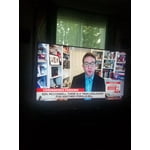
[This review was collected as part of a promotion.] This product has exceptional picture quality however, the sound has to be turned up way to high to hear.

Review from Samsung US
Helpful?2NS8KJIS3KAL15252270711
Oct 26, 2020
Jonny123
5 out of 5 stars review

Love my samsung! The picture is beautiful.

[This review was collected as part of a promotion.] The picture quality's amazing! More than I expected, samsung nailed it with another great product.

Review from Samsung US
Helpful?2NS8KJIS3KAL15252270711
Oct 15, 2020
bwills20
4 out of 5 stars review

Great feat

[This review was collected as part of a promotion.] Perfect, crystal clear picture and sound. Highly recommended. Many awesome features. Will soon purchase another for a game room/theater room.

Review from Samsung US
Helpful?2NS8KJIS3KAL15252270711
Jun 29, 2021
Phillie
3 out of 5 stars review

Same as any other Samsung

[This review was collected as part of a promotion.] It's not 82” it's 48”. I thought it was supposed to work with Google and I have no google functions. I can't do anything with voice recognition

Review from Samsung US
Helpful?2NS8KJIS3KAL15252270711
reply from Samsung Brand Ambassador

Hi Phillie, Thank you for purchasing the 82” Q60T TV. Please know that the industry standard when measuring screen size refers to the measurement of the screen when measured diagonally. The measurements of your 82” model are 72.1" x 41.1" x 2.5" (WxHxD) when measured without the stand. Measurements can be found on the product page on the Samsung website by clicking on SPECS and then on SEE ALL SPECS. Samsung Smart TVs let you sync with Google Home, allowing you the convenience of using voice commands for certain functionalities, such as power on/off, volume up/down, channel change, input source change, and playback control. Here is a step-by-step guide for syncing with Google Home: 1) Make sure you have the SmartThings app on your mobile device. Add your TV device to the SmartThings app. 2) Open the Google Home app on your phone. If you do not have the app on your phone, you can search for Google Home in the Google Play Store and download the app. 3) Select the Add button. On the next screen select Set Up Device. 4) Press on the text under the title Works with Google. Here you will see a list of accounts. Scroll down until you see SmartThings and select it or search SmartThings by pressing the search icon in the top right-hand corner. 5) Once you have selected SmartThings , press the “Sign in with Samsung Account”’ and use the same Samsung Account which you used to sign in on the SmartThings app on your mobile. 6) The TV will be added automatically. If you have not already set up your TV's voice assistant functions, the TV must be connected to the internet. Go to Settings > General > Voice > Voice Assistant to select which Voice Assistant you would like to help control your TV (Bixby, Amazon Alexa, or Google Assistant) To use the Voice Assistant, follow the instructions on the TV screen to enable the selected Voice Assistant. To enable the Settings menus for each Voice Assistant, log into each Voice Assistant. To run your selected Voice Assistant, press and hold the button, say a command, and then release the button to run Voice Assistant. The Samsung Smart Remote may not recognize your voice when it is far away from you, turned upside down, or located in an environment with loud ambient noise. Use the Samsung Smart Remote less than 2 feet (1.5 m) from you with the remote control buttons facing upward. If you have already set up your Voice Assistant, your issue might be with your remote. For further assistance, please contact Samsung Customer Support. You can call us at 1-800-SAMSUNG (ask for TVs), available 8AM -12AM EST, 7 days a week. Or text HELP to 62913. For additional support resources, visit us on the Samsung website and click on the ‘Support’ link in the upper right corner of the homepage for: 1) More ‘Contact Us’ options – LiveChat, Facebook, Twitter, Samsung Community, Samsung Members app 2) Manuals & Software 3) Warranty Info 4) Product Registration: For access to easy warranty support, convenient opt-in to special promos and offers, faster troubleshooting and service, and quick notification of system updates. ~ Samsung Specialist

Oct 21, 2020
Mreagleone
5 out of 5 stars review

Great features

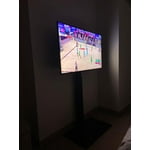
[This review was collected as part of a promotion.] The TV is very easy to use. There are alot of features. Has a great picture. Was easy to set up on the wall not very heavy so was easy.

Review from Samsung US
Helpful?2NS8KJIS3KAL15252270711