
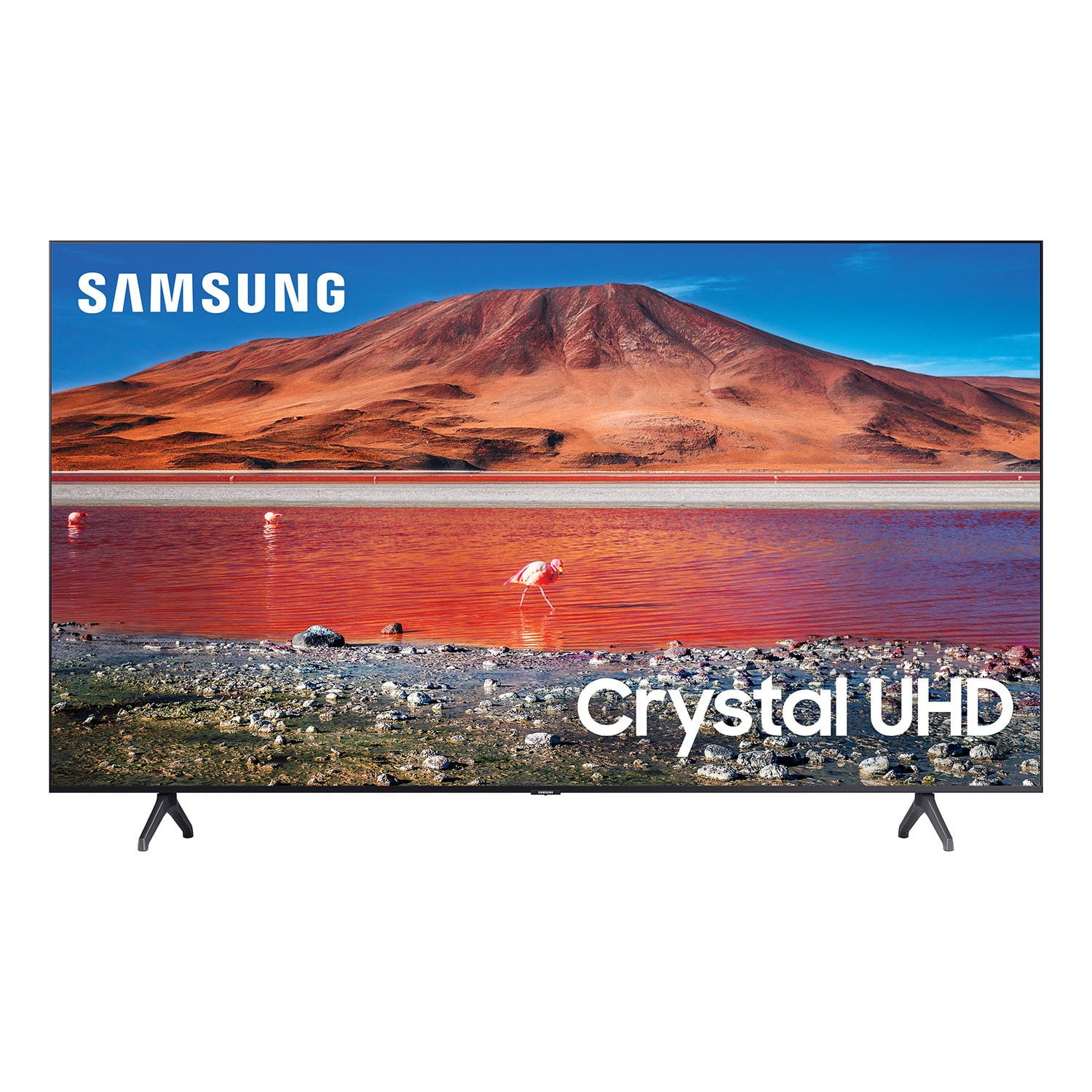
 Customer reviews for SAMSUNG 43" Class TU700D-Series Crystal Ultra HD 4K Smart TV UN43TU700DFXZA for
Great picture/but that's it
Got this for Christmas!! Do not want to disappoint the person that got it for me but would rather have my old LG. While the picture is great the software is garbage. It's slow, the remote in my opinion has entirely too many buttons when thinking my other 3 TVs (Amazon fire, Roku) remotes are so seamless. I hit the button on my remote and it will shift 3 times to my one push. I've also noticed maybe a refresh issue on the TV. It's like there is a delay at times in processing whatever is on TV. Also do not like that you can not add additional apps or that Alexa is very limited in what she'll do with the TV. I will just be plugging a fire stick into and going back to that remote and software.
Hello Josh T, I’m sorry to hear you’re not completely satisfied with your TU7000 TV remote and interface. Your feedback is very important to us and will be shared with our product team. Please allow us to look into this for you so we can provide additional settings adjustments or troubleshooting assistance. Please call us at 1-800-SAMSUNG, 8 AM - 12 AM EST, seven days a week. Our LiveChat agents are also available by clicking on the ‘Support’ link on our website. ~ Samsung Advisor
great features
[This review was collected as part of a promotion.] love this tv cause its easy to use and the smart tv is just perfect to connect to you tube Netflix and Disney for the kids also the quality of the tv is just perfect. the only thing about Samsung tv is that the sound is very low need to put high to listen to it, especially when watching a action movie
Ultra fast and convenient
[This review was collected as part of a promotion.] The tv works great with all new smartphones. Using features such as airplay is awesome and way faster than other tv products out in the market. The crystal 4k screen is super crazy. It first seemed unrealistic to me.
Great tv
[This review was collected as part of a promotion.] Overall it is a fantastic tv. I would give it 4.5 stars if I could. From a user experience perspective, it has some issues. When turning the tv on after being on standby, the tv resets to the home screen even if one of the "smart buttons" is pushed. Also, in my opinion, the arrow buttons are too far down on the remote. It takes a little getting used to. This is only a minor annoyance. The first few weeks that we had the tv I noticed a slight flicker on the screen, which seemingly has not been a noticeable issue since then. On the bright side, the picture quality is great and the sound is too. It is thin, clear, and clean.
Brilliant Picture Easy Setup
my iast three tvs have been samsung's so i guess i ts safe to say i am a fan. this one replaced an 8 year old 55" tv whose screen began to develop bright spots. i felt it was time to upgrafe to a new and larger model to take advantage of more built in apps. the unit was very easy to set up and the picture is fantastic. one drawback that i wish samsung would fix petmanently is that the remote is not iluminated. short of that, im very happy with thus purchase and woukd highly recomnend it as the best in its oruce range.
Decent 4k TV
[This review was collected as part of a promotion.] I use the TV mainly for streaming movies and series, watching blu-rays, and PS4 gaming. The picture quality is great, sound is good, and Game Mode works well for video games. There is a good selection of built-in apps for streaming. But there are white lines that sometimes appear on the sides of the screen. They can be pretty distracting.
Excellent!!
[This review was collected as part of a promotion.] I use it for gaming and TV regular use like watching movies and sports. The image is great and easy to adapt to any use. The smart hub is very convenient, I can watch many streaming services directly on the TV without additional hardware. This is very useful and saves time. This TV also recognizes my PS4 and switches the image to gaming mode automatically.
Picture Quality
i have had a samsung tv for over 6 years, so when i decided to upgrade to a 4k tv - i went with a samsung. this was a good price. however, unlike my older tv, i found the picture keeps needing to be adjusted. it was either to bright or too dark. any motion created ghosting and drag. i looked up the manual, seached for help options and nothing is fixing the problem. i have had several software upgrades. that has helped, but not with the motion drag or dark colors. a few months later i bought a samsung qled for my bedroom. like my 6 year old samsung, i loved it right out of thr box. no tweaking needed. i updated my modem that handles 4k. i have 4k hdmi cables on both my 4k tv's. this did not help the quality of my tu7000 at all. if i could return this tv i would.
Michelle: Thank you for choosing the Samsung TU7000 TV and for sharing your feedback with us. For optimal motion image performance, you may want to adjust the picture clarity setting by going to: Settings > Picture > Expert Settings > Picture Clarity Settings - Off: Picture Clarity Settings will always be off - Auto: Picture Clarity Settings will automatically activate and deactivate based on the type of program being watched - Custom: Allows custom adjustments and settings to be used. By selecting the Custom option, you can access these advanced settings for Judder Reduction, LED Clear Motion, and Noise Reduction. There are several image settings you can adjust to your liking such as Picture Mode and Expert Settings. Choose a Picture Mode by going to Settings > Picture > Picture Mode and choose from Dynamic, Standard, Natural, Movie, or Filmmaker Mode. You can further adjust your sharpness, brightness, contrast, color, tint, contrast, white balance, and more by going to Settings > Picture > Expert Settings You may also want to disable Power Saving Mode which automatically adjusts the brightness to reduce the TV’s power consumption. Go to Settings> General> Eco Solution> Power Saving Mode. Ambient Light Detection will also automatically adjust the brightness level of the TV, according to the ambient light level, to reduce power consumption. If Ambient Light Detection has adjusted the screen brightness to a too bright or dark level, you can select Minimum Brightness to manually adjust the minimum screen brightness. Go to Settings> General> Eco Solution> Ambient Light Detection Please also give us the opportunity to assist you with image quality adjustments tailored to your preferred viewing experience. You can reach us via any of the following options: 1-800-SAMSUNG (ask for TVs), available 8AM -12AM EST, 7 days a week Or visit us on the Samsung website and click on the ‘Support’ link in the upper right corner of the homepage for: 1) Contact Us Options (LiveChat, Remote Support, Facebook, Twitter) 2) Product Support 3) Manuals and Downloads 4) Warranty Info 5) Product Registration: Registering your product gives you access to easy warranty support, convenient opt-in to special promos and offers, faster troubleshooting and service, and quick notification of system updates 6) Samsung Community: A great resource for getting help from Samsung moderators and customers and more 7) …and more product, repair, order, and care options ~ Samsung Solutions
One remote does not work
the pucture quality is great but the one remote does not work well. it was able to connect and find my cable company and then all of a sudden it dropped out. now i have to use both the cable and the tv remote to work the tv. i'm also not a fan of the interface of the tv. the operating systems is very confusing and not user friendly at all. ive tried to resest the whold system and start from scratch and it still wont work. i also dont like how evertime i hit the guid button it goes to samsungtv.
Will: Thank you for sharing your review of the Samsung TU7000 and for sharing your user experience with the remote and user interface. So we can better understand the problems you are experiencing and provide you with troubleshooting assistance or warranty service, please contact Samsung Customer Support. 1-800-SAMSUNG (ask for TVs), available 8AM -12AM EST, 7 days a week Or visit us on the Samsung website and click on the ‘Support’ link in the upper right corner of the homepage for: 1) Contact Us Options (LiveChat, Remote Support, Facebook, Twitter) 2) Product Support 3) Manuals and Downloads 4) Warranty Info 5) Product Registration: Registering your product gives you access to easy warranty support, convenient opt-in to special promos and offers, faster troubleshooting and service, and quick notification of system updates 6) Samsung Community: A great resource for getting help from Samsung moderators and customers and more 7) …and more product, repair, order, and care options ~ Samsung Solutions
Poor quality
i bought a new one. used only 40 days and problem happens. the picture is distorted, blur either i watched tv channel or youtube. turned off tv and turned on again, problem still occured. have to reset the tv, then it became normal. i am going to ask for replacement or return
Duc Pham: Thank you for purchasing the TU7000 TV. I am very sorry for the color glitch issue you encountered. Please check that your TV has the latest firmware update, which should resolve your issue. To update directly from your TV, press the HOME button on your remote. - Go to SETTINGS (gear icon) > Support > Software Update > Update Now - Your TV will check for the update and should start downloading the update. After the update is installed the TV will shut down and restart. Once the TV restarts, press and hold the Power button until the TV turns off and back on. If your TV is not connected to the internet, follow these steps to update the firmware. - You can find the update (ver 1401.7) at: samsung.com/us/support/owners/product/crystal-uhd-tvs-tu7000-2020 - Extract the firmware to the root of a USB thumb drive. (Do not put it in any folders on the thumb drive.) - Connect the USB thumb drive to a USB port on your TV. - Navigate to Settings > Support > Software Update, select Update Now, and then select Yes. - The TV will install the update and then restart. - Once the TV restarts, press and hold the Power button on your remote until the TV turns off and back on. If your issue persists after the firmware update, please contact Samsung Customer Support. 1-800-SAMSUNG (available 8AM -12AM EST, 7 days a week) Or visit us on the Samsung website and click on the ‘Support’ link in the upper right corner of the homepage for: 1) Contact Us Options (LiveChat, Remote Support, Facebook, Twitter) 2) Product Support 3) Manuals and Downloads 4) Warranty Info 5) Product Registration: Registering your product gives you access to easy warranty support, convenient opt-in to special promos and offers, faster troubleshooting and service, and quick notification of system updates 6) Samsung Community: A great resource for getting help from Samsung moderators and customers and more 7) …and more product, repair, order, and care options - Samsung Solutions