Skip to Main Content
Sam's Club
Sam's Club
All Departments
All Services
Customer reviews for SAMSUNG 60" Class Q60B-Series QLED 4K Smart TV - QN60Q60BDFXZA for
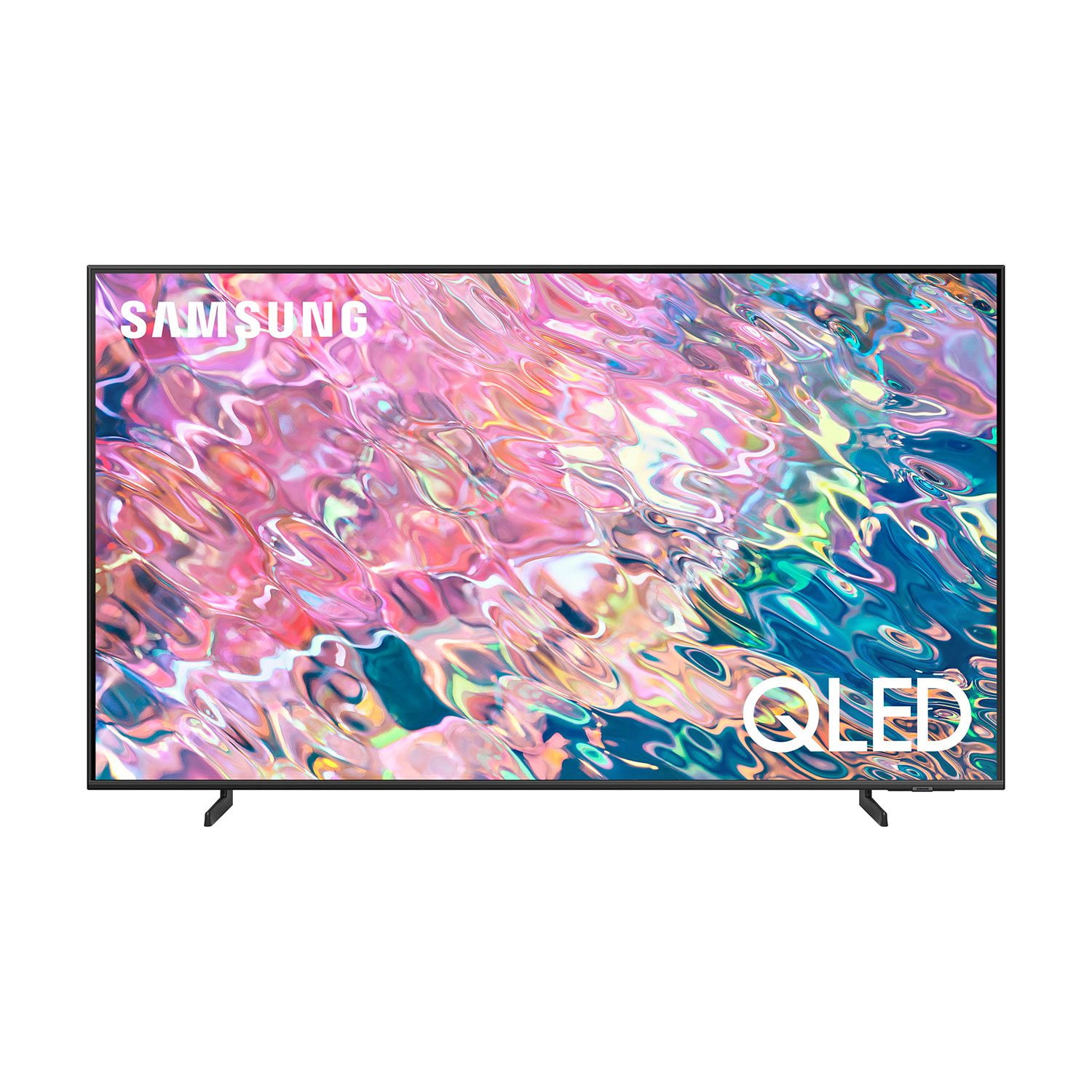
SAMSUNG 60" Class Q60B-Series QLED 4K Smart TV - QN60Q60BDFXZA
4.6 out of 5 stars
stars
1,193 ratings1,158 reviews
  1. 5 stars78% (932)
  2. 4 stars15% (174)
  3. 3 stars3% (35)
  4. 2 stars1% (13)
  5. 1 star3% (39)
Sort by |
Showing 791-800 of 1,158 reviews
Jun 13, 2022
Reviewer name: Billy8860
5 out of 5 stars
5 out of 5 stars review

Excellent TV experience

[This review was collected as part of a promotion.] I used my Samsung for my Fios system. Also movies and gaming. Great picture and sound! Adore this set!

Review from Samsung US
Helpful?6SAN7SCSYVEO13886713723
Oct 17, 2022
Reviewer name: akash3379
5 out of 5 stars
5 out of 5 stars review

Display quality is unreal

[This review was collected as part of a promotion.] This tv is awesome. It has best speakers, best GUI and best thing of this TV is its display. It is the best in this category

Review from Samsung US
Helpful?6SAN7SCSYVEO13886713723
Aug 18, 2022
Reviewer name: Relaxing2tv
5 out of 5 stars
5 out of 5 stars review

2AwesomeTV

[This review was collected as part of a promotion.] Great TV awesome picture simple all in one location easy to find apps and connected devices truly love it

Review from Samsung US
Helpful?6SAN7SCSYVEO13886713723
Jun 6, 2022
Reviewer name: OhSoEuphoric
5 out of 5 stars
5 out of 5 stars review

Perfect All-Rounder

[This review was collected as part of a promotion.] i use it mainly for twitch and gaming, and i have to say i love this thing. if i had more money i would have gotten the more expensive qled with hdmi 2.1 but it will come in time.

Review from Samsung US
Helpful?6SAN7SCSYVEO13886713723
Oct 25, 2022
Reviewer name: Miri01
5 out of 5 stars
5 out of 5 stars review

great tv for the office

[This review was collected as part of a promotion.] Very easy to set up and install, we are using it for meeting and training purposes the channels are great specially construction.

Review from Samsung US
Helpful?6SAN7SCSYVEO13886713723
Jun 16, 2022
Reviewer name: LCSupreme
5 out of 5 stars
5 out of 5 stars review

Great picture

[This review was collected as part of a promotion.] I use this TV for streaming and gaming mostly. Wow, the visuals are phenomenal and crisp. Very sturdy and thin in the best way possible, definitely recommend Samsung

Review from Samsung US
Helpful?6SAN7SCSYVEO13886713723
Jul 26, 2022
Reviewer name: Slobonthehill1230
4 out of 5 stars
4 out of 5 stars review

Great picture. Certain apps are problematic.

[This review was collected as part of a promotion.] YouTube TV app hangs constantly. Using remote to turn tv off works intermittently. Other than that it is a great tv with fantastic picture.

Review from Samsung US
Helpful?6SAN7SCSYVEO13886713723
reply from Samsung Brand Ambassador

Hi, We appreciate you sharing your experience with app and remote issues. Please do ensure your TV's firmware is up to date with version 1303, as this includes various performance improvements. You can check this by going to: Home > Menu > Settings > Support > Software Update. You may also want to further optimize performance with the self-diagnostic tool, which checks memory, frees up unused cached memory, and closes background apps. Go to: Home > Menu > Settings > Support > Device Care > Start Device Care If your app is still freezing, not loading, or crashing, you can try cold booting your TV by holding down the power button on your remote for 5+ sec until the TV turns off and on again, deleting and downloading the apps again, and completing full reset of Smart Hub to correct the issue. To address the issue with your remote, you may first want to reset your remote by pressing and holding Return and Enter (the center of the navigation pad) for more than 10 seconds. After performing this reset, you will need to pair the remote to the TV again. To pair, press the Return and Play/Pause buttons simultaneously for at least 5 seconds or until a message appears on your TV indicating that the remote is now connected. Please also check to see if your remote is charged. You can check remaining battery by going to: Settings > All Settings > General & Privacy > Power and Energy Saving > Available Remote Battery. If you need more help, Samsung is here for you. Please call us at 1-800-SAMSUNG, 8AM - 12AM EST, 7 days a week. Our LiveChat agents are also available by clicking on the ‘Support’ link on our website. ~ Samsung Specialist

Nov 24, 2023
Reviewer name: Debbie6809
4 out of 5 stars
4 out of 5 stars review

Pretty Good SmartTv

(This review was collected as part of a promotion.) Love my smart TV, easy to load apps or mirror my other devices to view or listen to their content. Also like the preloaded Samsung channels.

Review from Caddle
Helpful?6SAN7SCSYVEO13886713723
Oct 5, 2022
Reviewer name: Omarrie
4 out of 5 stars
4 out of 5 stars review

Great TV I love it!!!

[This review was collected as part of a promotion.] I have no issues with this TV, I love it, but only one flaw when playing my PS5 is that from bright scene to dark scenes is not smooth.

Review from Samsung US
Helpful?6SAN7SCSYVEO13886713723
reply from Samsung Brand Ambassador

Omarrie, I’m sorry to hear you’re not fully satisfied with the Q60B TV’s picture quality. If the image is too dim, please try disabling some of the TV's energy efficiency functions, as these will automatically adjust your picture and may cause your screen to appear brighter or darker than preferred. Go to: Home > Menu > Settings > All Settings > General & Privacy > Power and Energy Saving > turn off Brightness Optimization, Brightness Reduction, and Motion Lighting You may also want to try adjusting image settings to improve your picture. Go to Home > Menu > Settings > All Settings > Picture > Picture Mode 1) Standard: Is the default mode suitable for general viewing environments. 2) Movie: Is suitable for watching TV or movies in a dark room. 3) Dynamic: Makes the picture brighter and clearer in bright viewing environments. 4) Filmmaker Mode: You can watch the source content (e.g., movie) as it is. If the image is defined as Filmmaker Mode, it will automatically switch to Filmmaker Mode while watching. You can also customize the brightness level of your screen between 0 – 50 to your preference. Go to: Home > Menu > Settings > All Settings > Picture > Expert Settings Please also make sure you’ve got the latest firmware version installed on your TV. You can check this by going to: Home > Menu > Settings > Support > Software Update > Update Now I hope these tips help. Should you need further assistance, please call us at 1-800-SAMSUNG, 8AM - 12AM EST, 7 days a week. Or visit us on the Samsung website and click on the ‘Support’ link for: • LiveChat • Manuals, Software, & Warranty Info ~ Samsung Specialist

Aug 4, 2022
Reviewer name: CbtCork
4 out of 5 stars
4 out of 5 stars review

Amazing picture unless everything in frame is dark

[This review was collected as part of a promotion.] Love the color from Samsung. Menus are easy to navigate and the remote works great. My only complaint is the experience when everything in frame is dark. I can barely see anything in those moments.

Review from Samsung US
Helpful?6SAN7SCSYVEO13886713723
reply from Samsung Brand Ambassador

CbtCork, Thank you for your review of the Q60B TV. If the image you're seeing is too dim, please try disabling some of the TV's energy efficiency functions, as these will automatically adjust your picture and may cause your screen to appear brighter or darker than preferred. Go to: Home > Menu > Settings > All Settings > General & Privacy > Power and Energy Saving > turn off Brightness Optimization, Brightness Reduction, and Motion Lighting You may also want to try adjusting image settings to improve your picture. Go to Home > Menu > Settings > All Settings > Picture > Picture Mode 1) Standard: Is the default mode suitable for general viewing environments. 2) Movie: Is suitable for watching TV or movies in a dark room. 3) Dynamic: Makes the picture brighter and clearer in bright viewing environments. 4) Filmmaker Mode: You can watch the source content (e.g., movie) as it is. If the image is defined as Filmmaker Mode, it will automatically switch to Filmmaker Mode while watching. You can also customize the brightness level of your screen between 0 – 50 to your preference. Go to: Home > Menu > Settings > All Settings > Picture > Expert Settings Please also be sure your firmware is up to date with version 1303.0 which includes various performance and picture quality updates. You can check this by going to: Home > Menu > Settings > Support > Software Update > Update Now I hope these tips help. Should you need further assistance, please call us at 1-800-SAMSUNG, 8AM - 12AM EST, 7 days a week. Our LiveChat agents are also available by clicking on the ‘Support’ link on our website. ~ Samsung Specialist