Skip to Main Content
Sam's Club
Sam's Club
All Departments
All Services
Customer reviews for SAMSUNG 60" Class Q60B-Series QLED 4K Smart TV - QN60Q60BDFXZA for
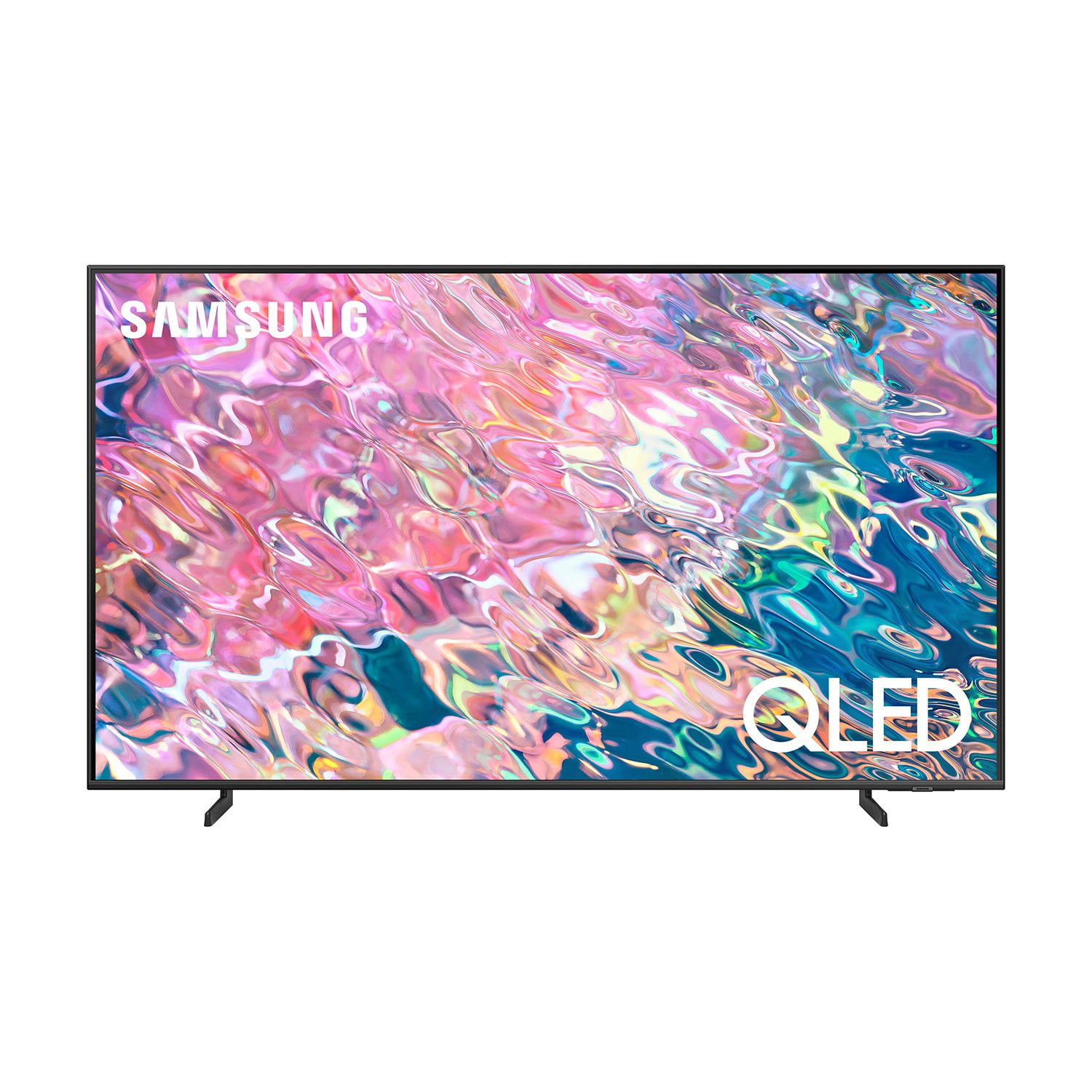
SAMSUNG 60" Class Q60B-Series QLED 4K Smart TV - QN60Q60BDFXZA
4.6 out of 5 stars
stars
1,193 ratings1,158 reviews
  1. 5 stars78% (932)
  2. 4 stars15% (174)
  3. 3 stars3% (35)
  4. 2 stars1% (13)
  5. 1 star3% (39)
Sort by |
Showing 601-610 of 1,158 reviews
Oct 19, 2022
Reviewer name: Aiden9816
4 out of 5 stars
4 out of 5 stars review

This product has great screen resolution

[This review was collected as part of a promotion.] For all my sports and shows we do family night and if course the playstation and projector it's used everyday and we have several samsung tvs

Review from Samsung US
Helpful?6SAN7SCSYVEO13886713723
Oct 5, 2022
Reviewer name: Samsungfan
5 out of 5 stars
5 out of 5 stars review

Great Picture

[This review was collected as part of a promotion.] I use this as my TV for my bedroom. Picture is vibrant and clear. The Apps are easy to access and the solar remote has yet to need charging. Been a great purchase for the price.

Review from Samsung US
Helpful?6SAN7SCSYVEO13886713723
Oct 25, 2022
Reviewer name: Krobey
5 out of 5 stars
5 out of 5 stars review

This product is great clear screen

[This review was collected as part of a promotion.] I play games watch movies the screen is clear and I'm so happy I bought it I would definitely buy another and tell all my friends to buy one

Review from Samsung US
Helpful?6SAN7SCSYVEO13886713723
May 23, 2022
Reviewer name: Dino214
5 out of 5 stars
5 out of 5 stars review

The best tv I've ever owned

[This review was collected as part of a promotion.] The best tv I've ever owned. I'm a gamer and a movie buff. This is the best tv for both. Crystal clear picture and it capture's every detail and visual effect there is. Nothing can top a Samsung tv

Review from Samsung US
Helpful?6SAN7SCSYVEO13886713723
Oct 24, 2022
Reviewer name: Lovemygalaxy
5 out of 5 stars
5 out of 5 stars review

Absolutely love my samsung tv!243lukp

[This review was collected as part of a promotion.] Using my tv for all my gaming needs is amazing. I love the seamlessly connection when I plug the hdmi in. Love the fact that I can connect my phone to the tv for easy showing.

Review from Samsung US
Helpful?6SAN7SCSYVEO13886713723
Oct 5, 2022
Reviewer name: Lizlovesbiking
5 out of 5 stars
5 out of 5 stars review

Love this TV

[This review was collected as part of a promotion.] Love this TV! Beautiful picture. It works flawlessly with the Samsung surround sound and Amazon's fire tv. All three work on one remote, no programming required.

Review from Samsung US
Helpful?6SAN7SCSYVEO13886713723
Aug 4, 2022
Reviewer name: CbtCork
4 out of 5 stars
4 out of 5 stars review

Amazing picture unless everything in frame is dark

[This review was collected as part of a promotion.] Love the color from Samsung. Menus are easy to navigate and the remote works great. My only complaint is the experience when everything in frame is dark. I can barely see anything in those moments.

Review from Samsung US
Helpful?6SAN7SCSYVEO13886713723
reply from Samsung Brand Ambassador

CbtCork, Thank you for your review of the Q60B TV. If the image you're seeing is too dim, please try disabling some of the TV's energy efficiency functions, as these will automatically adjust your picture and may cause your screen to appear brighter or darker than preferred. Go to: Home > Menu > Settings > All Settings > General & Privacy > Power and Energy Saving > turn off Brightness Optimization, Brightness Reduction, and Motion Lighting You may also want to try adjusting image settings to improve your picture. Go to Home > Menu > Settings > All Settings > Picture > Picture Mode 1) Standard: Is the default mode suitable for general viewing environments. 2) Movie: Is suitable for watching TV or movies in a dark room. 3) Dynamic: Makes the picture brighter and clearer in bright viewing environments. 4) Filmmaker Mode: You can watch the source content (e.g., movie) as it is. If the image is defined as Filmmaker Mode, it will automatically switch to Filmmaker Mode while watching. You can also customize the brightness level of your screen between 0 – 50 to your preference. Go to: Home > Menu > Settings > All Settings > Picture > Expert Settings Please also be sure your firmware is up to date with version 1303.0 which includes various performance and picture quality updates. You can check this by going to: Home > Menu > Settings > Support > Software Update > Update Now I hope these tips help. Should you need further assistance, please call us at 1-800-SAMSUNG, 8AM - 12AM EST, 7 days a week. Our LiveChat agents are also available by clicking on the ‘Support’ link on our website. ~ Samsung Specialist

Oct 5, 2022
Reviewer name: Omarrie
4 out of 5 stars
4 out of 5 stars review

Great TV I love it!!!

[This review was collected as part of a promotion.] I have no issues with this TV, I love it, but only one flaw when playing my PS5 is that from bright scene to dark scenes is not smooth.

Review from Samsung US
Helpful?6SAN7SCSYVEO13886713723
reply from Samsung Brand Ambassador

Omarrie, I’m sorry to hear you’re not fully satisfied with the Q60B TV’s picture quality. If the image is too dim, please try disabling some of the TV's energy efficiency functions, as these will automatically adjust your picture and may cause your screen to appear brighter or darker than preferred. Go to: Home > Menu > Settings > All Settings > General & Privacy > Power and Energy Saving > turn off Brightness Optimization, Brightness Reduction, and Motion Lighting You may also want to try adjusting image settings to improve your picture. Go to Home > Menu > Settings > All Settings > Picture > Picture Mode 1) Standard: Is the default mode suitable for general viewing environments. 2) Movie: Is suitable for watching TV or movies in a dark room. 3) Dynamic: Makes the picture brighter and clearer in bright viewing environments. 4) Filmmaker Mode: You can watch the source content (e.g., movie) as it is. If the image is defined as Filmmaker Mode, it will automatically switch to Filmmaker Mode while watching. You can also customize the brightness level of your screen between 0 – 50 to your preference. Go to: Home > Menu > Settings > All Settings > Picture > Expert Settings Please also make sure you’ve got the latest firmware version installed on your TV. You can check this by going to: Home > Menu > Settings > Support > Software Update > Update Now I hope these tips help. Should you need further assistance, please call us at 1-800-SAMSUNG, 8AM - 12AM EST, 7 days a week. Or visit us on the Samsung website and click on the ‘Support’ link for: • LiveChat • Manuals, Software, & Warranty Info ~ Samsung Specialist

Oct 17, 2022
Reviewer name: akash3379
5 out of 5 stars
5 out of 5 stars review

Display quality is unreal

[This review was collected as part of a promotion.] This tv is awesome. It has best speakers, best GUI and best thing of this TV is its display. It is the best in this category

Review from Samsung US
Helpful?6SAN7SCSYVEO13886713723
Oct 5, 2022
Reviewer name: Chasmo
5 out of 5 stars
5 out of 5 stars review

Great picture

[This review was collected as part of a promotion.] My brother just overpaid for another brand and was amazed at how clear the Samsung picture is. Also like all the Sansung channels and how easy it is to use streaming apps.

Review from Samsung US
Helpful?6SAN7SCSYVEO13886713723