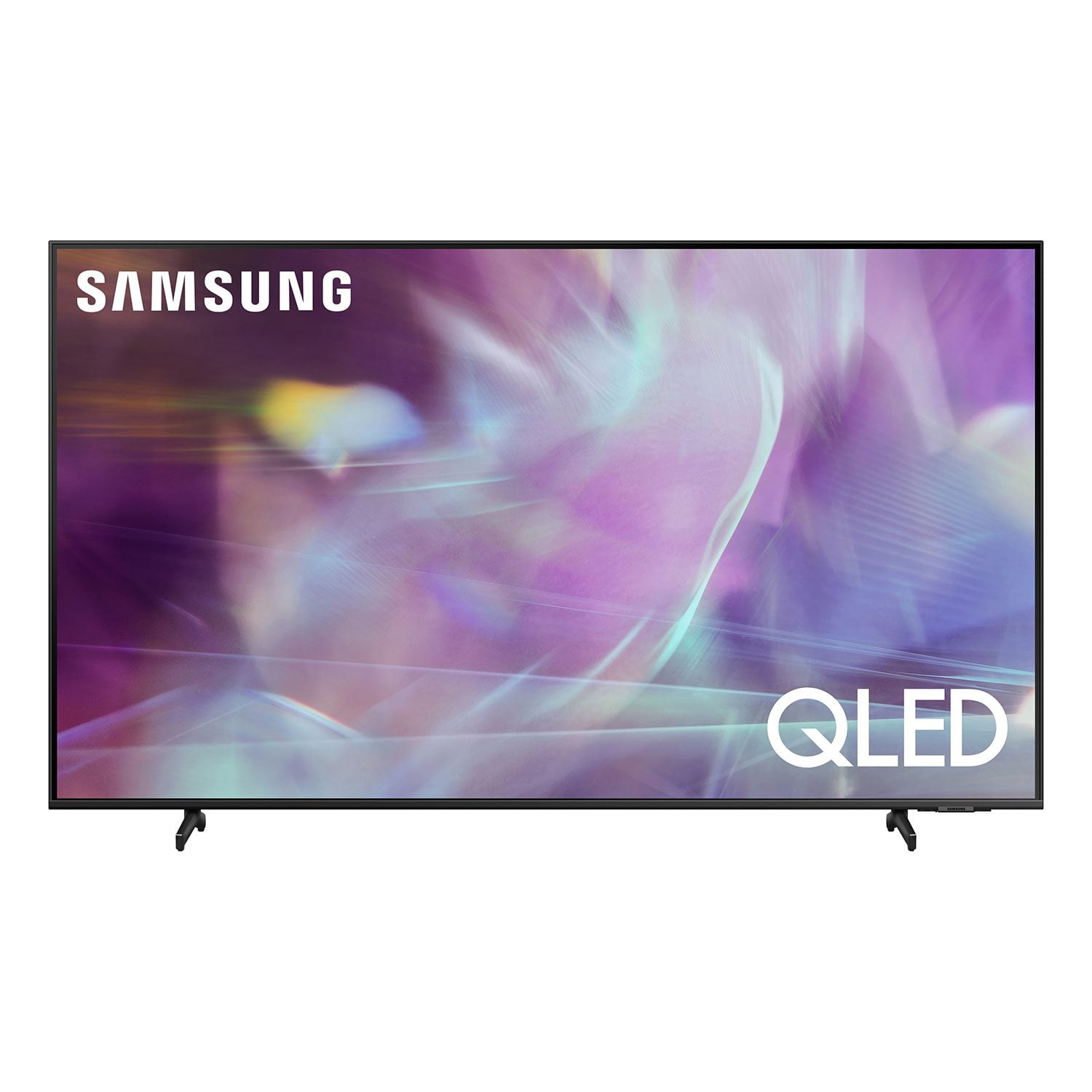
reply from Samsung Brand Ambassador
Hi Petey,
Thank you for sharing your thoughts on the picture quality of your new 2021 Q80A QLED 4K TV. To optimize your picture quality, please be sure your firmware is up to date with version 1560.5 which includes picture quality updates. You can check this by going to: Settings > Support > Software Update.
If the picture you are seeing is still not to your liking, there are several picture settings you may want to try adjusting.
You can select the Picture Mode that provides the best viewing experience. Go to Home > Settings > Picture > Picture Mode
1) Standard: Is the default mode suitable for general viewing environments.
2) Natural: Reduces eye strain for a comfortable viewing experience.
3) Movie: Is suitable for watching TV or movies in a dark room.
4) Dynamic: Makes the picture brighter and clearer in bright viewing environments.
5) Filmmaker Mode: You can watch the source content (e.g., movie) as it is. If the image is defined as Filmmaker Mode, it will automatically switch to Filmmaker Mode while watching.
In addition to the picture modes on your TV, you may also want to try adjusting additional picture settings if the picture you are seeing is not to your liking.
You can go to: Settings > Picture > Expert Settings and configure the TV settings to your taste with functions such as Brightness, Contrast, Sharpness, Color, Tint (G/R), Picture Clarity Settings, Local Dimming, Contrast Enhancer, and many more.
Intelligent Mode also enables the TV to recognize and analyze the surroundings, noise, content, and your usage patterns to provide the best viewing experience. You can enable Intelligent Mode by going to Home > Settings > General > Intelligent Mode Settings. Adaptive Picture, which is among the options, optimizes brightness and provides the best picture quality in real time, based on the lighting condition and the content you're viewing.
To assist you in learning the various functions, features and settings, you can download the Q80A TV's User Manual, e-Manual, Remote Control Leaflet, and Quick Setup Guide on Samsung's website by clicking "Support" > "Manuals & Software" > "TVs & Home Theater" > "TVs". From there, you can select the Q80A TV under "4K QLED TVs” > “A Model Lineup" and download the guides you would like. The e-Manual is also embedded into the TV itself under Settings > Support > Open e-Manual.
I hope you can use these tips and adjustment recommendations to set the image to your liking. If you would like further assistance with settings, features, or functions, please reach out to Samsung Customer Support at 1-800-SAMSUNG (ask for TVs), available 8AM -12AM EST M-F (9AM – 6PM EST Sat). Or text HELP to 62913.
For additional support resources, visit us on the Samsung website and click on the ‘Support’ link in the upper right corner of the homepage for:
1) More ‘Contact Us’ options – LiveChat, Facebook, Twitter, Samsung Community, Samsung Members app
2) Manuals & Software
3) Warranty Info
4) Product Registration: For access to easy warranty support, convenient opt-in to special promos and offers, faster troubleshooting and service, and quick notification of system updates.
~ Samsung Specialist