Skip to Main Content
Sam's Club
Sam's Club
Customer reviews for SAMSUNG 75" Class DU7200 Series 4K Smart TV for
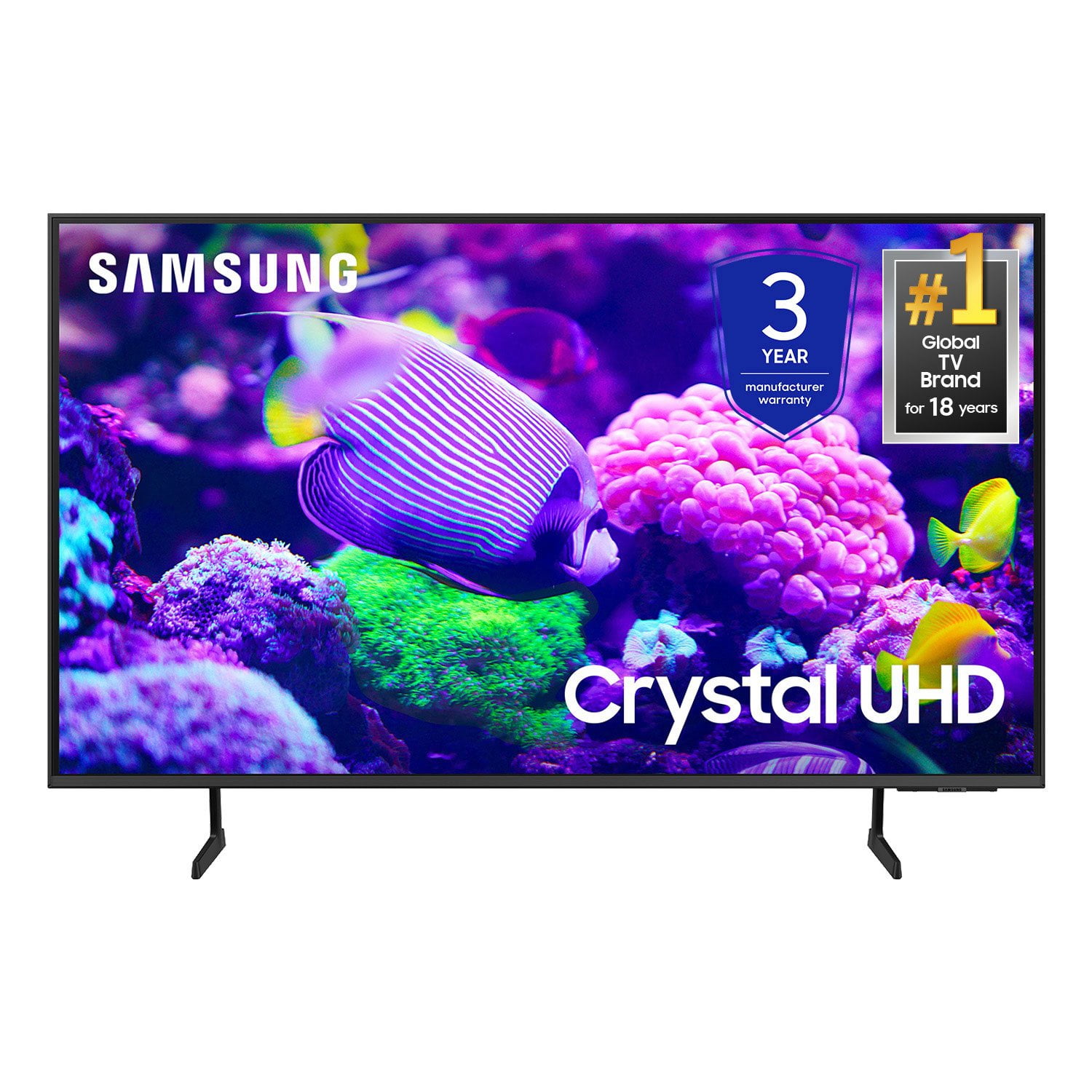
SAMSUNG 75" Class DU7200 Series 4K Smart TV
4.3 out of 5 stars
stars1,119 ratings1,016 reviews
  1. 5 stars62% (692)
  2. 4 stars19% (214)
  3. 3 stars9% (97)
  4. 2 stars5% (54)
  5. 1 star6% (62)

Member photos

  • +169 images
Sort by |
Showing 541-550 of 1,016 reviews
Nov 4, 2024
HokageD
5 out of 5 stars review

Best tv to own

[This review was collected as part of a promotion.] Excellent resolution and image. Fast wifi antenna. Easy-to-use interface. Simple setup and use of smart TV functionality. Would buy again.

Review from Samsung US
Helpful?5FRN1844BKE813872250918
Apr 22, 2025
Tammers
5 out of 5 stars review

Great product!

The Samsung TV is the best. We've owned Samsung TV's for the last 25 years and haven't had any issues. We just bought our son a new Samsung this past Christmas and he's very happy with it. We currently have 4 Samsung TV's in our home.

Review from Samsung US
Helpful?5FRN1844BKE813872250918
Mar 5, 2025
keelwj
4 out of 5 stars review

TV Apps

TV (2) setup was easy. Only issue was adding apps as it is not intutive as how to add them to the main menu. One can delete apps no problem; but add needs improvements.

Review from Samsung US
Helpful?5FRN1844BKE813872250918
Feb 8, 2025
Santa Poppa
5 out of 5 stars review

Great picture and features!

I bought this television to replace one that had stopped receiving wifi very well. This one is excellent and has a beautiful picture along with many features I didn't have before.

Review from Samsung US
Helpful?5FRN1844BKE813872250918
May 20, 2025
Nick
3 out of 5 stars review

Processor

The TV is great however the processor is very slow for being a smart TV. We have tried clearing cache and removing apps but does not seem to speed up the TV. Seems like apps load very slowly compared to other TV's.

Review from Samsung US
Helpful?5FRN1844BKE813872250918
reply from Samsung Advisor

Hi Nick, We appreciate your feedback regarding your DU7200 TV’s performance. If you're experiencing slow apps, freezing, or lag in general response time, try the following steps: 1. Check for firmware updates – Keeping your TV up to date can resolve many performance issues: Home > left directional key > Settings > Support > Software Update > Update Now 2. Run Device Care – This tool checks system memory, frees up cached data, and closes background apps that could be slowing things down: Home > left directional key > Settings > Support > Device Care > Start Device Care 3. Cold boot your TV – With the TV powered on, press and hold the Power button on your remote for 5+ seconds until the TV restarts. This helps refresh the system. If you're still noticing performance issues after these steps, please contact Samsung Support at 1-800-SAMSUNG, 8AM – 12AM EST, 7 days a week. You can also connect with a LiveChat agent via the ‘Support’ link on our website. ~ Samsung Advisor

Feb 5, 2025
Theatsa
4 out of 5 stars review

Bad remote

I bought this TV a few weeks And the remote control needs to be reset about once a week. I know how to do it but nobody else in my household does and it’s a pain in the butt.

Review from Samsung US
Helpful?5FRN1844BKE813872250918
Mar 5, 2025
Cybdiver
3 out of 5 stars review

Missed potential

The picture is good the speakers are awful, there's no way to go directly to a channel without scrolling. The blue tooth is not the latest considering the set was recently manufactured. I gave it 3 stars for picture quality.

Review from Samsung US
Helpful?5FRN1844BKE813872250918
reply from Samsung Advisor

Hi Cybdiver, Thank you for your feedback. Please know your opinion is important to us and will be shared with our internal teams. Regarding audio issues, there are several volume features you can adjust, which may improve your audio experience. 1) Auto Volume automatically adjusts the sound to a certain level when changing channels or switching to another external input. Go to Settings > All Settings> Sound > Expert Settings > Auto Volume. 2) Adaptive Sound automatically adjusts to a specific volume level while watching TV. The TV analyzes your volume usage history by time period to automatically adjust the volume when you use an app or switch to an external input source. Go to Settings> All Settings> Sound> Sound Mode> Adaptive Sound. 3) Several Sound Modes are likewise available to meet your personal preferences: Home > Settings > All Settings> Sound > Sound Mode. To select a channel on your TV, press the 123/Settings button on your remote. Then select the number keypad and enter the channel number. The Bluetooth in the DU7200 TV is up to date and should connect to your external Bluetooth devices. If you need more help, Samsung is here for you! Please call us at 1-800-SAMSUNG, 8 AM - 12 AM EST, seven days a week. Our LiveChat agents are also available by clicking on the ‘Support’ link on our website. ~ Samsung Advisor

Apr 20, 2025
Ruthie
5 out of 5 stars review

Easy Menuing

I'm 81, and I was used to my ways, but once my great grandson, who's 8, set it up and showed me how to use it, it's very common sense, and I love it.

Review from Samsung US
Helpful?5FRN1844BKE813872250918
May 5, 2025
Cjb74
3 out of 5 stars review

Just OK

Like my old Samsung much better. Speaker in this new one is really bad. Have to turn the volume up to 80-90 on some programs to even hear it.

Review from Samsung US
Helpful?5FRN1844BKE813872250918
reply from Samsung Advisor

Hi Cjb74, Thank you for purchasing Samsung’s DU7200 TV and for sharing your feedback regarding low volume. To start, we recommend making sure your TV is running the latest firmware, as updates can include improvements to sound performance: Home > left directional key > Settings > Support > Software Update If volume levels still seem too low, you can improve sound performance by adjusting a few key settings: Sound Mode: Navigate to: Settings > All Settings > Sound > Sound Mode Auto Volume: This feature helps maintain consistent volume levels across content and input sources. Turn it on under: Settings > All Settings > Sound > Expert Settings > Auto Volume = On You can also explore Expert Settings to fine-tune sound output with adjustments for Balance, Equalizer, and more. If you’re considering enhancing your setup, Samsung’s Q- and S-Series Soundbars (like the HW-xxx) feature Q-Symphony, which syncs your TV and soundbar speakers for a fuller, more immersive sound experience. For personalized support with these settings or selecting a soundbar to complement your setup, contact Samsung Support at 1-800-SAMSUNG (8AM – 12AM EST, 7 days a week) or use LiveChat via the ‘Support’ link on our website. ~ Samsung Advisor

Jul 22, 2024
kandikane
5 out of 5 stars review

This product is nice

[This review was collected as part of a promotion.] It's better than my old tv. Hopefully it remains good for a long time.

Review from Samsung US
Helpful?5FRN1844BKE813872250918