Skip to Main Content
Sam's Club
Sam's Club
All Departments
All Services
Customer reviews for SAMSUNG 65" Class DU7200 Series 4K Smart TV for
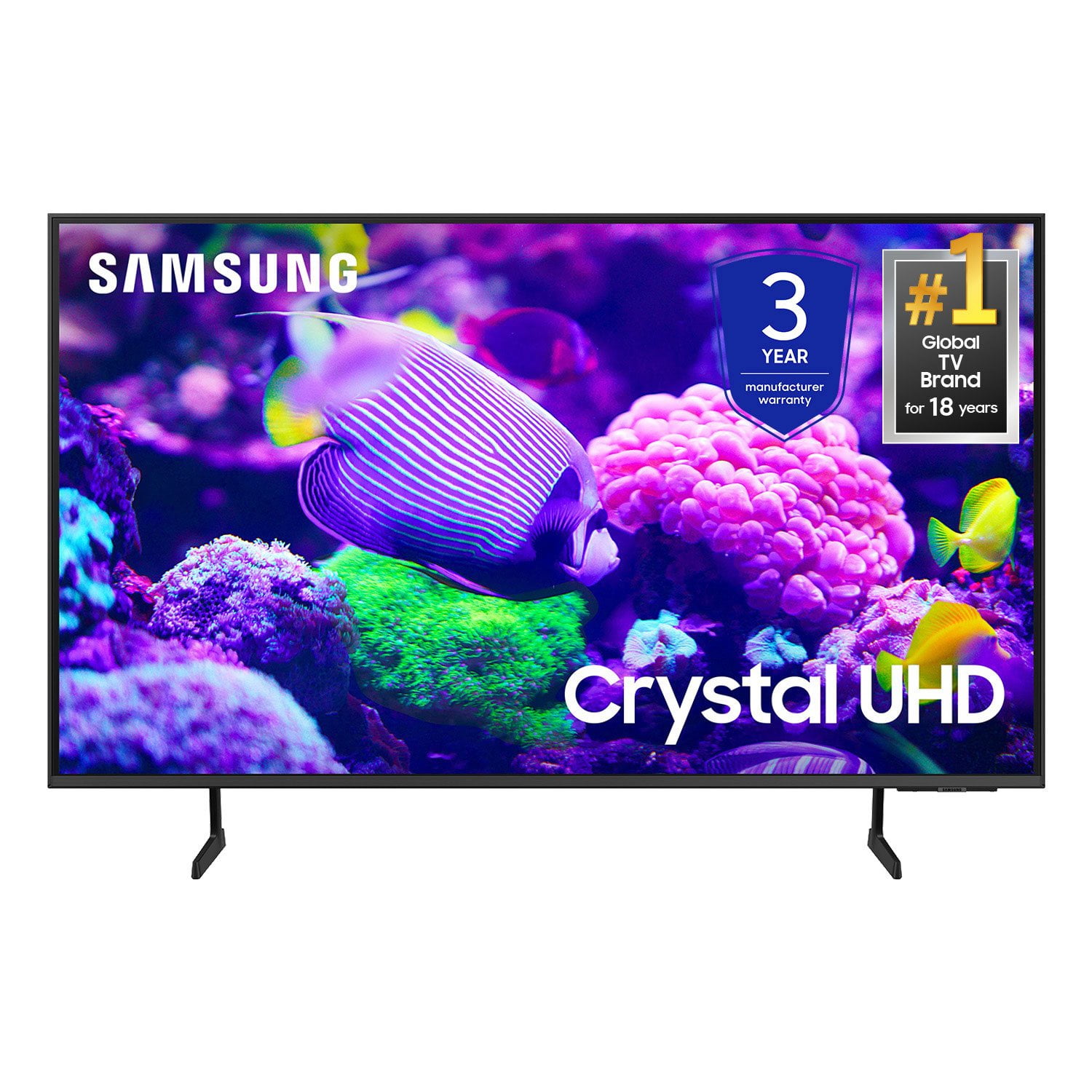
SAMSUNG 65" Class DU7200 Series 4K Smart TV
4.3 out of 5 stars
stars
1,279 ratings1,091 reviews
  1. 5 stars64% (819)
  2. 4 stars18% (231)
  3. 3 stars8% (102)
  4. 2 stars5% (61)
  5. 1 star5% (66)

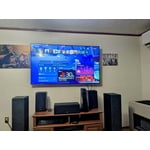
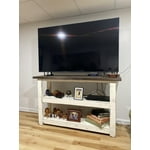
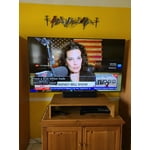
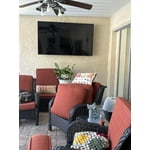
Member photos

  • +163 images
Sort by |
Showing 791-800 of 1,091 reviews
May 21, 2024
LarryB
5 out of 5 stars
5 out of 5 stars review

Great Product

[This review was collected as part of a promotion.] Family room TV. Great picture. Easy to use. We all are happy with it.

Review from Samsung US
Helpful?3BX78DZ2P7VO13854766773
Feb 20, 2025
Maddy
5 out of 5 stars
5 out of 5 stars review

Samsung is the best!

We only buy Samsung TV’s. The quality and price are great picture is super clear. Even our older ones still working and in great shape.

Review from Samsung US
Helpful?3BX78DZ2P7VO13854766773
Mar 5, 2025
Big D
3 out of 5 stars
3 out of 5 stars review

Not very happy

Picture quality is not very clear. Remote control works intermittently. Difficult to operate. TV is going back.

Review from Samsung US
Helpful?3BX78DZ2P7VO13854766773
reply from Samsung Advisor

Hi Big D, Thank you for sharing your thoughts on your DU7200 TV. The TV will upscale any content sent to it as best as possible. The closer your content is to 4K, the better the image will look on the screen. Here are some tips to help improve picture clarity: 1) HDMI cables are recommended for optimal HD viewing. 2) If you have an analog cable box or satellite box, upgrade to a digital cable box or satellite box. 3) Change the output resolution of your devices, such as digital broadcast receivers, IPTV, and set-top boxes, to UHD or HD. 4) You can further adjust your sharpness, brightness, contrast, color, and more by going to Settings > All Settings> Picture > Expert Settings 5) Choose a Picture Mode by going to Settings > All Settings> Picture > Picture Mode and choose from Dynamic, Standard, Natural, Movie, or Filmmaker Mode. 6) For optimal motion image performance, you may want to adjust the picture clarity setting by going to Settings > All Settings> Picture > Expert Settings > Picture Clarity Settings. Regarding your remote, first, please remove the batteries from your remote, and then hold the Power button for eight seconds to reset the remote. Then, reinsert the batteries and try to use the remote again. Next, Check if the remote is sending an IR signal. Take either a digital camera or use the camera on your phone or tablet. Point the remote at the camera, and then press and hold the Power button on the remote. As you hold the button down, look at the camera's screen. If the remote is sending an IR signal, you will see a colored light coming from the remote control. If you do not see the IR light, replace the batteries with fresh ones and try again. If you still do not see the IR light, then replace the remote. Should you ever have questions or need help with TV features, specs, or operations, we are here to help. You can call us at 1-800-SAMSUNG, 8 AM - 12 AM EST, seven days a week. Our LiveChat agents are also available by clicking on the ‘Support’ link on our website. ~Samsung Advisor

Feb 23, 2025
Don d
1 out of 5 stars
1 out of 5 stars review

Sound not working

Volume not working , have it at 100% and I can just hear it. Plan on calling you tomorrow morning to discuss the problem

Review from Samsung US
Helpful?3BX78DZ2P7VO13854766773
reply from Samsung Advisor

Hi Don d, Thank you for sharing your experience with low volume. There are several volume features you can adjust, which may improve your audio experience. 1) Auto Volume automatically adjusts the sound to a certain level when changing channels or switching to another external input. Go to Settings > All Settings> Sound > Expert Settings > Auto Volume. 2) Adaptive Sound automatically adjusts to a specific volume level while watching TV. The TV analyzes your volume usage history by time period to automatically adjust the volume when you use an app or switch to an external input source. Go to Settings> All Settings> Sound> Sound Mode> Adaptive Sound. 3) Several Sound Modes are likewise available to meet your personal preferences: Home > Settings > All Settings> Sound > Sound Mode. Also, some sources have their own volume control, which might need to be set higher. Please check the volume control of the external device (cable box or satellite box, DVD, Blu-ray, etc.) connected to your TV. Also, check the cable connection between an external device and the TV and then try the cable connection again. If you need more help, Samsung is here for you! Please call us at 1-800-SAMSUNG, 8 AM - 12 AM EST, seven days a week. Our LiveChat agents are also available by clicking on the ‘Support’ link on our website. ~ Samsung Advisor

Feb 20, 2025
TOM A
5 out of 5 stars
5 out of 5 stars review

LIKE/UNLIKE RELATIONSHIP

WAS OVER THE MOON WITH THE TV UNTIL DISCOVERED THE DIGITAL AUDIO OPTICAL PORT WAS MISSING UNLIKE MY PREVIOUS 8-YEAR-OLD SAMSUNG TV.

Review from Samsung US
Helpful?3BX78DZ2P7VO13854766773
Apr 19, 2025
D frustrate
3 out of 5 stars
3 out of 5 stars review

We can’t do both streaming and regular sound.

I need to stream my tv because I am almost completely deaf, but there is no sound for my wife so she can hear.

Review from Samsung US
Helpful?3BX78DZ2P7VO13854766773
reply from Samsung Advisor

Hi D frustrate, Thank you for reaching out to us. Your TV features Multi-output Audio, which allows you output audio from both your TV speakers and Bluetooth headphones simultaneously. When this function is active, you can set the volume of the Bluetooth headphone higher than the volume of the TV speaker. Go to: Menu > Settings > All Settings > General & Privacy > Accessibility > Multi-output Audio I hope this helps. For further assistance, please contact Samsung Customer Support. Just call us at 1-800-SAMSUNG, 8 AM - 12 AM EST, seven days a week. Our LiveChat agents are also available by clicking on the ‘Support’ link on our website. ~ Samsung Advisor

Feb 20, 2025
Bill
5 out of 5 stars
5 out of 5 stars review

Excellent television

Color is excellent on my new television and so easy to use. Very good price for an excellent television.

Review from Samsung US
Helpful?3BX78DZ2P7VO13854766773
Feb 21, 2025
RandallF
5 out of 5 stars
5 out of 5 stars review

Great value

Great TV. Good picture. This TV an Internet capable Smart TV. It is compatible with Xfinity cable. No complaints for such a good price.

Review from Samsung US
Helpful?3BX78DZ2P7VO13854766773
Apr 19, 2025
Cristian
4 out of 5 stars
4 out of 5 stars review

Great tv

Good an almost all but the for some reading the Samsung tv plus channels are not available and I have tray many things but nothing works

Review from Samsung US
Helpful?3BX78DZ2P7VO13854766773
Apr 19, 2025
BikeManiac68
3 out of 5 stars
3 out of 5 stars review

Good TV for the price

The picture on the tv is outstanding. The speakers are not good at all. We are actually considering buying a soundbar.

Review from Samsung US
Helpful?3BX78DZ2P7VO13854766773
reply from Samsung Advisor

Hi BikeManiac68, Thank you for sharing your experience with low volume. There are several volume features you can adjust, which may improve your audio experience. 1) Auto Volume automatically adjusts the sound to a certain level when changing channels or switching to another external input. Go to Settings > All Settings> Sound > Expert Settings > Auto Volume. 2) Adaptive Sound automatically adjusts to a specific volume level while watching TV. The TV analyzes your volume usage history by time period to automatically adjust the volume when you use an app or switch to an external input source. Go to Settings> All Settings> Sound> Sound Mode> Adaptive Sound. 3) Several Sound Modes are likewise available to meet your personal preferences: Home > Settings > All Settings> Sound > Sound Mode. Also, some sources have their own volume control, which might need to be set higher. Please check the volume control of the external device (cable box or satellite box, DVD, Blu-ray, etc.) connected to your TV. Also, check the cable connection between an external device and the TV and then try the cable connection again. If you need more help, Samsung is here for you! Please call us at 1-800-SAMSUNG, 8 AM - 12 AM EST, seven days a week. Our LiveChat agents are also available by clicking on the ‘Support’ link on our website. ~ Samsung Advisor