Skip to Main Content
Sam's Club
Sam's Club
All Departments
All Services
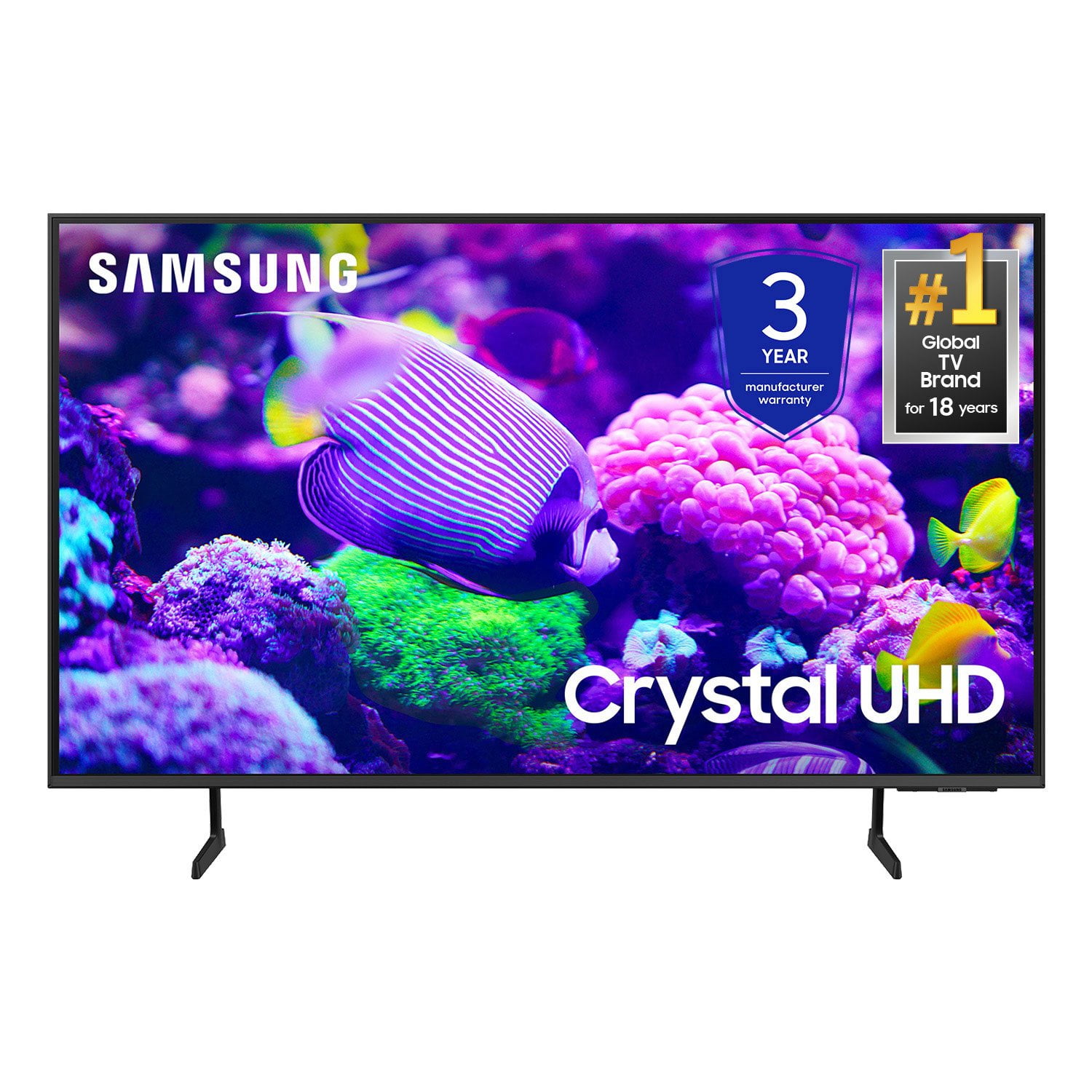
Customer reviews for SAMSUNG 65" Class DU7200 Series 4K Smart TV for
SAMSUNG 65" Class DU7200 Series 4K Smart TV
4.3 out of 5 stars
stars
1,279 ratings1,091 reviews
  1. 5 stars64% (819)
  2. 4 stars18% (231)
  3. 3 stars8% (102)
  4. 2 stars5% (61)
  5. 1 star5% (66)

Member photos

  • +163 images
Sort by |
Showing 641-650 of 1,091 reviews
Oct 24, 2024
samsung
5 out of 5 stars
5 out of 5 stars review

I Needed a 60" TV to Fit My Home

[This review was collected as part of a promotion.] Great picture. Easy to set up. Very satisfied with my purchase.

Review from Samsung US
Helpful?3BX78DZ2P7VO13854766773
Apr 19, 2025
Jt66
5 out of 5 stars
5 out of 5 stars review

Nice TV

This has been a great purchase so far, placed an older Samsung TV with this one and so far have been impressed.

Review from Samsung US
Helpful?3BX78DZ2P7VO13854766773
Apr 23, 2024
Loveshop2024
5 out of 5 stars
5 out of 5 stars review

The product has a great feature and high hd

[This review was collected as part of a promotion.] For gaming movies streaming for everything I love samsung product..

Review from Samsung US
Helpful?3BX78DZ2P7VO13854766773
Mar 7, 2025
MrKiss
5 out of 5 stars
5 out of 5 stars review

Love My Samsung

this is my 6th Samsung Tv, and they just keep getting better & better… *i will never buy another brand..

Review from Samsung US
Helpful?3BX78DZ2P7VO13854766773
Mar 6, 2025
Grav
3 out of 5 stars
3 out of 5 stars review

Sound system needs,work

Great tv bt the,sound system needs,work. The volume is low and not correctable. Notably that but the sound isntsharp,and clear

Review from Samsung US
Helpful?3BX78DZ2P7VO13854766773
reply from Samsung Advisor

Hi Grav, Thank you for sharing your experience with low volume. There are several volume features you can adjust, which may improve your audio experience. 1) Auto Volume automatically adjusts the sound to a certain level when changing channels or switching to another external input. Go to Settings > All Settings> Sound > Expert Settings > Auto Volume. 2) Adaptive Sound automatically adjusts to a specific volume level while watching TV. The TV analyzes your volume usage history by time period to automatically adjust the volume when you use an app or switch to an external input source. Go to Settings> All Settings> Sound> Sound Mode> Adaptive Sound. 3) Several Sound Modes are likewise available to meet your personal preferences: Home > Settings > All Settings> Sound > Sound Mode. Also, some sources have their own volume control, which might need to be set higher. Please check the volume control of the external device (cable box or satellite box, DVD, Blu-ray, etc.) connected to your TV. Also, check the cable connection between an external device and the TV and then try the cable connection again. If you need more help, Samsung is here for you! Please call us at 1-800-SAMSUNG, 8 AM - 12 AM EST, seven days a week. Our LiveChat agents are also available by clicking on the ‘Support’ link on our website. ~ Samsung Advisor

Apr 20, 2025
RMROGER
5 out of 5 stars
5 out of 5 stars review

SAMSUNG 43" SMART TV

I love the clearness of the picture. It is as if the actors or animals are in the room. Even the cat thinks the birds are room.

Review from Samsung US
Helpful?3BX78DZ2P7VO13854766773
Apr 19, 2025
Roytoy
5 out of 5 stars
5 out of 5 stars review

Ultimate television experience

I had the opportunity to buy my 85” Samsung television Ann have not regretted it once, beautiful picture, sound and options. Highly recommend

Review from Samsung US
Helpful?3BX78DZ2P7VO13854766773
Feb 5, 2025
what for
1 out of 5 stars
1 out of 5 stars review

poor quality

this tv is worthless. can not get the pic to get lighter. the answer from samsung is get a more expensive one.

Review from Samsung US
Helpful?3BX78DZ2P7VO13854766773
reply from Samsung Advisor

Hi there, It’s unfortunate to hear you’re not fully satisfied with the brightness of your DU7200 TV’s picture. Please know that we are here to help you. First, let’s ensure you are running the latest Firmware Update. Go to Settings> Support> Software Update. Next, If the colors on your TV are correct but just a little too dark or bright, you can try adjusting Picture Modes, Contrast, Brightness, or Sharpness settings. For darker scenes, I recommend Dynamic Picture Mode, which makes pictures brighter and clearer in bright viewing environments. Go to Settings > All Settings> Picture > Picture Mode > Dynamic. Or you can manually adjust the Brightness by pressing the HOME button on your remote, then navigating to Settings > All Settings> Picture > Expert Settings. You may also want to disable Power Saving Mode, which automatically adjusts the brightness to reduce the TV’s power consumption. Go to Settings > All Settings> General > Eco Solution> Power Saving Mode. I hope this helps to improve your picture. Should you need further assistance, please contact us at 1-800-SAMSUNG, 8 AM - 12 AM EST, seven days a week. Or visit us on the Samsung website and click on the ‘Support’ link for: 1) LiveChat 2) Manuals, Software, & Warranty Info ~ Samsung Advisor

Dec 27, 2024
Flyboy67
5 out of 5 stars
5 out of 5 stars review

Sharp pictures quality with great sound.

[This review was collected as part of a promotion.] I just use my unit as a standard television. Cable and streaming services.

Review from Samsung US
Helpful?3BX78DZ2P7VO13854766773
Nov 10, 2024
CVplusTheDog
5 out of 5 stars
5 out of 5 stars review

Amazing Samsung

[This review was collected as part of a promotion.] I use it for personal use to stream and tons of different types of apps.

Review from Samsung US
Helpful?3BX78DZ2P7VO13854766773