Skip to Main Content
Sam's Club
Sam's Club
All Departments
All Services
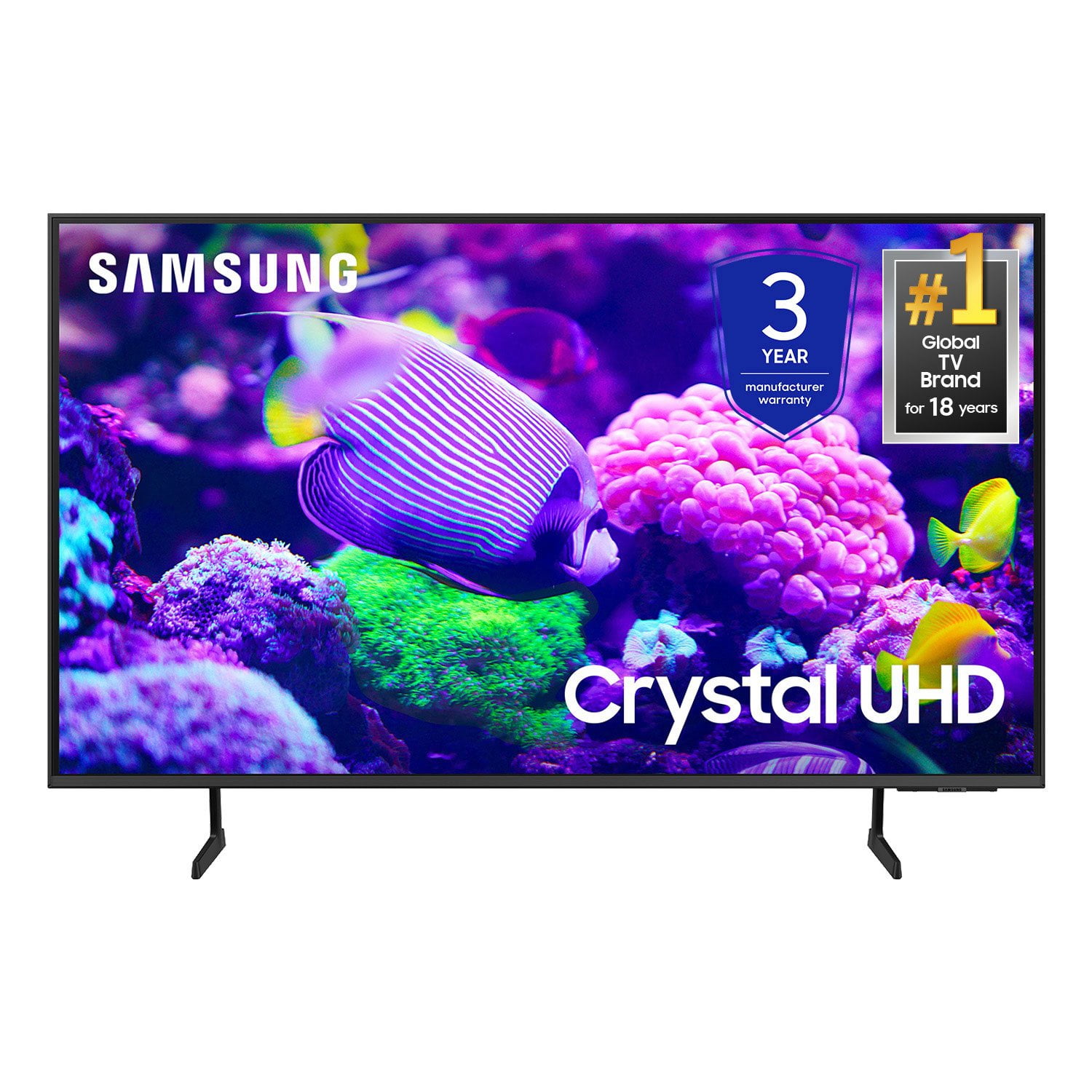
Customer reviews for SAMSUNG 65" Class DU7200 Series 4K Smart TV for
SAMSUNG 65" Class DU7200 Series 4K Smart TV
4.3 out of 5 stars
stars
1,279 ratings1,091 reviews
  1. 5 stars64% (819)
  2. 4 stars18% (231)
  3. 3 stars8% (102)
  4. 2 stars5% (61)
  5. 1 star5% (66)

Member photos

  • +163 images
Sort by |
Showing 91-100 of 1,091 reviews
May 16, 2025
WGoings
5 out of 5 stars review

Verified Purchase

Very good samsung tv

Good tv and good clear pictures and good

Helpful?3BX78DZ2P7VO13854766773
Jun 28, 2025
SD Carpet Cleanimg
5 out of 5 stars review

Verified Purchase

Great Deal!

Work’s fine, would buy again.

Helpful?3BX78DZ2P7VO13854766773
Jun 10, 2025
Kris
4 out of 5 stars review

Verified Purchase

Remote is ridiculous.

Color and sound good. Remote is a pain and no rewind . It is not syncing with our Dish satellite

Helpful?3BX78DZ2P7VO13854766773
Jun 25, 2025
BJ
5 out of 5 stars review

Verified Purchase

SAMSUNG 65'

WORKS WELL , CLEAR PICTURE , SLIM REMOTE

Helpful?3BX78DZ2P7VO13854766773
Jun 6, 2025
Lee
5 out of 5 stars review

Verified Purchase

Highly rated

excellent product, exactly as advertised

Helpful?3BX78DZ2P7VO13854766773
Sep 29, 2024
Jayne
2 out of 5 stars review

Verified Purchase

Sound

Sound is bad and muffled

Helpful?3BX78DZ2P7VO13854766773
reply from Samsung

Hi Jayne,Thank you for letting us know you are experiencing sound issues on your DU7200 TV. Please try the following troubleshooting steps: First, try a Sound Test under Support > Self Diagnosis > Start Sound Test. Another way to check the source volume is to test an internal streaming source like Netflix or YouTube to compare. Next, if you have any external devices connected to your TV, please ensure all cables are properly and fully inserted. If you need more help, Samsung is here for you! Please call us at 1-800-SAMSUNG, 8 AM - 12 AM EST, seven days a week. Our LiveChat agents are also available by clicking on the ‘Support’ link on our website.~ Samsung Advisor

Apr 30, 2025
Dave
4 out of 5 stars review

Verified Purchase

Good

Good

Helpful?3BX78DZ2P7VO13854766773
Apr 27, 2025
Linda
3 out of 5 stars review

Verified Purchase

Samsung

Ok tv

Helpful?3BX78DZ2P7VO13854766773
reply from Samsung

Hi Linda,<br /><br />Thank you for purchasing Samsung’s Crystal UHD 4K DU7200 Smart TV, allowing you to watch your favorite content as it was meant to be viewed, in dazzling 4K. <br /><br />If you should have any questions or concerns with usage, features, or how to best optimize your settings, Samsung Customer Support is here to help. Just call us at 1-800-SAMSUNG, 8 AM - 12 AM EST, seven days a week. Our LiveChat agents are also available by clicking on the ‘Support’ link on our website.<br /><br />~ Samsung Advisor

Apr 21, 2024
Michael
2 out of 5 stars review

Samsung 7200 series 👌

I bought this TV 5 days ago. Sadly I am some what dissatisfied. There is multi options that isn't available with this TV. This TV when watching a program has bold black spaces top and bottom of picture. So this TV is suppose to be a 65" TV. Altogether you get about a 55" or less picture. The high definition is only good not spectacular. It isn't true HD like what you see in stores. You don't get the picture like the stores. Sales gimmick 🤔

Helpful?3BX78DZ2P7VO13854766773
reply from Samsung

Hi Michael, Thank you for choosing Samsung and for sharing your experience with us. Please know we are here to help and have a few suggestions regarding the picture you are seeing. Your TV detects HDR automatically when streaming native content like apps. When connecting an external device like your Blu-ray player, you will need to enable Input Signal Plus. You can turn this on by going to Settings > All Settings> General > External Device Manager > Input Signal Plus and turning it on for the HDMI port you connected your device to.When an HDR source is playing, it will display an HDR logo next to the picture mode icon of the picture mode you are currently in.If you are seeing black bars on the top and bottom of your screen, know that it can be caused by either a setting on your cable/satellite box or by the content you’re watching. However, the TV can be adjusted to help minimize this.By adjusting the aspect ratio, you can get the image to fill the screen. Go to Home > Settings > All Settings> Picture > Picture Size Settings > Picture Size.HD channels will have black bars on either side of the screen when displaying upscaled SD (4:3) content. Black bars will appear at the top and bottom of the screen when watching movies with aspect ratios different from your TV. Finally, if the picture you are seeing is not to your liking, there are several settings available that you can adjust. Go to Home > Settings > All Settings > Picture > Picture Mode and select the mode that best fits your usage:1) Standard: Default mode suitable for general viewing environments. 2) Natural: Reduces eye strain for a comfortable viewing experience. 3) Movie: Most suitable for watching TV or movies in a dark room. 4) Dynamic: Makes the picture brighter and clearer in bright viewing environments.5) Filmmaker Mode: You can watch the source content (e.g., movie) as it is. If the image is defined as Filmmaker Mode, it will automatically switch to Filmmaker Mode while watching. You can also go to Settings > All Settings> Picture > Expert Settings > to manually fine-tune your image.If you need more help, Samsung is here for you. Call us at 1-800-SAMSUNG, 8 AM - 12 AM EST, seven days a week. Our LiveChat agents are also available by clicking on the ‘Support’ link on our website.~ Samsung Advisor

Jan 31, 2025
Dominick Bucciarelli
4 out of 5 stars review

Verified Purchase

the remote has alot to be desired!

good picture!

Helpful?3BX78DZ2P7VO13854766773