
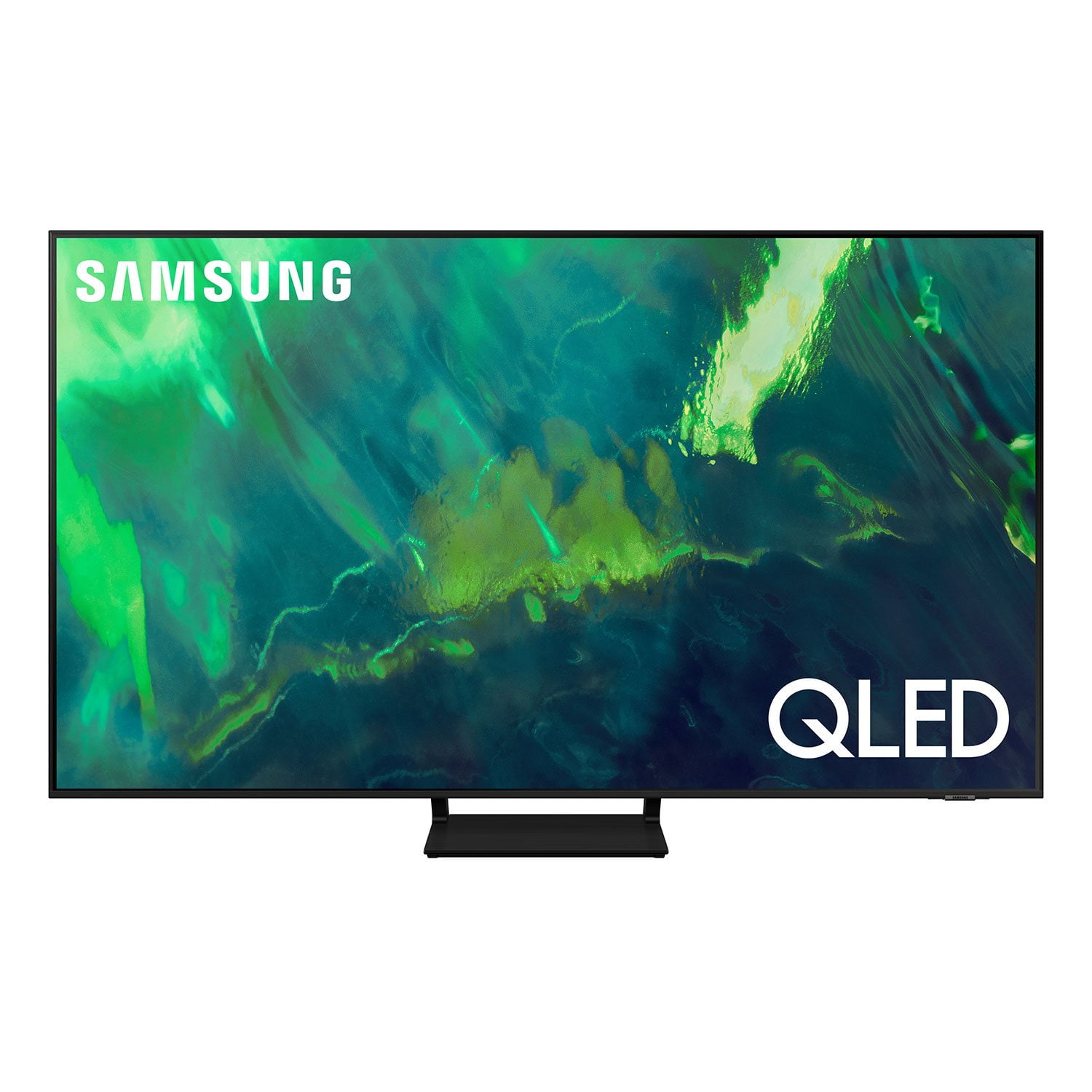
 Customer reviews for SAMSUNG 85" Class Q7-Series 4K Ultra HD Smart QLED TV - QN85Q7DAAFXZA for
Member photos



 +297 images
Best ever.
[This review was collected as part of a promotion.] I've wanted one of these for a bit and a sale convinced me to buy 3 different sized Samsungs. These are all super awesome. I love they are perfect from everything from regular TV to gaming. Samsung for the win!
Good Tv
[This review was collected as part of a promotion.] Covers my Tv needs. I'm quite pleased with my new TV. My prior television stopped working quite suddenly so I needed to make a quick purchase. I was able to compare some different models and brands online, and decided to switch to Samsung for my new TV. The sound quality of the TV is definitely superior to my prior one, and the overall use of the TV is easier. The picture quality is fantastic and the remote is appreciatively uncomplicated. Howeverm I also have some frustrations with it. I have had a lot of difficulty with the voice assistant, as it rarely comprehends what I say. I also have experienced difficulty with getting some apps to install and still have to rely on an external plug in device to use some as a result. I also would have appreciated an option to at least download an actual users manual, as finding things in the onscreen setup and manual is extremely difficult. I'm pretty technically proficient and used to manage a big box electronics store, so I'm not unfamiliar with how to operate modern TVs, so for someone with my background to feel the operational menu is not user friendly is pretty significant.
Hi Fersh, Thank you for purchasing Samsung's 85" Q70A QLED 4K Smart TV and for your review. We appreciate you sharing your experience with apps not loading and built-in voice assistant functionality. Voice commands may differ depending on the Voice Assistant. Refer to the command examples for each Voice Assistant. • Bixby: Press the microphone button on your remote > Explore Now • Amazon Alexa: Settings > General > Voice > Amazon Alexa Settings • Google Assistant: Settings > General > Voice > Google Assistant Settings When the TV is far from you or the ambient noise is too loud, the TV may be unable to recognize your voice. For the best results, you will need to be within 10 feet of your TV. Please look at your TV screen and speak. If you haven’t already, we recommend turning on the Voice Wake-up function as well. Press the microphone button on your remote, then go to: Explore Now > Settings > Voice Wake-up. You can also change the sensitivity from High, Medium, or Low. You may also want to try re-pairing your remote to your TV by doing the following: 1) Long press the RETURN key and ENTER key together for about 10 seconds. 2) The RETURN key is on the left side of your remote and looks like a curved, backwards pointing arrow. 3) The ENTER key is the button in the center of your directional ring. If you are still experiencing issues with voice commands, please check the remaining battery of the Smart Remote by going to Settings > General > Power and Energy Saving > Available Remote Battery. To assist you in learning the various functions, features, and settings of your new TV, you can download the Q70A TV's User Manual, e-Manual, Remote Control Leaflet, and Quick Setup Guide on Samsung's website by clicking "Support" > "Manuals & Software" > "TVs & Home Theater" > "TVs". From there, you can select the Q70A TV under "4K QLED TVs” > “A Model Lineup" and download the guides you would like. If your apps are freezing or not loading/installing, you can try cold booting your TV by holding down the power button on your remote for 5+ sec until the TV turns off and on again, deleting and downloading the apps again, and completing full reset of Smart Hub to correct the issue. Please also check that your TV is running the latest firmware version. Go to: Settings > Support > Software Update. You may also want to optimize the smart TV performance and address your issue with remote response time with the self-diagnostic tool. This service checks memory and frees up unused cached memory and closes background apps. Go to Settings > Support> Device Care > Start Device Care I hope these tips help. Should you ever have questions or need help, please call us at 1-800-SAMSUNG (ask for TVs), available 8AM -12AM EST M-F (9AM – 6PM EST Sat). Or text HELP to 62913. For additional support resources, visit us on the Samsung website and click on the ‘Support’ link in the upper right corner of the homepage for: 1) More ‘Contact Us’ options – LiveChat, Facebook, Twitter, Samsung Community, Samsung Members app 2) Manuals & Software 3) Warranty Info 4) Product Registration: For access to easy warranty support, convenient opt-in to special promos and offers, faster troubleshooting and service, and quick notification of system updates. ~ Samsung Specialist
This TV has a remarkably true-to-life picture
[This review was collected as part of a promotion.] I use my TV to watch movies and TV. I live in a very remote location so streaming is often not an option - I own a great many DVDs. Most are of movies that I know and love. This is the first TV that actually replicates the theatre experience. I love it.
Jim's new Qled65" pastime
[This review was collected as part of a promotion.] Great picture , very clear. Vibrant color deep blacks. Speaker system very clear crisp sound.nice design very thin . plenty oh hdmi connections plus can plug in flash drives to view pictures or documents.
Very High Tech TV
[This review was collected as part of a promotion.] Extremely capable TV for streaming services. I needed my smartphone and laptop for setup. Nevertheless, the setup was relatively straightforward. The free Samsung streaming service offers a large variety of alternative programs. I was particularly impressed by the solar-powered remote. But the remote kept finding its way between the couch cushions because of its slim construction. The television has deep and rich colors, but flesh tones become too bright in outdoor scenes, especially Caucasians. Their skin tones appear bright and reflective. I tried to lower the contrast but had no success. .
CouchPotato: Thank you for sharing your thoughts on the picture of your new 2021 Q70A TV. There are several picture settings you may want to try to adjust your image to suit your personal preferences. You can select the Picture Mode that provides the best viewing experience. Go to Home > Settings > Picture > Picture Mode 1) Standard: Is the default mode suitable for general viewing environments. 2) Natural: Reduces eye strain for a comfortable viewing experience. 3) Movie: Is suitable for watching TV or movies in a dark room. 4) Dynamic: Makes the picture brighter and clearer in bright viewing environments. 5) Filmmaker Mode: You can watch the source content (e.g., movie) as it is. If the image is defined as Filmmaker Mode, it will automatically switch to Filmmaker Mode while watching. Filmmaker Mode™ is a trademark of UHD Alliance, Inc. You can also go to: Settings > Picture > Expert Settings > to manually fine tune your image. In addition to Contrast Enhancer, you may want to adjust Tint (G/R), and Color Tone. For further assistance with settings adjustments, please contact Samsung Customer Support. You can reach us at 1-800-SAMSUNG (ask for TVs), available 8AM -12AM EST, 7 days a week. Or text HELP to 62913. For additional support resources, visit us on the Samsung website and click on the ‘Support’ link in the upper right corner of the homepage for: 1) More ‘Contact Us’ options – LiveChat, Facebook, Twitter, Samsung Community, Samsung Members app 2) Manuals & Software 3) Warranty Info 4) Product Registration: For access to easy warranty support, convenient opt-in to special promos and offers, faster troubleshooting and service, and quick notification of system updates. ~ Samsung Solutions
Top Level TV, very pleased
[This review was collected as part of a promotion.] The TV is a middle tier level, so the price was reasonable for a higher quality display. The picture is sharp and the contrast allows me to watch the tv whenever I want day or night. The only real negative is the sound quality, the tv itself does generate great sound so I recommend a sound bar. I purchased mine along with the TV (also a Samsung). But the functionality doesn't always allow for a great sound or the music plays a lot louder than the voice. Still playing around with the settings to improve. Again Picture is great and connectivity is also good over wifi or hardwire connections to other devices.
This TV is great!
[This review was collected as part of a promotion.] I've only used it as a way to stream movies and shows but the picture quality has been great so far. The TV itself is easy to navigate through and the remote comfortably fits in the palm of your hand. It also doesn't require any batteries. The sound quality is really clear and I've had no problems with the quality so far.
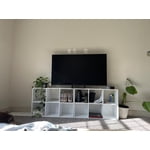
Excellent TV
[This review was collected as part of a promotion.] This was the best experience I could say the display is stunning vivid and software so convenient to operate, surely recommend since it has been more than 3 months so far loving it, no issues till date!!!
Jawdropping clarity and picture details
[This review was collected as part of a promotion.] This TV has been a true game changer in our drawing area - the slim design, beautiful aesthetics and vibrant color as well as clarity has not only uplifted the interior decor to a new level but also enhanced our television viewing experience. Love the smart integration capability so much !!
Football Szn
[This review was collected as part of a promotion.] My new Samsung q70a 75” tv is amazing. The resolution is great, and the frame rate response time does well for gaming. Bought it for home use and will for sure be watching football every Sunday afternoon. Go Raiders!