reply from Samsung Solutions
Hi Samsungwhileitworked,
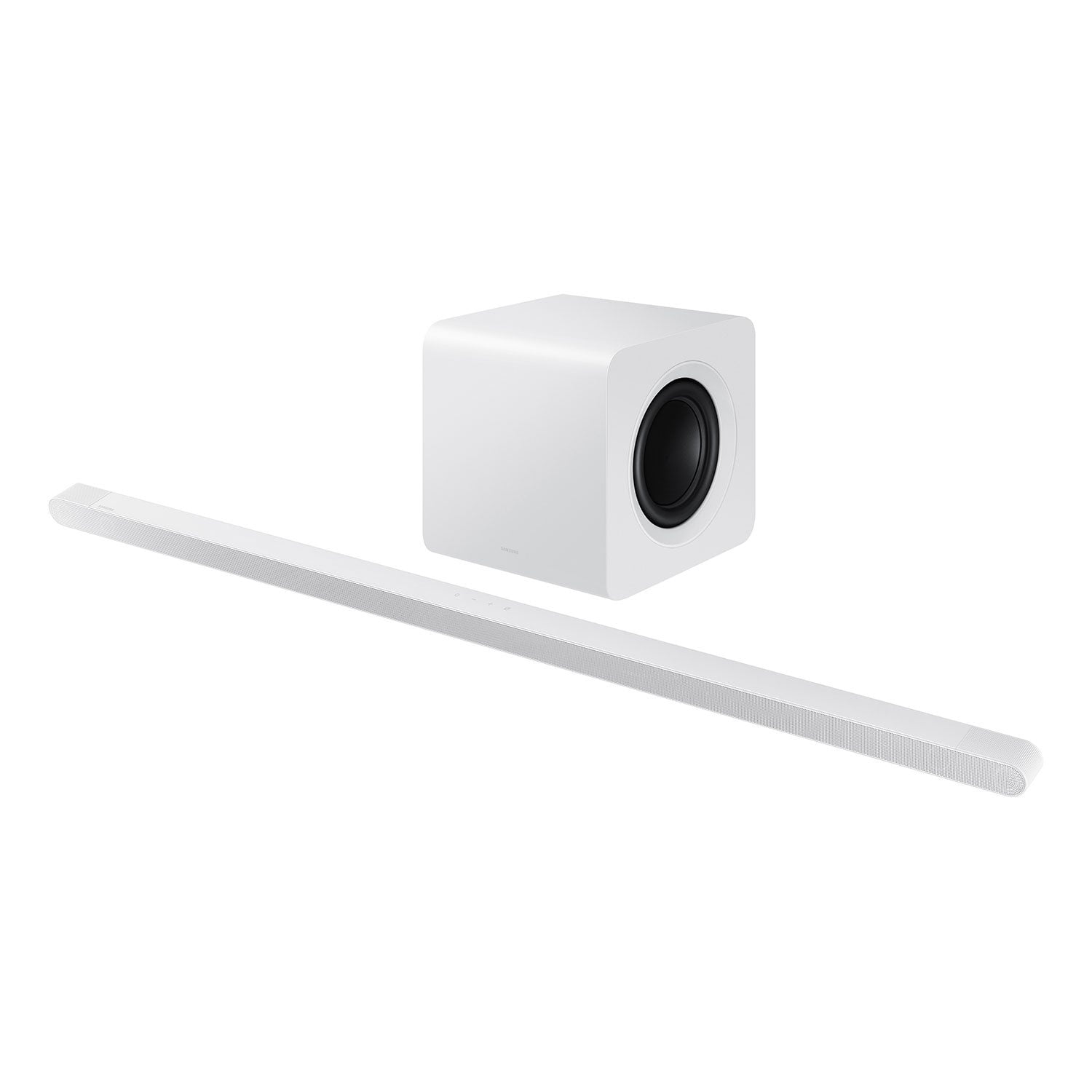
We appreciate you taking a moment to review the HW-S800D Soundbar.
There are a few steps you can take to troubleshoot your Soundbar.
First, try doing a soft reset, unplug the soundbar from the outlet for roughly 30 seconds and then plug it back in.
Next, update the firmware on your soundbar. The easiest way to accomplish this would be to download the SmartThings app and connect your Soundbar to Wi-Fi. This will allow you to not only download any firmware updates but also control your entire soundbar on the screen of your smart device.
Please also verify that you are running the latest firmware on your TV. You can check to see what software version your TV is using and if there is an available update through the settings on your TV. Go to: Menu > Settings > Support > Software Update.
If this still does not correct your issue, then do a hard reset. With the Soundbar on, press the + & - Volume buttons on the body of the soundbar at the same time for at least 5 seconds. The LED display changes as follows: White moves from left to right and right to left, and the middle LED blinks Cyan 3 times. Then the middle LED will blink RED and turn off.
Updating the firmware on your soundbar gives you all the benefits of the latest improvements. When the Soundbar is connected to the Internet, Auto Update allows software to update automatically even when the Soundbar is turned off. You can also update by using the SmartThings app.
If not connected to the internet, you can download it onto a USB device, and then upload it to your soundbar - no wireless connection required. Connect the USB drive that contains the update firmware to the SERVICE port of the Soundbar.
1.Go to the Samsung Electronics website (www.samsung.com) → click on the “Support” option in the upper left corner.
2.Click on “Manuals & Software” from the pop-up list > TVs & Home Theater > Home Theater > Select your model
2. Download the firmware file (USB type).
3. Unzip the file to create a folder with the file name.
4. Store the created folder in a USB and then connect it to the Soundbar.
5. A sequence of “UPDATE” > “BYE” > “ON” will appear on the display 3 times. This will take around 6 minutes.
- During update, do not turn it off or remove the USB.
- If “UPDATE” does not appear on the display window, remove the power cord from the Soundbar and then reconnect it.
- When the latest version is installed, no update is performed.
- Depending on the USB type, update may not be supported.
6. After the 3 cycles are complete, the Soundbar will restart and last source used will appear on the display for about 20 seconds and then it will go off (“UPDATE” > “BYE” > “ON”) 3 times “D.IN” > off
If you need more help, Samsung is here for you. Please call us at 1-800-SAMSUNG, 8AM - 12AM EST (Ask for Soundbars), 7 days a week. Our Live Chat agents are also available by clicking on the ‘Support’ link on our website.
~ Samsung Solutions