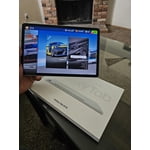
Buy the S9 instead.
[This review was collected as part of a promotion.] It's not bad, but if you can possibly afford it, spend the extra hundreds and get the S9. It will be well worth it. The LCD screen is not nearly as good as an OLED screen and the tablet is on the slow side. It often fails to register my touches, but the sleeve of my fleece sweater will set it off. I wouldn't even try to play games on it.
The apps aren't as good as on my 5-year-old note 10+, which is only running Android 12, but I don't know if the S9 is any better.
If you really can't afford anything better, it's a solid tablet. But if you're just looking to save money, it won't be worth it.
reply from R&R Team
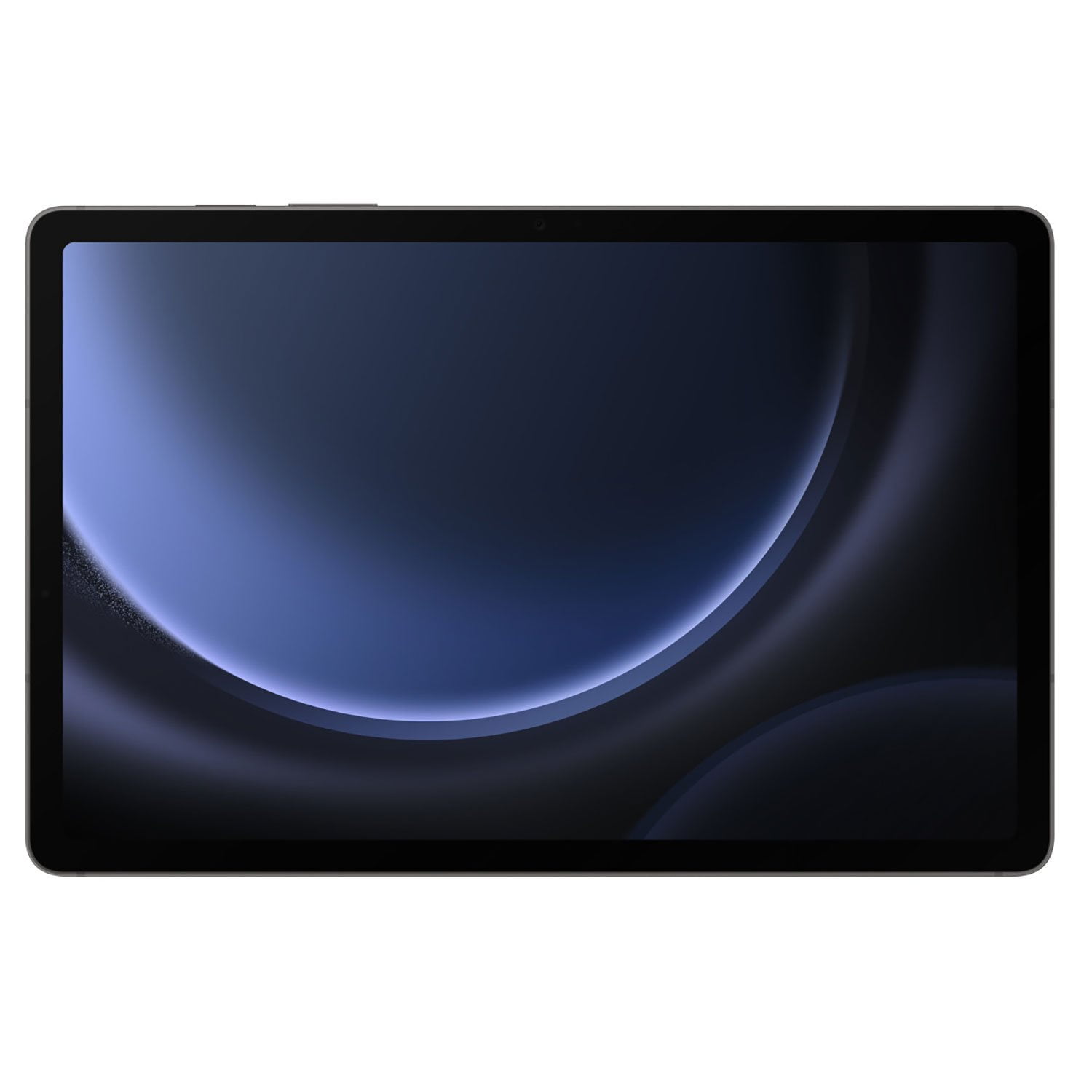
The Samsung Galaxy S9 FE features an advanced display with an adaptive refresh rate of up to 90Hz. This innovative technology ensures that gaming, streaming, and scrolling feel incredibly smooth and lifelike, providing users with an immersive and responsive experience. In addition to its high refresh rate, the S9 FE is equipped with the Vision Booster feature, which automatically adjusts brightness, contrast, and tone to optimize visibility, even under bright sunlight. This ensures that users can clearly see and interact with their devices in various lighting conditions, enhancing their overall user experience. We noted your concerns about the slowness you are experiencing as well as the screen sensitivity. For the screen response challenges, we recommend adjusting your device's screen sensitivity setting. Open Settings, then tap Display, and then tap the switch next to Touch Sensitivity. The touchscreen may not work properly if you wear gloves, have dust on your finger, or touch the screen with fingernails or a ballpoint pen. It may also not work if a conductive object, such as a coin or key, is close to the screen. Regarding the slowness, we recommend making sure that your device is up to date with the latest software version. It might also help if you perform a Quick Optimization. The Quick optimization feature improves your device's performance by identifying apps that use excessive battery power. It also clears away unneeded items from memory, deletes unnecessary files, scans for malware, and closes apps running in the background. Optimizing your phone is quick and simple. From Settings, swipe to and tap Device Care. Tap Optimize now, and then tap Done. We will be attaching links that provide more options to troubleshoot if necessary. If you require any further assistance, please do not hesitate to reach out to us at Samsung Support.
https://www.samsung.com/us/support/answer/ANS00078985/ (Device slowing down)
https://www.samsung.com/us/support/troubleshoot/TSG10001974/#:~:text=Open%20Settings%2C%20then%20tap%20Display,is%20close%20to%20the%20screen. (Touchscreen)
smsng.us/Samsung- Support
smsng.us/Facebook-Messenger
smsng.us/X-Messages
smsng.us/Samsung-Community
smsng.us/Warranty-Info
smsng.us/Samsung-Care-Plus

 Member ratings & reviews for