Skip to Main Content
Sam's Club
Sam's Club
All Departments
All Services
Customer reviews for SAMSUNG 11.1.4 Channel Sound Bar with Wireless Subwoofer, Q-Symphony & Dolby ATMOS Audio for
SAMSUNG 11.1.4 Channel Sound Bar with Wireless Subwoofer, Q-Symphony & Dolby ATMOS Audio
4.6 out of 5 stars
stars
840 ratings840 reviews
  1. 5 stars79% (662)
  2. 4 stars12% (103)
  3. 3 stars3% (25)
  4. 2 stars1% (12)
  5. 1 star5% (38)

Member photos

  • +258 images
Sort by |
Showing 691-700 of 840 reviews
Feb 11, 2025
Reviewer name: BBebel
1 out of 5 stars
1 out of 5 stars review

DON'T BUY!!

Genuinely worse than the base TV audio. The sound is stronger, but the balancing is awful. The AI-augmented sound is shockingly bad. DO NOT buy this. Take your money to Sony or somewhere else. It's mostly just a gimmick.

Review from Samsung US
Helpful?0WSCS8GR8B8W13575772414
reply from Samsung Solutions

Hello BBebel, Thank you for taking a moment to review the Samsung HW-Q990D Soundbar. You can manually optimize your audio experience by pressing the SOUND CONTROL button (which looks like a gear), you can set the audio function such as Auto EQ, Spacefit sound, AVA, Voice Enhance mode, Night mode, Sync, Surround speaker mode, Virtual. The desired item can be adjusted using the Up/Down buttons. Alternatively, you can press and hold the SOUND CONTROL button for about 5 seconds to adjust the sound for each frequency band. 150Hz, 300Hz, 600Hz, 1.2kHz, 2.5kHz, 5kHz, and 10kHz are selectable using the Left/Right buttons and each can be adjusted to a setting between -6 to +6 using the Up/Down buttons. You can try quickly optimizing the audio by pressing the SOUND MODE button on your remote, and then select the desired sound effect by choosing STANDARD, SURROUND SOUND, GAME, or ADAPTIVE SOUND. To control the volume of each speaker, press the CH LEVEL button on the provided remote. Then select CENTER LEVEL, SIDE LEVEL, WIDE LEVEL, FRONT TOP LEVEL, REAR LEVEL, or REAR TOP LEVEL. Once you find the channel you are looking for, adjust the volume between -6 to +6 by using the Up/Down buttons. There are multiple ways to control the bass levels for your new Soundbar. 1) Using the WOOFER button on the provided Soundbar remote. Use the woofer button by pushing forward or pulling backward on the button itself to adjust the bass levels between -12 or -6/+6. If you want to reset the bass to 0 then push the button in. 2) When you press the TONE CONTROL button, you can adjust the treble or bass levels between -6/+6. Alternatively, you can adjust all of these same settings and more within the SmartThings app. Download the app for your iOS or Android device and then connect your Soundbar to Wi-Fi. From here, you will be able to adjust all of the same settings as the provided remote, but with the added benefit of being able to see the changes on your smart device. If you need more help, Samsung is here for you. Please call us at 1-800-SAMSUNG, 8AM - 12AM EST (Ask for Soundbars), 7 days a week. Our Live Chat agents are also available by clicking on the ‘Support’ link on our website. ~ Samsung Solutions

Mar 18, 2025
Reviewer name: MohamedDiab
5 out of 5 stars
5 out of 5 stars review

Awesome sound

[This review was collected as part of a promotion.] I loved it so much it so powerful and accurate at the same time you will feel so immersed ik the scene

Review from Samsung US
Helpful?0WSCS8GR8B8W13575772414
Mar 20, 2025
Reviewer name: HeathentheVegan
3 out of 5 stars
3 out of 5 stars review

randomly disconnects and forgets remotes

[This review was collected as part of a promotion.] works great when it is working. but every couple months seems like it will reset, and I have to go back through and re-pair remotes and link everything up

Review from Samsung US
Helpful?0WSCS8GR8B8W13575772414
reply from Samsung Solutions

Hello HeathentheVegan, Thank you for taking a few moments to review the Samsung HW-Q910D Soundbar. First, try doing a soft reset, unplug the soundbar from the outlet for roughly 30 seconds and then plug it back in. If this still does not correct your issue, then do a hard reset. With the Soundbar on, press the + & - Volume buttons on the body of the soundbar at the same time for at least 5 seconds. INIT OK” appears on the display and then the Soundbar is reset. If you need more help, Samsung is here for you. Please call us at 1-800-SAMSUNG, 8AM - 12AM EST (Ask for Soundbars), 7 days a week. Our Live Chat agents are also available by clicking on the ‘Support’ link on our website. ~ Samsung Solutions

Mar 18, 2025
Reviewer name: Samsungshopper
5 out of 5 stars
5 out of 5 stars review

Excellent surround system
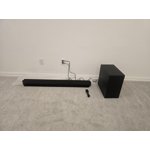
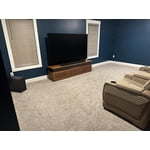
[This review was collected as part of a promotion.] Exceptional surroundings system. I recently purchased one. It may be early review but it's a nice addition to my theater room.

Review from Samsung US
Helpful?0WSCS8GR8B8W13575772414
Mar 25, 2025
Reviewer name: Lovelife
5 out of 5 stars
5 out of 5 stars review

Best of the best sound Bar

[This review was collected as part of a promotion.] I used to have Bose,and I purchased the Samsung 11.1.4 soundbar, soon I connected to the Samsung smart TV, the sound is amazing, much better than the Bose system.

Review from Samsung US
Helpful?0WSCS8GR8B8W13575772414
Oct 31, 2024
Reviewer name: Kdub2135
4 out of 5 stars
4 out of 5 stars review

Excellent sound system for my 85 samsung TV

[This review was collected as part of a promotion.] I love the quality of sound coming from my speakers. Sometimes I forget, I have them and a sound from the back speakers let's me know there there. Great surround sound.

Review from Samsung US
Helpful?0WSCS8GR8B8W13575772414
Dec 27, 2024
Reviewer name: Thatsgr8
5 out of 5 stars
5 out of 5 stars review

Great sound

[This review was collected as part of a promotion.] Amazing surround sound out of an easy setup device. Everything pairs well with each other. I like the different ways you can set up the sound to automatically pair with your TV.

Review from Samsung US
Helpful?0WSCS8GR8B8W13575772414
Dec 24, 2024
Reviewer name: Uncapedwarrior
5 out of 5 stars
5 out of 5 stars review

The best surround sound

[This review was collected as part of a promotion.] This product changed my environment and makes me feel like I'm in the movie! Wouldn't change a thing.

Review from Samsung US
Helpful?0WSCS8GR8B8W13575772414
Nov 20, 2024
Reviewer name: Robert
1 out of 5 stars
1 out of 5 stars review

Disappointed

[This review was collected as part of a promotion.] The sound is certainly not surround sound.. There is no one to talk to fix it. No phone numbers to call to try to get some help.

Review from Samsung US
Helpful?0WSCS8GR8B8W13575772414
reply from Samsung Solutions

Hello Robert, Thank you for sharing your review of Samsung’s HW-Q990D Soundbar. We’re sorry your experience didn’t match your expectations. The HW-Q990D has 11 front-facing speakers, 1 subwoofer, and 4 up-firing channels, delivering immersive sound all around as it fills your room with bold, multi-channel audio you can feel from all angles. With the rear speaker kit included, your complete home theater experience is right in the box. You can manually optimize your audio experience by pressing the SOUND CONTROL button (which looks like a gear), you can set the audio functions such as Auto EQ, Spacefit sound, AVA, Voice Enhance mode, Night mode, Sync, Surround speaker mode, Virtual. The desired item can be adjusted using the Up/Down buttons. Alternatively, you can press and hold the SOUND CONTROL button for about 5 seconds to adjust the sound for each frequency band. 150Hz, 300Hz, 600Hz, 1.2kHz, 2.5kHz, 5kHz, and 10kHz are selectable using the Left/Right buttons and each can be adjusted to a setting between -6 to +6 using the Up/Down buttons. You can try quickly optimizing the audio by pressing the SOUND MODE button on your remote, and then select the desired sound effect by choosing STANDARD, SURROUND SOUND, GAME, or ADAPTIVE SOUND. To control the volume of each speaker, press the CH LEVEL button on the provided remote. Then select CENTER LEVEL, SIDE LEVEL, WIDE LEVEL, FRONT TOP LEVEL, REAR LEVEL, or REAR TOP LEVEL. Once you find the channel you are looking for, adjust the volume between -6 to +6 by using the Up/Down buttons. There are multiple ways to control the bass levels for your new Soundbar. 1) Use the WOOFER button on the provided Soundbar remote. Use the woofer button by pushing forward or pulling backward on the button itself to adjust the bass levels between -12 or -6/+6. If you want to reset the bass to 0 then push the button in. 2) When you press the TONE CONTROL button, you can adjust the treble or bass levels between -6/+6. Alternatively, you can adjust all of these same settings and more within the SmartThings app. Download the app for your iOS or Android device and then connect your Soundbar to Wi-Fi. From here, you will be able to adjust all of the same settings as the provided remote, but with the added benefit of being able to see the changes on your smart device. Your feedback is very important to us as we continuously strive for best-in-class products and services. Please feel free to reach out to Samsung Customer Support with any further comments, concerns, or suggestions you wish to share. Please call us at 1-800-SAMSUNG, 8AM - 12AM EST (Ask for Soundbars), 7 days a week. Our Live Chat agents are also available by clicking on the ‘Support’ link on our website. ~ Samsung Solutions

Nov 19, 2024
Reviewer name: MikeA49
5 out of 5 stars
5 out of 5 stars review

Great bass and surround sound
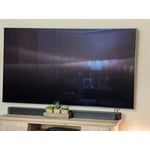
[This review was collected as part of a promotion.] Easy setup, clear notes and words. Sounds great with music and movies surround very crisp and realistic. I have Samsung TV and integration is very clean and transparent. I highly recommend.

Review from Samsung US
Helpful?0WSCS8GR8B8W13575772414