
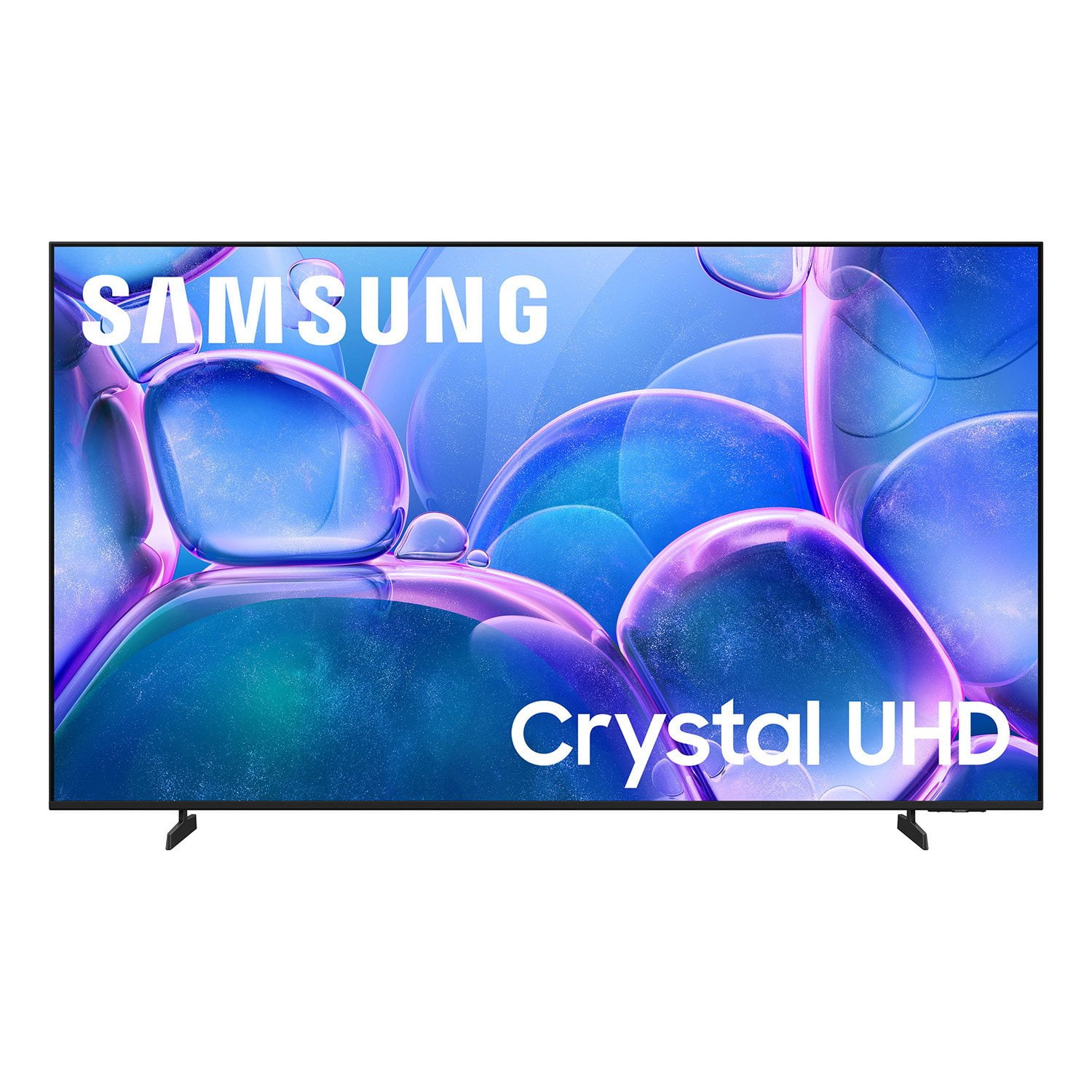
 Customer reviews for SAMSUNG 70" Class U7900F Series 4K Crystal UHD Smart TV for
Member photos




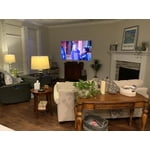
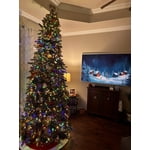
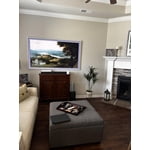 +1527 images
Great TV for the price point
[This review was collected as part of a promotion.] I couldn't be happier with my 75" Samsung TV. The price was excellent for what you get, and the picture quality is outstanding — bright, sharp, and incredibly detailed whether I'm watching sports, movies, or streaming apps. Colors look natural, motion is smooth, and the overall viewing experience feels premium. The 75" size turned out to be absolutely perfect for my room. It fills the space without overwhelming it and creates a truly immersive feel from my seating distance. It's the ideal balance of size and comfort. Overall, this TV delivers exceptional value, impressive performance, and the perfect fit for my setup. Highly recommended.
Viewing excellence
[This review was collected as part of a promotion.] I believe that this tv is the best unit I've ever bought, the color and responsive controls are amazing, sound quality and speed ratio for streaming platforms is fantastic that was just nothing left to say other than everything with this TV works very professionally
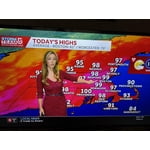
Solid value.
[This review was collected as part of a promotion.] Solid TV for the price, with one major caveat, the glitchy operating system. It'll frequently say it's not able to connect to wifi even though all my other devices are fine. To work around this issue, I ended buying a streaming stick.
Hi Driq, Thank you for sharing your experience with Wi-Fi connectivity. If your TV is having trouble connecting to the network, the following steps may help resolve the issue: Signal & Setup Tips: 1. Check TV-to-router distance – Your TV should be within 50 feet of the modem or access point for reliable signal strength. 2. Minimize interference – Turn off nearby wireless devices and make sure there are no physical barriers (stone walls, fireplaces, appliances) between the TV and router. Power Cycle Devices: 3. Restart both your TV and router – Unplug both devices for at least 30 seconds, then plug them back in and allow them to reboot fully. Connection Type: 4. Evaluate your connection method – o If using Wi-Fi, move your router closer to the TV and eliminate any obstructions. o For a more stable connection, we strongly recommend using a wired Ethernet cable. o If already using Ethernet, verify the cable is working by testing it with another device. Run Built-In Diagnostic Tools: 5. Network Test: Settings > Support > Device Care > Self Diagnosis > Smart Hub Connection Test 6. Wi-Fi Check: Settings > Support > Device Care > Self Diagnosis > Wi-Fi Last Resort: 7. Perform a Factory Reset (if issues persist): Settings > All Settings > General & Privacy > Reset > Factory Data Reset. Note that this will return all settings to their original defaults. If these steps don’t resolve the issue, please reach out to Samsung Support at 1-800-SAMSUNG, (8AM – 9PM EST Mon – Fri, 8AM –6 PM Sat – Sun), or reach us via text 24/7. You can also visit ‘Support’ on our website for: • Live Chat • Manuals, Software, & Warranty Info ~Samsung Advisor
Nice picture
[This review was collected as part of a promotion.] I expected to be able to use voice commands and it doesn't have that feature in 2026. Also I expected the tv to have the time of day available on the tv and I was surprised that it didn't have that feature. It is a beautiful tv even without those features but I would like those simple features
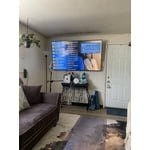
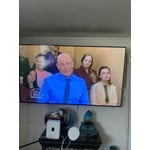
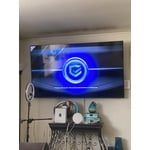
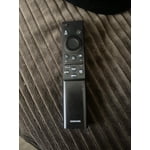
Hi Jody, Thank you for sharing your review. Your TV Works With Alexa, meaning you’ll need to connect a standalone Alexa device such as an Echo speaker, to control compatible smart home devices and some experiences on your TV. Here are the steps: 1. Download both the Amazon Alexa and Samsung SmartThings apps, if you don't already have them. Both are available for iOS or Android devices. 2. Make sure your Alexa device and TV are both connected to the same Wi-Fi network. 3. Your TV must be enabled within the SmartThings app. If not, make sure you are signed in with your Samsung account on the TV: Settings > All Settings > Samsung Account 4. Log in to the SmartThings app with the same Samsung account. Tap Devices, and if your TV isn’t already shown, tap + to add it to the app. 5. In the Alexa app, enable the SmartThings skill and sign into your Samsung account. This will automatically connect your Samsung TV to Alexa and let you use voice commands to control your television. If you need more help, we’re here. Give us a call at 1-800-SAMSUNG (8AM – 9PM EST Mon – Fri, 8AM – 6PM Sat – Sun). You can also connect with a LiveChat agent through the Support link on our website. ~ Samsung Advisor
Wow what great features
[This review was collected as part of a promotion.] I just love how easily the set up is Samsung just keeps getting better and better i have bought Samsung. Tv over the years but this one is the best. I love the brightness is so clear also like uniformity. Upscaling plus you can't beat responsiveness is so quick. The contrast is something you're looking at the screen is like jump out of the TV and the price you just can't beat.
Size is perfect in the bedroom 🤩
[This review was collected as part of a promotion.] I live the TV. I find Samsung to be one of the best brands. The brightness is perfect for me to adjust how I need to be being that I have migraines. Resolution amazing. Security is perfect as it is just what I need. Everything is just perfect. Going to purchase another one, but bigger for the living room 🤏🏽🤏🏽🥰
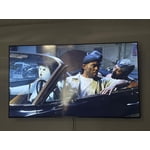
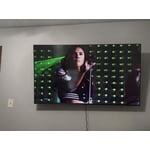
Wifi Problem
[This review was collected as part of a promotion.] My Tv at least once a week I have to hold the power button and reset the wifi? why I don't know because I have 3 other Samsung tvs and I don't have to do that at all. I love the brand but this is the first time in many years of owning Samsung that I have this issue since the tv was purchased.
Hi Stacy, Thank you for sharing your experience with Wi-Fi connectivity. If your TV is having trouble connecting to the network, the following steps may help resolve the issue: Signal & Setup Tips: 1. Check TV-to-router distance – Your TV should be within 50 feet of the modem or access point for reliable signal strength. 2. Minimize interference – Turn off nearby wireless devices and make sure there are no physical barriers (stone walls, fireplaces, appliances) between the TV and router. Power Cycle Devices: 3. Restart both your TV and router – Unplug both devices for at least 30 seconds, then plug them back in and allow them to reboot fully. Connection Type: 4. Evaluate your connection method – o If using Wi-Fi, move your router closer to the TV and eliminate any obstructions. o For a more stable connection, we strongly recommend using a wired Ethernet cable. o If already using Ethernet, verify the cable is working by testing it with another device. Run Built-In Diagnostic Tools: 5. Network Test: Settings > Support > Device Care > Self Diagnosis > Smart Hub Connection Test 6. Wi-Fi Check: Settings > Support > Device Care > Self Diagnosis > Wi-Fi Last Resort: 7. Perform a Factory Reset (if issues persist): Settings > All Settings > General & Privacy > Reset > Factory Data Reset. Note that this will return all settings to their original defaults. If these steps don’t resolve the issue, please reach out to Samsung Support at 1-800-SAMSUNG (8AM – 9PM EST Mon – Fri, 8AM – 6PM Sat – Sun). LiveChat support and additional help are available at the ‘Support’ link on our website. ~ Samsung Advisor
Viewing Options
[This review was collected as part of a promotion.] Just frustrated where each time you turn on the tv you have to select whether you wish to view live tv or stream services. Wish it would just continue with what was previously selected the last time watched.
Cheap samsung
[This review was collected as part of a promotion.] The picture is good in bright light room. Sound not so good. Closed captions available only a few channels although on similar Roku TVs they are. Most importantly rewind not available even with a flash drive. Would not recommend but for the price if these things don't matter you can have mine.
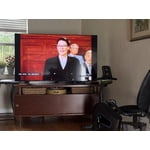
Hi Uninformed buyer, Thank you for your feedback. You can turn your U7900F TV’s Closed Captions on/off and change the settings such as separating it from the broadcast screen, font color, background color, size, position, language, etc. by going to: Settings > All Settings > General & Privacy > Accessibility > Caption Settings. If the Closed Captions are not available, the Settings will be located in the Streaming App or specific Source you are using. To use features such as pausing or rewinding Live TV, you will need a DVR device. Finally, if you are not satisfied with the sound on your TV, we first recommend checking that your TV is running the latest firmware. To do this, navigate to: Home > left directional key > Settings > Support > Software Update If the sound still doesn’t meet your expectations, there are a few settings you can try adjusting: Go to: Settings > All Settings > Sound > Sound Mode • Standard: Balanced sound without emphasis on any one range • Optimized: Enhanced effects and spacious sound • Amplify: Boosts mid and high tones to make dialogue clearer You can also explore Expert Settings to fine-tune options such as Balance, Equalizer, Auto Volume, and more to match your personal preferences. For further help adjusting your sound settings or other features on your TV, feel free to reach Samsung Support at 1-800-SAMSUNG (8AM – 9PM EST Mon – Fri, 8AM – 6PM Sat – Sun) or visit the Support link on our website for: • LiveChat • Manuals, Software, & Warranty Info ~ Samsung Advisor
Great tv
[This review was collected as part of a promotion.] This television truly offers an exceptional viewing experience. The picture clarity is remarkably sharp, allowing every detail to shine through. Furthermore, the vibrant colors bring content to life with stunning realism. Watching movies and shows on this screen is an absolute pleasure. I am thoroughly impressed with the visual quality it delivers.