Skip to Main Content
Sam's Club
Sam's Club
All Departments
All Services
Customer reviews for SAMSUNG 70" Class U7900F Series 4K Crystal UHD Smart TV for
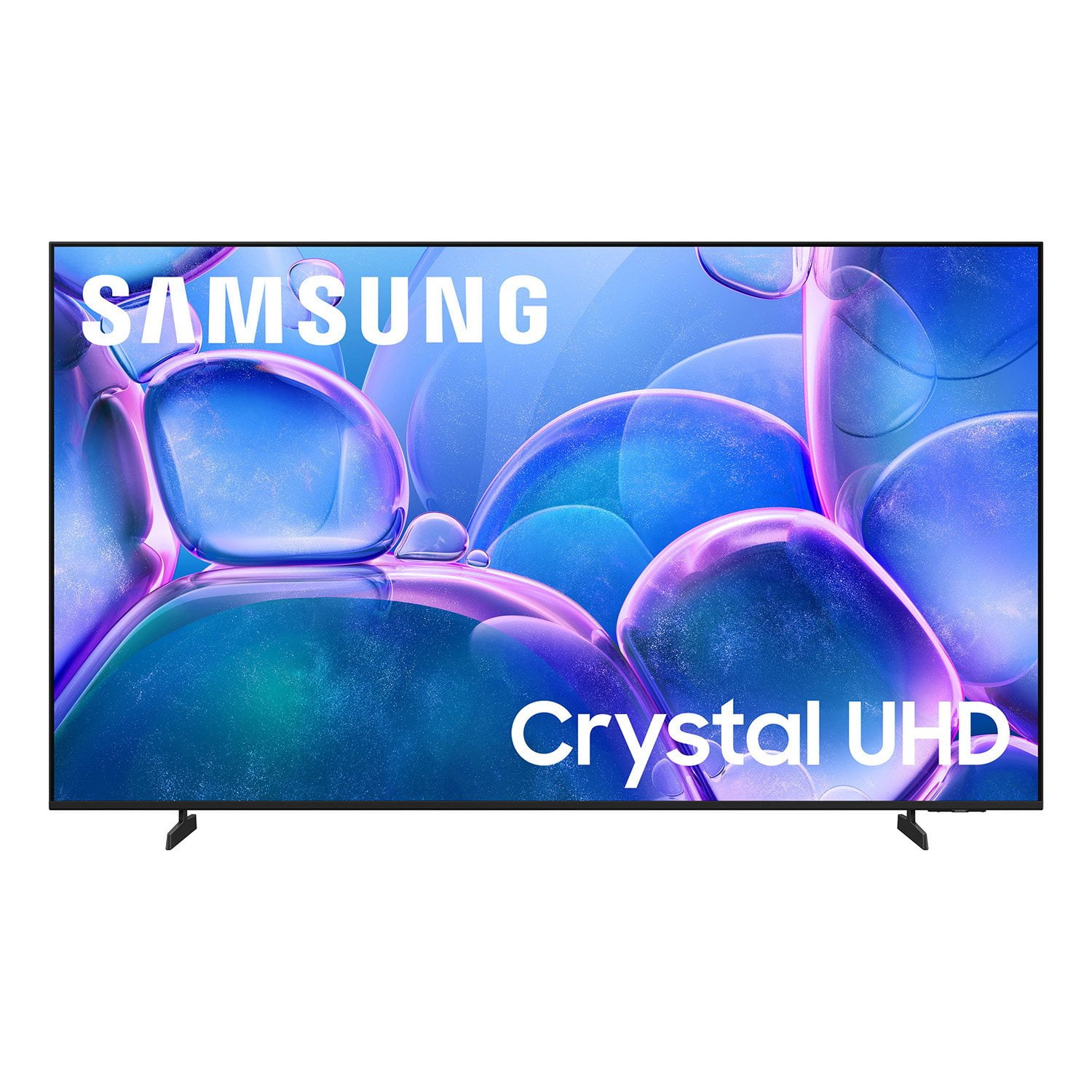
SAMSUNG 70" Class U7900F Series 4K Crystal UHD Smart TV
4.5 out of 5 stars
stars
4,037 ratings4,030 reviews
  1. 5 stars73% (2,955)
  2. 4 stars15% (610)
  3. 3 stars6% (249)
  4. 2 stars2% (100)
  5. 1 star3% (123)

Member photos

  • +1558 images
Sort by |
Showing 2,831-2,840 of 4,030 reviews
Jun 5, 2026
Reviewer name: dummy
4 out of 5 stars
4 out of 5 stars review

wife has trouble seeing, love the size !

[This review was collected as part of a promotion.] pleased with the product, Have not had much time to watch it yet !

Review from Samsung US
Helpful?519VMKO7QPOP17358505999
Jun 6, 2026
Reviewer name: Myron 1000
5 out of 5 stars
5 out of 5 stars review

Qled greatness

[This review was collected as part of a promotion.] Overall great, movies look wonderful. The different features are awesome

Review from Samsung US
Helpful?519VMKO7QPOP17358505999
Jun 5, 2026
Reviewer name: DisappointedCustomer
2 out of 5 stars
2 out of 5 stars review

Not the Best

[This review was collected as part of a promotion.] The picture quality of the display is anything but "crystal".

Review from Samsung US
Helpful?519VMKO7QPOP17358505999
reply from Samsung Advisor

Hi, Thank you for your feedback on the Samsung U7900FD TV. If the picture appears unclear, dull, or lacks definition, there are several settings you can adjust to improve clarity and overall image quality. Go to: Settings > All Settings > Picture > Expert Settings, and review these key settings: Picture Clarity Settings: While originally intended for motion handling, these can also impact overall clarity • Off: Disables motion enhancements • Auto: Automatically adjusts based on content • Custom: Lets you fine-tune: o Judder Reduction – Helps smooth out uneven motion o LED Clear Motion – Boosts sharpness in fast-moving content o Noise Reduction – Reduces distortion and enhances detail in lower-resolution sources Core Picture Settings • Brightness – Controls overall screen brightness • Contrast – Enhances the difference between bright and dark areas • Sharpness – Adjusts edge definition; closer to 20 increases detail • Color – Enhances depth and intensity of colors And don’t forget to check for the latest firmware, which may improve performance: Settings > Support > Software Update > Update Now These adjustments can make a noticeable difference in overall clarity. If you need further help tailoring the settings to your preferences or environment, please contact Samsung Support at 1-800-SAMSUNG (8AM – 9PM EST Mon – Fri, 8AM – 6PM Sat – Sun). LiveChat is also available via the ‘Support’ link on our website. ~ Samsung Advisor

Jul 6, 2026
Reviewer name: Mike
4 out of 5 stars
4 out of 5 stars review

Great picture

[This review was collected as part of a promotion.] Great picture , great price. Great features.thats all. Good tv. Worth it.

Review from Samsung US
Helpful?519VMKO7QPOP17358505999
Jun 22, 2026
Reviewer name: Rorro
3 out of 5 stars
3 out of 5 stars review

No bad at all,

[This review was collected as part of a promotion.] Was good, now is old and started getting slow, no more system update for this model.

Review from Samsung US
Helpful?519VMKO7QPOP17358505999
reply from Samsung Advisor

Hi Rorro, We appreciate your feedback regarding your U7900F TV’s performance. If you're experiencing freezing or lag in general response time, please try the following steps: 1. Check for firmware updates – Keeping your TV up to date can resolve many performance issues: Home > left directional key > Settings > Support > Software Update > Update Now 2. Run Device Care – This tool checks system memory, frees up cached data, and closes background apps that could be slowing things down: Home > left directional key > Settings > Support > Device Care > Start Device Care 3. Cold boot your TV – With the TV powered on, press and hold the Power button on your remote for 5+ seconds until the TV restarts. This helps refresh the system. If you're still noticing performance snags after these steps, please contact Samsung Support at 1-800-SAMSUNG (8AM – 9PM EST Mon – Fri, 8AM – 6PM Sat – Sun). You can also connect with a LiveChat agent via the ‘Support’ link on our website. ~ Samsung Advisor

Jun 10, 2026
Reviewer name: KeiyiasOpinion
5 out of 5 stars
5 out of 5 stars review

Amazing TV,

[This review was collected as part of a promotion.] Excellent T.V Amazing and clear resolution Sound is awesome

Review from Samsung US
Helpful?519VMKO7QPOP17358505999
Jun 22, 2026
Reviewer name: Liz oquendo
5 out of 5 stars
5 out of 5 stars review

Awesome tv

[This review was collected as part of a promotion.] Awesome tv I love the 4k and the size and game quality

Review from Samsung US
Helpful?519VMKO7QPOP17358505999
Jun 20, 2026
Reviewer name: AG68
3 out of 5 stars
3 out of 5 stars review

Not so great features

[This review was collected as part of a promotion.] Great picture, the sound is poor my 2010 Samsung TV has stronger sound.

Review from Samsung US
Helpful?519VMKO7QPOP17358505999
reply from Samsung Advisor

Hi AG68, Thank you for sharing your experience with low volume. There are several volume features you can adjust, which may improve your audio experience. 1) Auto Volume automatically adjusts the sound to a certain level when changing channels or switching to another external input. Go to Settings > All Settings> Sound > Expert Settings > Auto Volume. 2) Adaptive Sound automatically adjusts to a specific volume level while watching TV. The TV analyzes your volume usage history by time period to automatically adjust the volume when you use an app or switch to an external input source. Go to Settings> All Settings> Sound> Sound Mode> Adaptive Sound. 3) Several Sound Modes are likewise available to meet your personal preferences: Home > Settings > All Settings> Sound > Sound Mode. Also, some sources have their own volume control, which might need to be set higher. Please check the volume control of the external device (cable box or satellite box, DVD, Blu-ray, etc.) connected to your TV. Also, check the cable connection between an external device and the TV and then try the cable connection again. If you need more help, Samsung is here for you! Please call us at 1-800-SAMSUNG (8AM – 9PM EST Mon – Fri, 8AM – 6PM Sat – Sun). You can also connect with a LiveChat agent via the ‘Support’ link on our website. ~ Samsung Advisor

Jun 20, 2026
Reviewer name: Uncle Joe
5 out of 5 stars
5 out of 5 stars review

My 65” Samsung TV

[This review was collected as part of a promotion.] My 65” Samsung TV is great. I liked it so much, I bought a second.

Review from Samsung US
Helpful?519VMKO7QPOP17358505999
Jun 5, 2026
Reviewer name: Junebug
5 out of 5 stars
5 out of 5 stars review

Love my TV

[This review was collected as part of a promotion.] I love my TV I can read what is on the screen for a change The color and picture are great!

Review from Samsung US
Helpful?519VMKO7QPOP17358505999