Skip to Main Content
Sam's Club
Sam's Club
All Departments
All Services
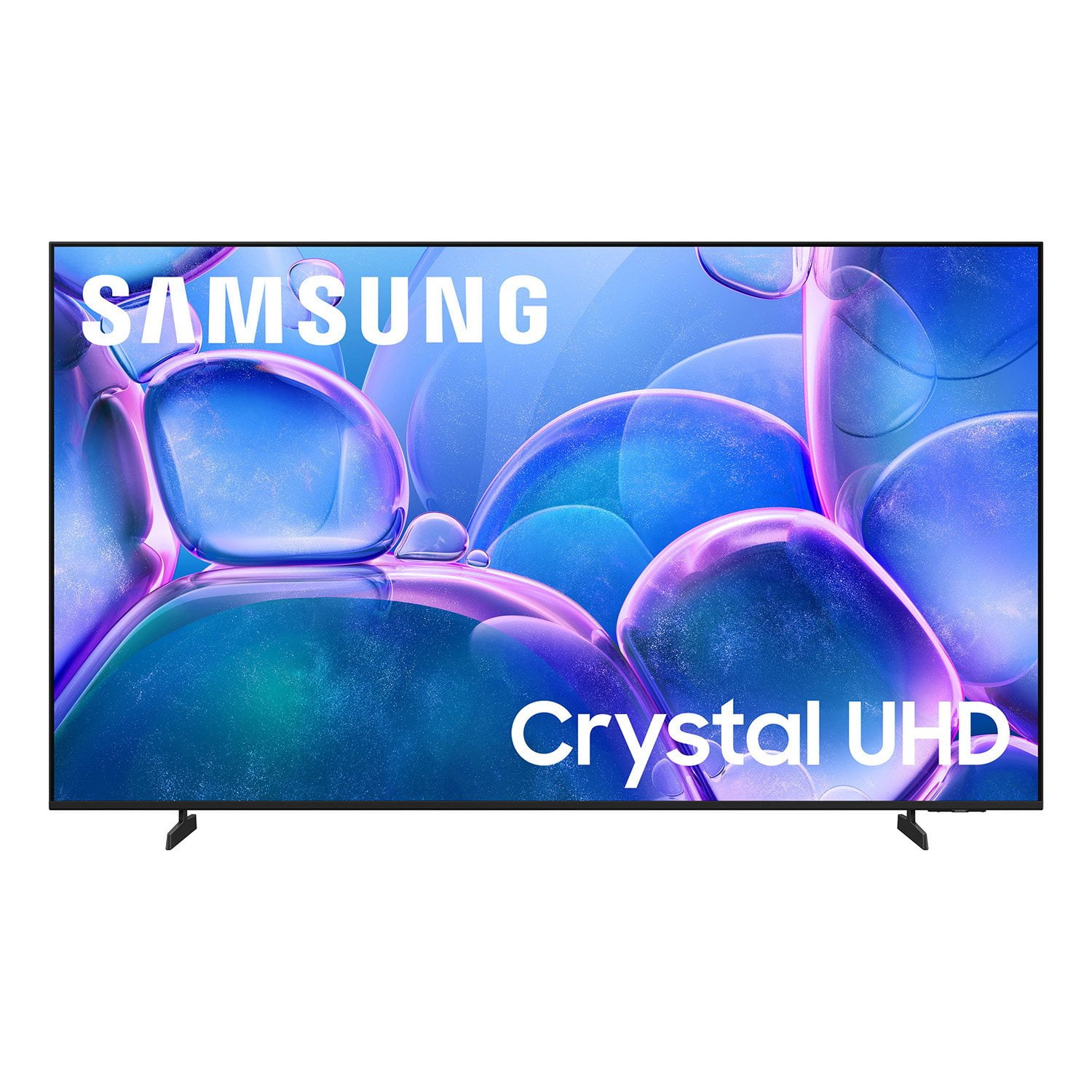
Customer reviews for SAMSUNG 70" Class U7900F Series 4K Crystal UHD Smart TV for
SAMSUNG 70" Class U7900F Series 4K Crystal UHD Smart TV
4.6 out of 5 stars
stars
3,150 ratings3,143 reviews
  1. 5 stars75% (2,348)
  2. 4 stars15% (472)
  3. 3 stars6% (176)
  4. 2 stars2% (64)
  5. 1 star3% (90)

Member photos

  • +1269 images
Sort by |
Showing 2,491-2,500 of 3,143 reviews
Jun 22, 2026
Mstewart111
5 out of 5 stars review

Great tv

Great tv , resolution is wonderful. Nice remote , was easy to setup

Review from Samsung US
Helpful?519VMKO7QPOP17358505999
Jun 22, 2026
75 Samsung Crystal UHD
5 out of 5 stars review

Excellent technical information

notice that I know I notice a difference no issues

Review from Samsung US
Helpful?519VMKO7QPOP17358505999
Jun 22, 2026
Truck_star
5 out of 5 stars review

It's hard to be bored at home having a Samsung tv!

I ordered my Samsung tv and it's the best ever! I love it!

Review from Samsung US
Helpful?519VMKO7QPOP17358505999
Jun 21, 2026
Cheryl
2 out of 5 stars review

Download Apps

I Don't like that I have to go on my laptop to download apps, very inconvenient.

Review from Samsung US
Helpful?519VMKO7QPOP17358505999
reply from Samsung Advisor

Hi Cheryl, Thank you for your feedback. Please know you can download apps from your TV via the built-in app store. Here's how: Searching for & Installing Apps 1. From the Home screen, press up on the remote’s directional pad. 2. Navigate to and select Search. 3. Using the search bar, enter the content or app you’d like to find. 4. Navigate to and select the app you’d like to install, then select Install. Note: Previously installed apps can be accessed on the Settings screen. Adding & Managing Apps on Home Screen 1. Go to App Settings (these can be found at the bottom of the Apps screen) and select the app you want to move. The following options will be available: a. Add to Home: Move the app to your desired location on the Home screen. b. Delete: Delete app. c. Lock/Unlock: Lock the app with a PIN so only you can use it. When the app is selected again, you will be prompted to enter the PIN to unlock it. d. Reinstall: Reinstall the app. e. View Details: View the app’s information and details. If you need more help with app management, please don’t hesitate to reach Samsung Support at 1-800-SAMSUNG (8AM – 9PM EST Mon – Fri, 8AM – 6PM Sat – Sun), or reach us via text anytime. You can also visit ‘Support’ on our website for: You can also chat with one of our agents by clicking the ‘Support’ link on our website for: • Live Chat • Manuals, Software, & Warranty Info ~ Samsung Advisor

Jun 20, 2026
king
5 out of 5 stars review

really bright

really good quality and is a good helping tool daily for my family

Review from Samsung US
Helpful?519VMKO7QPOP17358505999
Jun 23, 2026
DC4L1977
5 out of 5 stars review

Awsome features for gaming

Good Samsung 4K TV for gaming,viewing movies in kool control.

Review from Samsung US
Helpful?519VMKO7QPOP17358505999
Jun 22, 2026
Garner 85
5 out of 5 stars review

Garner

Everything is good with TV the color, resolution, anesthetic and streaming is great

Review from Samsung US
Helpful?519VMKO7QPOP17358505999
Jun 22, 2026
Ksniederer
5 out of 5 stars review

Great picture and features

Just like the features this tv has and the picture is great

Review from Samsung US
Helpful?519VMKO7QPOP17358505999
Jun 20, 2026
micareo
4 out of 5 stars review

Local channels

It's a bit hard to find local tv channels on this TV

Review from Samsung US
Helpful?519VMKO7QPOP17358505999
Jun 20, 2026
Nboo
5 out of 5 stars review

Great features

Great features Great sound ,picture perfect love it

Review from Samsung US
Helpful?519VMKO7QPOP17358505999