Skip to Main Content
Sam's Club
Sam's Club
All Departments
All Services
Customer reviews for SAMSUNG 70" Class U7900F Series 4K Crystal UHD Smart TV for
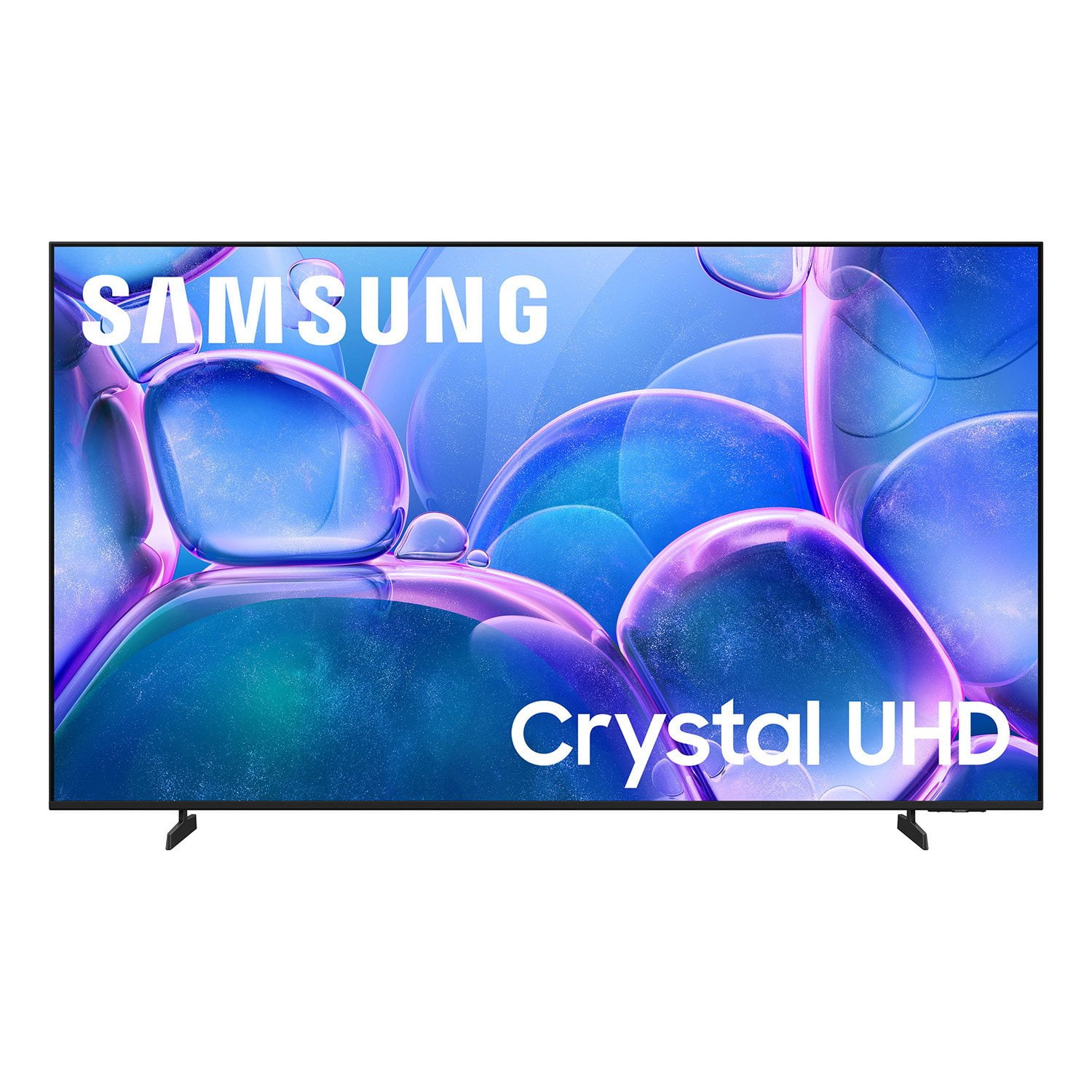
SAMSUNG 70" Class U7900F Series 4K Crystal UHD Smart TV
4.6 out of 5 stars
stars
3,226 ratings3,219 reviews
  1. 5 stars75% (2,404)
  2. 4 stars15% (488)
  3. 3 stars6% (178)
  4. 2 stars2% (65)
  5. 1 star3% (91)

Member photos

  • +1301 images
Sort by |
Showing 2,071-2,080 of 3,219 reviews
Jul 6, 2026
michollow
5 out of 5 stars review

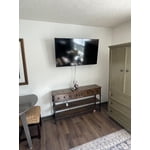
my new bedroom tv

it has a great picture, very clear and bright. the color is spot on as well.

Review from Samsung US
Helpful?519VMKO7QPOP17358505999
Jul 21, 2026
SueGrab
5 out of 5 stars review

Great picture

TV is Great. I have never had a smart TV before, but it real easy to use.

Review from Samsung US
Helpful?519VMKO7QPOP17358505999
Jul 7, 2026
RadMan
2 out of 5 stars review

TV sucks

I cannot get the close caption to turn off on my 55 inch TV. What the heck?!

Review from Samsung US
Helpful?519VMKO7QPOP17358505999
reply from Samsung Advisor

Hi RadMan, You can turn your U7900F TV’s Closed Captions on/off and change the settings such as separating it from the broadcast screen, font color, background color, size, position, language, etc. by going to: Settings > All Settings > General & Privacy > Accessibility > Caption Settings. If we can help with anything else, please call us at 1-800-SAMSUNG, (8AM – 9PM EST Mon – Fri, 8AM – 6PM Sat – Sun). LiveChat with an agent as well as manuals, software, and warranty info can be found at the ‘Support’ link on our Samsung website. ~ Samsung Advisor

Jul 3, 2026
BKLD
5 out of 5 stars review

Great tv quality

We love the TV and looking to upgrade soon. We love the clear picture and superb sound

Review from Samsung US
Helpful?519VMKO7QPOP17358505999
Jul 6, 2026
deede2u
1 out of 5 stars review

Problem

TV keeps blacking out of and on when watching anything

Review from Samsung US
Helpful?519VMKO7QPOP17358505999
reply from Samsung Advisor

Hi deede2u, Thanks for reaching out about the intermittent black screen issue. If you're not using any external devices and the TV randomly cuts to black, it’s usually related to settings, signal, or internal software. Here are a few steps to help narrow it down and get things stable again. 1. Start with Power & Source Checks • Confirm the source: Even without external devices, it's worth confirming the TV is on the correct internal source (like TV/Live TV or a streaming app). Go to: Home > Left directional key > Connected Devices > Sources • Power cycle the TV: Unplug the TV from the power outlet for at least 60 seconds, then plug it back in. This can help reset any temporary glitches. • Check the power outlet: If you're using a power strip or surge protector, try plugging the TV directly into the wall to rule out inconsistent power delivery. 2. Update Your TV Software: Software updates often resolve bugs that can cause screen flickers or blackouts • Make sure the TV has the latest firmware version installed: Home > Left directional key > Settings > Support > Software Update 3. Run Built-In Diagnostics • Perform a Picture Test: Home > Left directional key > Settings > Support > Device Care > Self Diagnosis > Picture Test. This helps determine if the issue is hardware- or software-related. • Run the HDMI Test (optional): Even without HDMI devices connected, this can help verify that internal ports are functioning properly: Home > Left directional key > Settings > Support > Device Care > Self Diagnosis > HDMI Test 4. Review Energy & Picture Settings • Turn off Power Saving Mode or Eco Solution settings—they can dim or turn off the screen during periods of inactivity: Settings > All Settings > General & Privacy > Power & Energy Saving • Turn off Auto Power Off (if enabled): Settings > All Settings > General & Privacy > System Manager > Auto Power Off • Adjust Picture Mode settings: If the current mode is overly dynamic (like “Dynamic” or “Vivid”), try switching to “Standard” or “Movie” and observe if the screen behavior changes. 5. Factory Reset (if needed): If the problem persists after all checks, consider resetting the TV to default settings. (Heads-up: this will erase your installed apps and personal settings.) If none of these steps resolve the intermittent blackout, please reach out to Samsung Support for further troubleshooting or possible service options at 1-800-SAMSUNG (8AM – 9PM EST Mon – Fri, 8AM – 6PM Sat – Sun), or reach us via text anytime. You can also visit ‘Support’ on our website for: • Live Chat • Manuals, Software, & Warranty Info ~ Samsung Advisor

Jul 20, 2026
Anonymous
5 out of 5 stars review

Great pic for this budget tv

What an amazing picture. My first ever Samsung Tv. I would definitely buy another.

Review from Samsung US
Helpful?519VMKO7QPOP17358505999
Jul 5, 2026
Girley
5 out of 5 stars review

Great features

Tv responds well really love how many apps are on the features

Review from Samsung US
Helpful?519VMKO7QPOP17358505999
Jul 20, 2026
samsung65
5 out of 5 stars review

great choice

I made great choice brightness is excellent i will give a 5 stars

Review from Samsung US
Helpful?519VMKO7QPOP17358505999
Jul 20, 2026
Johnte
5 out of 5 stars review

Great tv

It has been a great tv. It's great for sports and gaming too

Review from Samsung US
Helpful?519VMKO7QPOP17358505999
Jul 5, 2026
Sams
3 out of 5 stars review

Works well.

The tv works well, but takes some getting used to.

Review from Samsung US
Helpful?519VMKO7QPOP17358505999
reply from Samsung Advisor

Hi Sams, We appreciate your feedback. Should you have any questions or need help, do not hesitate to reach out to us at 1-800-SAMSUNG (8AM – 9PM EST Mon – Fri, 8AM – 6PM Sat – Sun). You can also connect with a LiveChat agent through the ‘Support’ link on our website. ~ Samsung Advisor