Skip to Main Content
Sam's Club
Sam's Club
All Departments
All Services
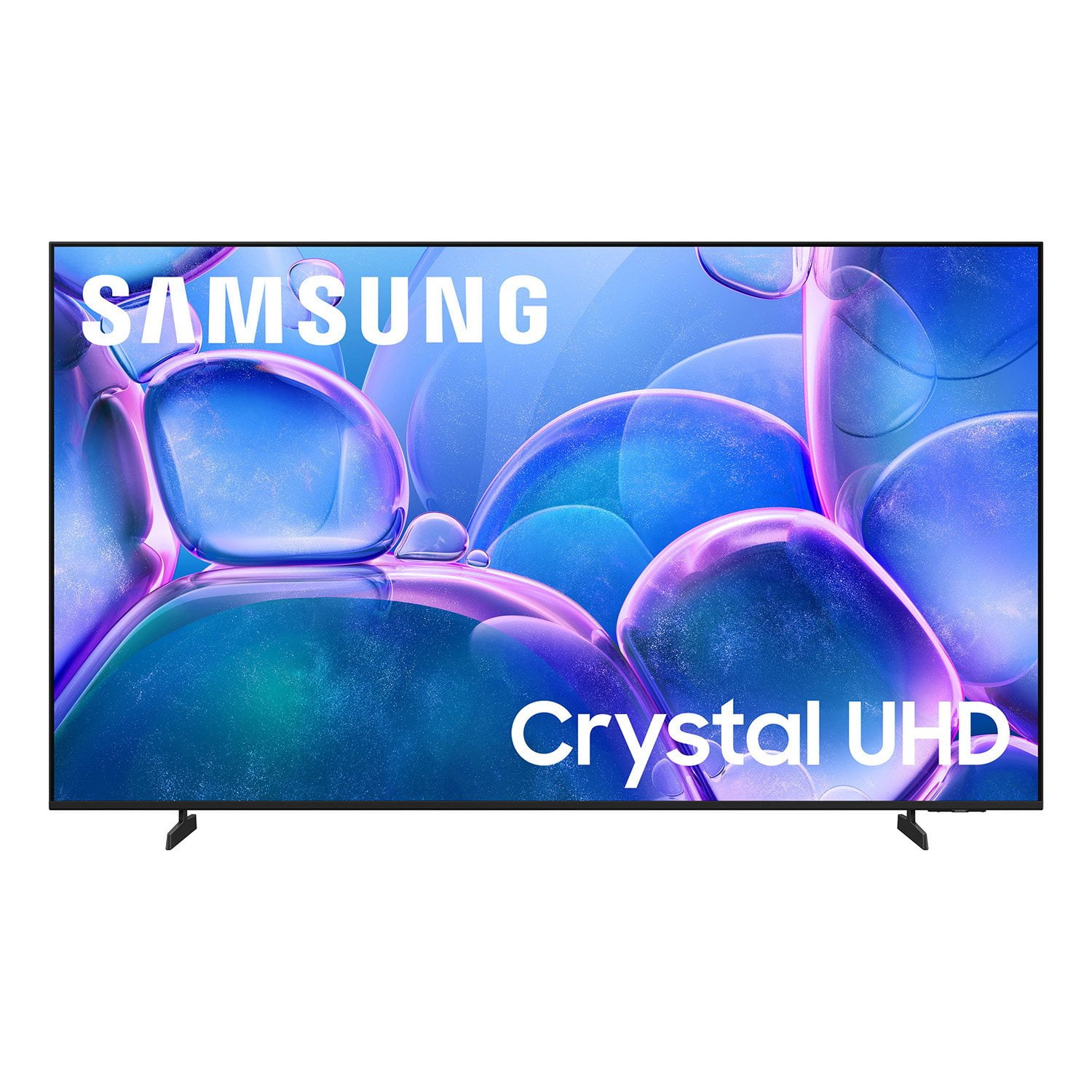
Customer reviews for SAMSUNG 70" Class U7900F Series 4K Crystal UHD Smart TV for
SAMSUNG 70" Class U7900F Series 4K Crystal UHD Smart TV
4.6 out of 5 stars
stars
3,210 ratings3,203 reviews
  1. 5 stars74% (2,389)
  2. 4 stars15% (487)
  3. 3 stars6% (178)
  4. 2 stars2% (65)
  5. 1 star3% (91)

Member photos

  • +1278 images
Sort by |
Showing 1,081-1,090 of 3,203 reviews
Jul 5, 2026
Nael
5 out of 5 stars review

Very good

[This review was collected as part of a promotion.] It's very good TV I liked it Samsung I will give her top 10

Review from Samsung US
Helpful?519VMKO7QPOP17358505999
Jul 5, 2026
LizT
5 out of 5 stars review

New Smart Samsung

Like the contrast, easy to use remote. Wish it had a speaker on the remote, but like Samsung. Our 2nd Samsung Smart Tv in a year!

Review from Samsung US
Helpful?519VMKO7QPOP17358505999
Jul 5, 2026
SamsungOwner
4 out of 5 stars review

My new TV

For the money I had to spend I am happy I chose Samsung I know there are better models but for a poor man on Social Security this is a great TV

Review from Samsung US
Helpful?519VMKO7QPOP17358505999
Jul 5, 2026
Betty
3 out of 5 stars review

Yes

The TV never the sound the mouth words never match the mouth and then I have to hold the button to make a match the mouse so it’s very aggravating

Review from Samsung US
Helpful?519VMKO7QPOP17358505999
reply from Samsung Advisor

Hi Betty, Thank you for your feedback regarding lip sync issues on your Samsung U7900F TV. Audio delays can sometimes be related to the content source, but if you're noticing this issue across multiple inputs or apps, there are a few settings to try depending on your setup: If you're using external audio (e.g., a soundbar or receiver): 1. Adjust the Digital Audio Delay. You can manually sync the audio with the video: Settings > All Settings > Sound > Expert Settings > Digital Output Audio Delay 2. Enable Pass-Through Mode. This allows the audio signal to bypass additional TV processing, reducing delay: Settings > All Settings > Sound > Expert Settings > Digital Audio Output Format > Pass-Through If you're using the TV’s built-in speakers: 1. Run a Software Update. Firmware updates may improve system performance, including audio sync: Settings > Support > Software Update > Update Now 2. Cold Boot Your TV. With the TV on, hold down the power button on your remote until the TV turns off and back on. This can resolve temporary sync issues. If the problem persists after trying these steps, we’d be happy to help with additional troubleshooting or arrange service if needed. Please contact Samsung Support at 1-800-SAMSUNG (8AM – 9PM EST Mon – Fri, 8AM – 6PM Sat – Sun). You can also LiveChat with an agent or explore additional resources on our website by clicking the ‘Support’ link. ~ Samsung Advisor

Jul 20, 2026
Nita90
3 out of 5 stars review

Decent

Does not have built-in speakers, keeps disconnecting/losing wifi signal, decent tv Not easy to navigate options/settings

Review from Samsung US
Helpful?519VMKO7QPOP17358505999
reply from Samsung Advisor

Hi Nita90, Thank you for your feedback. Please note that the U79000FD TV offers built-in speakers. If you're not hearing sound or if the sound cuts out and you're using only the TV’s built-in speakers (no soundbar or external device), try the following steps: 1. Check volume and mute settings, and make sure the Sound Output is set to TV Speaker: Settings > All Settings > Sound > Sound Output > TV Speaker 2. Run a Sound Test to help diagnose the issue: Settings > Support > Device Care > Self Diagnosis > Sound Test 3. Cold boot your TV by holding the power button on the remote until the TV turns off and back on (Or unplug the TV from power for 30 seconds, then plug it back in) 4. Reset sound settings to default: Settings > All Settings > Sound > Expert Settings > Reset Sound 5. Update your TV’s software in case a firmware issue is affecting audio: Settings > Support > Software Update > Update Now If none of these steps restore your sound, please contact us for further assistance. You can reach Samsung Support at 1-800-SAMSUNG (8AM – 9PM EST Mon – Fri, 8AM – 6PM Sat – Sun). LiveChat is also available via the ‘Support’ link on our website. ~ Samsung Advisor

Jul 5, 2026
CherryPie2019
5 out of 5 stars review

Great upgrade

Easy to set up and picture is crystal clear. Apps were easy to add and set up, and transition from streaming to live tv is easy.

Review from Samsung US
Helpful?519VMKO7QPOP17358505999
Jul 14, 2026
Gristle
5 out of 5 stars review

Wonderful

Overall the product is amazing. No issues with sound, video, games, or connections. Easy to use and set up.

Review from Samsung US
Helpful?519VMKO7QPOP17358505999
Jul 5, 2026
Matt
5 out of 5 stars review

Everything is great on it

[This review was collected as part of a promotion.] Good tv love it an The graphic is great and amazing

Review from Samsung US
Helpful?519VMKO7QPOP17358505999
Jul 20, 2026
StevO
5 out of 5 stars review

Best TV Ever

We love this TV, It has a great picture with perfect color. We could not be happier with this purchase

Review from Samsung US
Helpful?519VMKO7QPOP17358505999
Jul 20, 2026
Anonymous
5 out of 5 stars review

Best Christmas Gift EVA!

[This review was collected as part of a promotion.] I absolutely adore my big screen television best purchase I've made in YEARS!

Review from Samsung US
Helpful?519VMKO7QPOP17358505999