
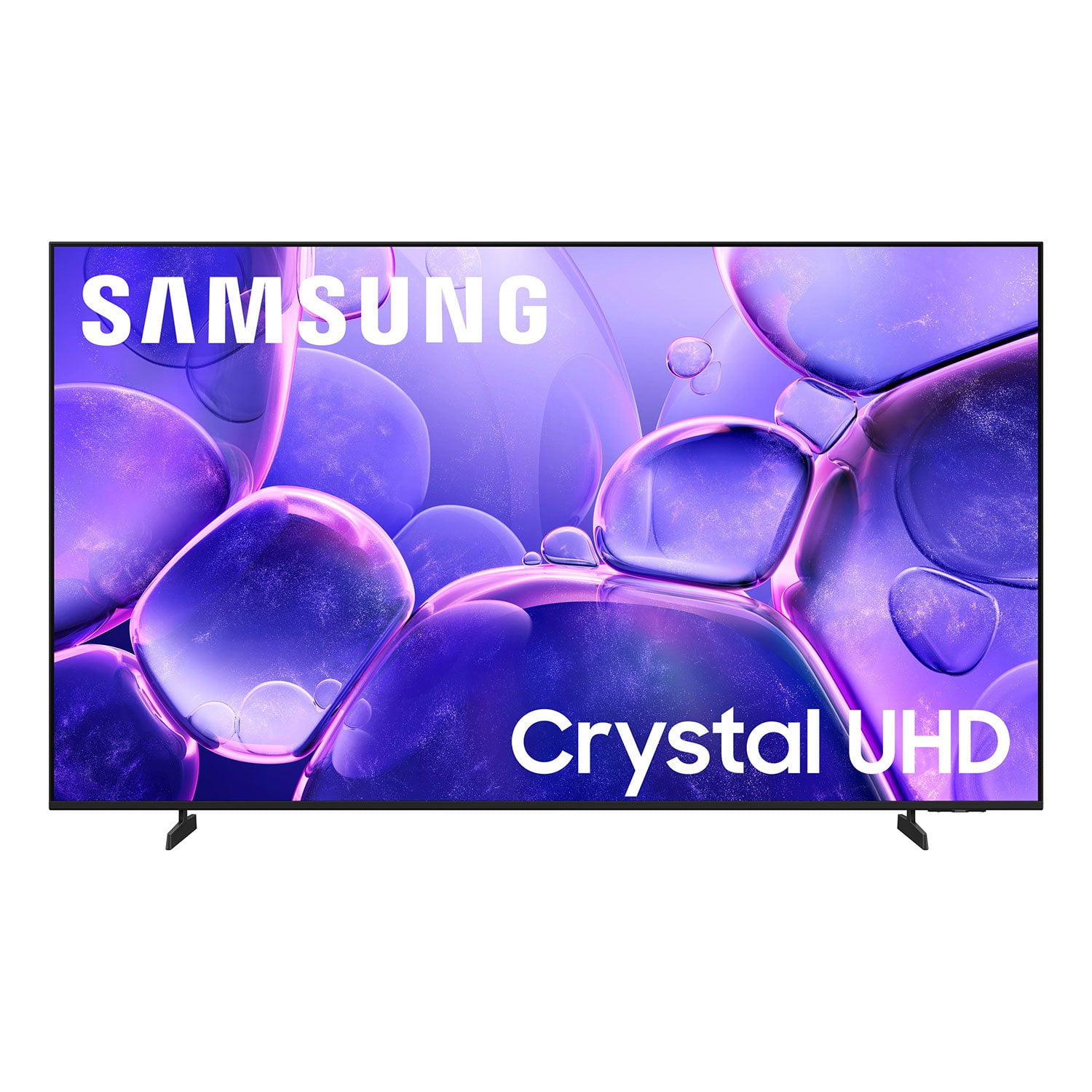
 Customer reviews for SAMSUNG 70” Class U8000F Series 4K Crystal UHD Smart TV for
Member photos

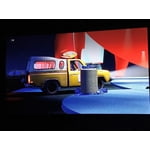

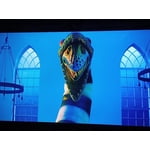


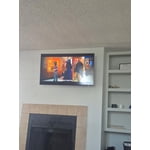 +492 images
Excellent picture quality
[This review was collected as part of a promotion.] This TV works very well! The colors are bright the contrast in the pictures are strong it has a refresh rate that keeps the resolution sharp in the picture smooth and flowing even in technically complicated shows It has good energy usage and the connections to the Internet for streaming are strong
All in one brand "SAMSUNG", Quality and lower pric
[This review was collected as part of a promotion.] My samsung crystal u800 has amazing image, bright, colorful contrast, each resolution image is easy to determine or change, i hope in a few month get the new samsung tv 65" or 70", I really love the satisfaction viewing. y favorite programs with beautiful colors from this samsung y5" tv, thanks
Good brightness and color accuracy!
[This review was collected as part of a promotion.] It's a very nice TV; it's pretty bright, and the auto-brightness feature has been very helpful. Its contrast is good, and it feels very color-accurate. Overall, it's a good TV option, especially if you don't have the money for one of the higher-end options.
TV has issues connecting to network
[This review was collected as part of a promotion.] I've had this TV for one month. Three times it has not been able to connect to my network so I have had to (per instructions) unplug my at&t fiber box & TV for a minute each & then plug them both back in for the TV to connect. Doing one or the other wouldn't do the trick, I had to do them both together. This was in no way do to my at&t. Returning this TV.
Hi Purrr, Thank you for your feedback. Please ensure your TV is running the latest Firmware, version 1132.0. Go to Settings> Support> Software Update. If this firmware version is not yet available on your TV, you can download the update on a USB drive and manually update your TV: 1. On Samsung's website (upper right corner), go to: Support > Manual & Software > Find your TV model, and click on the Firmware – Upgrade File. 2. When the file has finished downloading, locate it and then unzip it. There is normally one folder inside but there may be multiple files. 3. Copy or move all of the files that were included in the zip file to a USB flash drive, but do not place them inside any other folders. If you place the software folders inside a folder on the USB flash drive, the TV or monitor will not find them. 4. Connect the USB drive containing the software upgrade into a USB port on your device. 5. Using your device's remote, navigate to and select Settings, then select All Settings, and then select Support. Select Software Update, select Update Now, and then select Yes if prompted. Your device will search the USB drive for update files. Follow the on-screen instructions to install the updated software. Updates usually take a few minutes; please do not turn off the TV until the update is complete. When the update is finished, it will restart automatically. If you need additional support, Samsung is here to help. Please call us at 1-800-SAMSUNG, available 8AM – 9PM EST Mon – Fri, 8AM – 6PM Sat – Sun. You can also chat with a LiveChat agent by clicking the ‘Support’ link on our website. ~ Samsung Advisor
Some issues I’ve found
[This review was collected as part of a promotion.] I like the tv, however it is difficult to set the tv’s start up channel. I finally got it so I don’t have to use 2 remotes to get to regular stations. I have Comcast remote & tv remote. Another issue is that every once in a 5, when I turn the tv on, there is no sound. It’s a pain to get the tv remote and toggle through the options to get the sound back on. Outside of those flaws, the tv is ok.
Hi Evie, Thank you for your review and for sharing your experience with your U8000F TV. If you’re not hearing any sound, whether using TV speakers or an external audio device, here are several steps that can help get things working again. 1. Start with Basic Checks • Make sure the TV isn’t muted and the volume is turned up. • If using an external audio device, ensure it’s powered on, set to the correct source, and the volume is turned up there as well. • Unplug your TV for 30 seconds, then plug it back in and power it on. 2. HDMI ARC / eARC Connection • Use a certified High-Speed HDMI cable with Ethernet. Connect it to the HDMI eARC ports on both the TV and the soundbar/receiver. • Enable these settings: o Settings > All Settings > Sound > Expert Settings > HDMI eARC Mode = Auto o Settings > All Settings > General & Privacy > External Device Manager > Anynet+ (HDMI-CEC) = On • Check the digital audio format: Settings > All Settings > Sound > Expert Settings > Digital Output Audio Format o If you're not sure what your connected device supports, set it to Auto. 4. Bluetooth Audio Connection • Pair your Bluetooth device: Settings > All Settings > Sound > Sound Output > Bluetooth Speaker List • If your Bluetooth device doesn’t appear or won’t connect, move it closer to the TV, ensure it’s in pairing mode, and select Scan. • If paired but no sound, unpair the device and try reconnecting. 5. Wi-Fi / Wireless Speakers • Confirm the speakers and the TV are on the same Wi-Fi network. Use: Settings > All Settings > Sound > Sound Output > Wi-Fi Speaker Surround Setup • Reboot both the TV and the Wi-Fi speakers, and check your router for connection strength. 6. Other Helpful Tips • Run a Sound Test: Settings > Support > Device Care > Self Diagnosis > Sound Test • Update TV firmware to rule out compatibility issues: Settings > Support > Software Update > Update Now • If using a cable box or external streaming device, double-check that the device’s audio output settings are set to HDMI or the appropriate output. If you still don’t hear sound after following these steps, please don’t hesitate to reach out so we can assist further. You can call Samsung Support at 1-800-SAMSUNG, 8AM – 9PM EST Mon – Fri, 8AM – 6PM Sat – Sun. Our LiveChat agents are also available by clicking the ‘Support’ link at Samsung.com. ~ Samsung Advisor
Versatility Without Compromise
[This review was collected as part of a promotion.] and versatile television.When evaluating a screen I look at , several key factors contribute to the overall visual experience. Brightness levels are crucial for comfortable viewing in various lighting conditions. The resolution determines the sharpness and detail of the images displayed. Contrast ratios significantly impact the depth and vibrancy of colors, differentiating between the darkest blacks and brightest whites. Furthermore, the refresh rate dictates how smoothly motion appears on screen, which is especially important for fast-paced content. Finally, viewing angles affect how consistent the image quality remains when observed from different perspectives. Considering these elements together provides a comprehensive understanding of a display's performance.am thoroughly impressed with the user-friendliness of this television. Its intuitive interface makes navigation and operation remarkably straightforward. Furthermore, the seamless connectivity to a wide range of devices is a significant advantage. It truly integrates well with my existing technology ecosystem. I have found that having one in every room enhances the overall home entertainment experience. The ability to effortlessly connect to various platforms simplifies media consumption. This t.v has certainly met and exceeded my expectations!!
Hi Capricornu8, Thank you for your feedback. If there's anything we can do to assist you, please do not hesitate to reach out to us. Call 1-800-SAMSUNG from 8AM - 12AM EST, seven days a week, or connect with a LiveChat agent anytime by selecting ‘Support’ on our website. ~ Samsung Advisor
Great interface/design, but light blooming is baad
[This review was collected as part of a promotion.] I wanted this TV to be great. And it has great aspects, such as the UI, and response, the thinness of it, and the small wire and how it looks on a wall. However, the brightness is absolutely terrible, and the bloominig/bright spots on the screen are absolutely horrible, and this is after I exchanged for a new panel. It makes watching dark scenes impossible.
Hi jg8045, We’re sorry to hear you’re not fully satisfied with the picture quality on your Samsung U8000FD TV. If the image appears too dark, we suggest disabling certain energy-saving features, which can automatically adjust brightness and affect how the screen looks. Go to: Settings > All Settings > General & Privacy > Power and Energy Saving, then turn off Brightness Optimization, Energy Saving Solution, Motion Lighting, and/or Contrast Enhancer. You can also adjust the Picture Mode to better suit your environment: Settings > All Settings > Picture > Picture Mode • Standard – Default mode for general viewing • Dynamic – Brighter and clearer, ideal for well-lit rooms • Movie – Best for dark room viewing • Eco – Energy-saving mode • Filmmaker Mode – Preserves content as intended by creators To fine-tune brightness, go to: Home > left directional key > Settings > All Settings > Picture > Expert Settings, then adjust the Brightness level (0–50) to your preference. Lastly, please make sure your TV is running the latest firmware: Home > Home > left directional key > Settings > Support > Software Update > Update Now We hope these tips help improve your viewing experience. If you need further support, feel free to contact us at 1-800-SAMSUNG, 8AM – 12AM EST, 7 days a week. LiveChat is also available via the ‘Support’ link on our website. ~ Samsung Advisor
Awesome accessibility
[This review was collected as part of a promotion.] I absolutely love this TV. The Apps, the quick connection to the wifi for steaming the Samsung TV network which is awesome. The vibrant color is fantastic. Its great to attach your Xbox in which it recognizes it automatically and creates the Xbox apo for easy access. Love the curved screen.it give more viewing area. You can also use the smart things app in your phone to create a remote control, very accessible and simple. All in all a fantastic product.
Nice monitor but needs remote control
[This review was collected as part of a promotion.] Very good television in terms of picture and sound quality; HOWEVER, I'm very disappointed in the remote control. It's hard to read, and is lacking a voice control option. This is 2026. I assumed that the remote would be remote operated and was vey surprised to learn the hard way after setting everything up that there was no microphone on the monitor nor was the remote itself voice operated. It sounds trivial but it's not since I have Xfinity running through my set along with all of the standard streaming options and there is too much complexity since I have to navigate two different remotes too fully operate my system.
Hi GNH1897, Thanks for your feedback on the U8000F TV. Please know we are here to help. First, please ensure you are running the latest Firmware Update. Go to Settings> Support> Software Update. In regards to your remote control, we apologize for any confusion, however the U8000F does not come with a built-in voice assistant or microphone. It is however compatible with external Alexa devices. If you need additional support, Samsung is here to help. Please call us at 1-800-SAMSUNG, available 8AM – 9PM EST Mon – Fri, 8AM – 6PM Sat – Sun. You can also chat with a LiveChat agent by clicking the ‘Support’ link on our website. ~ Samsung Advisor
Greatest brand of TV on the market
[This review was collected as part of a promotion.] Samsung TVs are always the best in this by far has been no exception. From its intense contrast great resolution and gorgeous color pop I could never go any other way. It will always be Samsung and always will be