Skip to Main Content
Sam's Club
Sam's Club
All Departments
All Services
Customer reviews for SAMSUNG 75” Class U8000F Series 4K Crystal UHD Smart TV for
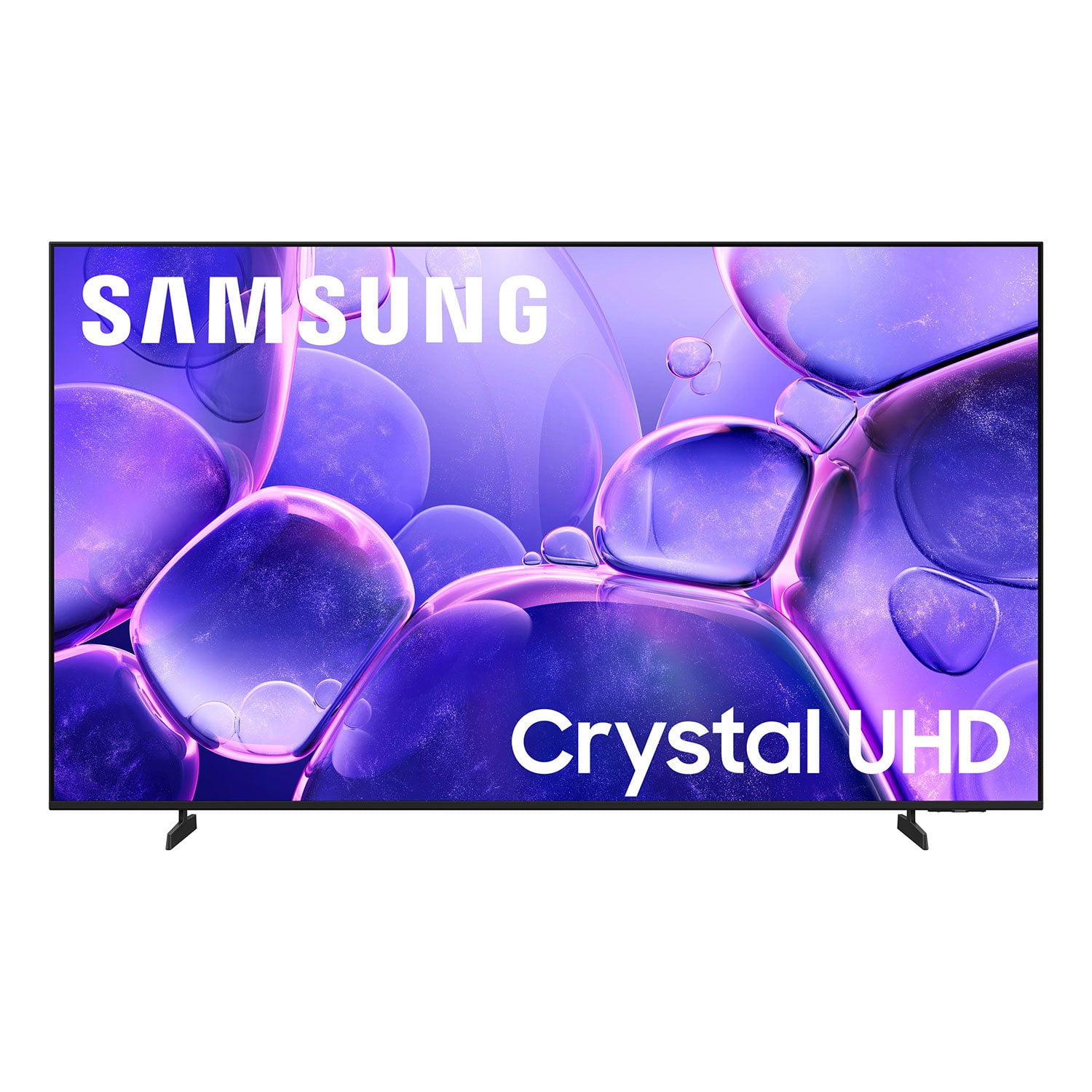
SAMSUNG 75” Class U8000F Series 4K Crystal UHD Smart TV
4.5 out of 5 stars
stars
1,128 ratings1,084 reviews
  1. 5 stars73% (820)
  2. 4 stars15% (172)
  3. 3 stars6% (63)
  4. 2 stars3% (39)
  5. 1 star3% (34)

Member photos

Sort by |
Showing 191-200 of 1,084 reviews
Apr 20, 2026
BigDaddyCool724
4 out of 5 stars review

Great features and easy to setup and use

[This review was collected as part of a promotion.] Excellent brightness, contrast, refresh rate and resolution..Sound is also not bad..Had an issue with earlier model that became spotty and eventually crashed..but this is a much better, newer model..recommend

Review from Samsung US
Helpful?4VWCX52TA5XO15976274879
May 20, 2026
Evie
3 out of 5 stars review

Some issues I’ve found

[This review was collected as part of a promotion.] I like the tv, however it is difficult to set the tv’s start up channel. I finally got it so I don’t have to use 2 remotes to get to regular stations. I have Comcast remote & tv remote. Another issue is that every once in a 5, when I turn the tv on, there is no sound. It’s a pain to get the tv remote and toggle through the options to get the sound back on. Outside of those flaws, the tv is ok.

Review from Samsung US
Helpful?4VWCX52TA5XO15976274879
reply from Samsung Advisor

Hi Evie, Thank you for your review and for sharing your experience with your U8000F TV. If you’re not hearing any sound, whether using TV speakers or an external audio device, here are several steps that can help get things working again. 1. Start with Basic Checks • Make sure the TV isn’t muted and the volume is turned up. • If using an external audio device, ensure it’s powered on, set to the correct source, and the volume is turned up there as well. • Unplug your TV for 30 seconds, then plug it back in and power it on. 2. HDMI ARC / eARC Connection • Use a certified High-Speed HDMI cable with Ethernet. Connect it to the HDMI eARC ports on both the TV and the soundbar/receiver. • Enable these settings: o Settings > All Settings > Sound > Expert Settings > HDMI eARC Mode = Auto o Settings > All Settings > General & Privacy > External Device Manager > Anynet+ (HDMI-CEC) = On • Check the digital audio format: Settings > All Settings > Sound > Expert Settings > Digital Output Audio Format o If you're not sure what your connected device supports, set it to Auto. 4. Bluetooth Audio Connection • Pair your Bluetooth device: Settings > All Settings > Sound > Sound Output > Bluetooth Speaker List • If your Bluetooth device doesn’t appear or won’t connect, move it closer to the TV, ensure it’s in pairing mode, and select Scan. • If paired but no sound, unpair the device and try reconnecting. 5. Wi-Fi / Wireless Speakers • Confirm the speakers and the TV are on the same Wi-Fi network. Use: Settings > All Settings > Sound > Sound Output > Wi-Fi Speaker Surround Setup • Reboot both the TV and the Wi-Fi speakers, and check your router for connection strength. 6. Other Helpful Tips • Run a Sound Test: Settings > Support > Device Care > Self Diagnosis > Sound Test • Update TV firmware to rule out compatibility issues: Settings > Support > Software Update > Update Now • If using a cable box or external streaming device, double-check that the device’s audio output settings are set to HDMI or the appropriate output. If you still don’t hear sound after following these steps, please don’t hesitate to reach out so we can assist further. You can call Samsung Support at 1-800-SAMSUNG, 8AM – 9PM EST Mon – Fri, 8AM – 6PM Sat – Sun. Our LiveChat agents are also available by clicking the ‘Support’ link at Samsung.com. ~ Samsung Advisor

Apr 20, 2026
JakeHutch
4 out of 5 stars review

Hard working for a low price

[This review was collected as part of a promotion.] This affordable tv easily met my priorities in a display, which are Minimum of 60Hz refresh rate, true 4k resolution, 7.1ch Dolby Atmos compatibility with my PC and Nakamichi sound bar and interoperability with all my devices including my Samsung ZFold 3, able to cast wirelessly anytime I need. If you can offer me a TV that improves on any of these feature, I'll be in heaven.

Review from Samsung US
Helpful?4VWCX52TA5XO15976274879
May 11, 2026
LizzeteA
4 out of 5 stars review

​Great 4K TV

[This review was collected as part of a promotion.] Good picture, easy to use, and looks nice. I was worried it wouldn't be bright enough for my living room since I have big windows, but it’s been perfectly fine. The remote is a little small and takes a second to learn, but once you get it, it’s fine. For a 2025 model, it feels very modern and fast. No complaints so far.

Review from Samsung US
Helpful?4VWCX52TA5XO15976274879
May 11, 2026
BIGBauler
5 out of 5 stars review

Ultra HD, Ultra Vibrant

[This review was collected as part of a promotion.] This TV is a total game-changer if you love a bold, high-energy picture. The UHD clarity is incredibly sharp, but the real star is the color—vivid, saturated, and makes every scene come to life. Plus, the slick menus and easy controls make finding your favorite content a breeze.

Review from Samsung US
Helpful?4VWCX52TA5XO15976274879
Oct 18, 2025
Kieu
4 out of 5 stars review

Verified Purchase

M

Satisfied

Helpful?4VWCX52TA5XO15976274879
Jun 7, 2026
Andi
1 out of 5 stars review

Does NOT Hold WiFi Connection

[This review was collected as part of a promotion.] It does not hold my WiFi connection while every other computer and device in my house does. And while I understand the difference between Samsung and Apple, does not stream AppleTV well.

Review from Samsung US
Helpful?4VWCX52TA5XO15976274879
reply from Samsung Advisor

Hi Andi, Thank you for your feedback. For optimal performance, please ensure your TV is running the latest firmware Update Version 1269.9. You can check this by going to: Home > left directional key > Settings > Support > Software Update If this firmware version is not yet available on your TV, you can download the update on a USB drive and manually update your TV: 1. On Samsung's website (upper right corner), go to: Support > Manual & Software > Find your TV model, and click on the Firmware – Upgrade File. 2. When the file has finished downloading, locate it and then unzip it. There is normally one folder inside but there may be multiple files. 3. Copy or move all of the files that were included in the zip file to a USB flash drive, but do not place them inside any other folders. If you place the software folders inside a folder on the USB flash drive, the TV or monitor will not find them. 4. Connect the USB drive containing the software upgrade into a USB port on your device. 5. Using your device's remote, navigate to and select Settings, then select All Settings, and then select Support. Select Software Update, select Update Now, and then select Yes if prompted. Your device will search the USB drive for update files. Follow the on-screen instructions to install the updated software. Updates usually take a few minutes; please do not turn off the TV until the update is complete. When the update is finished, it will restart automatically. If you continue to have issues, please call us at -800-SAMSUNG (8AM – 9PM EST Mon – Fri, 8AM – 6PM Sat – Sun). LiveChat support and additional help are available at the ‘Support’ link on our website. ~ Samsung Advisor

Jun 1, 2026
Miika
5 out of 5 stars review

Picture

[This review was collected as part of a promotion.] Very good product can use it with my samsung phone. Easy to use picture quantity is great. I have 2 one in my bedroom one in my living room.

Review from Samsung US
Helpful?4VWCX52TA5XO15976274879
Jun 5, 2026
Mike
2 out of 5 stars review

Slow response

[This review was collected as part of a promotion.] Compared to my older Samsung 65” this interface is horrible totally inconsistent with the other and slower than a Intel 286 processor

Review from Samsung US
Helpful?4VWCX52TA5XO15976274879
reply from Samsung Advisor

Hi Mike, We appreciate your feedback regarding your U8000FD TV’s performance. If you're experiencing freezing or lag in general response time, please try the following steps: 1. Check for firmware updates – Keeping your TV up to date can resolve many performance issues: Home > left directional key > Settings > Support > Software Update > Update Now 2. Run Device Care – This tool checks system memory, frees up cached data, and closes background apps that could be slowing things down: Home > left directional key > Settings > Support > Device Care > Start Device Care 3. Cold boot your TV – With the TV powered on, press and hold the Power button on your remote for 5+ seconds until the TV restarts. This helps refresh the system. If you're still noticing performance snags after these steps, please contact Samsung Support at 1-800-SAMSUNG (8AM – 9PM EST Mon – Fri, 8AM – 6PM Sat – Sun). You can also connect with a LiveChat agent via the ‘Support’ link on our website. ~ Samsung Advisor

Jun 5, 2026
JRtv
4 out of 5 stars review

Great TV, Terrible remote with no instructions.

[This review was collected as part of a promotion.] TV is great, but it is hampered by a terrible remote with no user guide. This creates bada usability.

Review from Samsung US
Helpful?4VWCX52TA5XO15976274879