Skip to Main Content
Sam's Club
Sam's Club
All Departments
All Services
Customer reviews for SAMSUNG 77” Class S95FD Series 4K OLED Smart TV for
SAMSUNG 77” Class S95FD Series 4K OLED Smart TV
4.7 out of 5 stars
stars
767 ratings767 reviews
  1. 5 stars84% (643)
  2. 4 stars10% (80)
  3. 3 stars3% (23)
  4. 2 stars1% (9)
  5. 1 star2% (12)

Member photos

  • +255 images
Sort by |
Showing 661-670 of 767 reviews
Aug 22, 2025
Anonymous
5 out of 5 stars review

Great product

[This review was collected as part of a promotion.] This tv is amazing I love the clarity when I watch TV I would love to get another if anything happens to the one I have

Review from Samsung US
Helpful?0Y5FTY657CFT15678414574
Oct 15, 2025
Dishman
5 out of 5 stars review

Great picture

[This review was collected as part of a promotion.] Wonderful and sharp picture. Banners from dish satellite are fuzzy only on this tv. Other than that outstanding tv.

Review from Samsung US
Helpful?0Y5FTY657CFT15678414574
Nov 2, 2025
Jimmysmokes
5 out of 5 stars review

Best picture
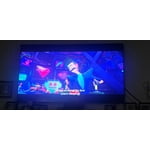
[This review was collected as part of a promotion.] I've been brand loyal for as long as I can remember, including all appliances , this is the best picture ever . Recommend for anyone

Review from Samsung US
Helpful?0Y5FTY657CFT15678414574
Jan 5, 2026
GHGs
5 out of 5 stars review

Amazing TV

Amazing picture, absolutely no glare in a room full of windows

Review from Samsung US
Helpful?0Y5FTY657CFT15678414574
Jan 20, 2026
Ozzie
5 out of 5 stars review

Great tv.

It is exceptionally great. Only wish it came with a manual. Other wise best tv I’ve ever had.

Review from Samsung US
Helpful?0Y5FTY657CFT15678414574
reply from Samsung Specialist

Ozzie, Thank you for sharing your feedback with us. To help you get the most from your TV, you can download the full e-Manual and more by visiting Samsung’s website, then navigating to: Support > Manual & Software > TVs & Home Theater. From there, you can search for and select your S95F TV model to view or download the available guides. The e-Manual & User Guide are also conveniently built into your TV: Settings > Support > Tips and User Guides. Your TV includes Learn Menu Screen, an accessibility feature that provides audio guidance for on-screen menus. When enabled, your TV will announce the name and function of each menu item as you scroll, without making any changes. This feature is particularly helpful for users who are visually impaired or new to Smart TV menus. To enable, go to: Settings > All Settings > General & Privacy > Accessibility > Learn Menu Screen. To exit, press the Return key twice. If you’d like more assistance with this feature, please reach Samsung Support at 1-800-SAMSUNG, available 8AM – 12AM EST, 7 days a week. LiveChat agents are also available through the ‘Support’ link on our website. ~ Samsung Specialist

Jan 6, 2026
Ronald Q
5 out of 5 stars review

Love my OLED.

Love the Samsung OLED TV crystal clear highly recommended.

Review from Samsung US
Helpful?0Y5FTY657CFT15678414574
Jan 20, 2026
Vince
5 out of 5 stars review

Samsung 82”

Absolutely a beautiful picture. I love everything about it.

Review from Samsung US
Helpful?0Y5FTY657CFT15678414574
Nov 8, 2025
Foxtrot
5 out of 5 stars review

Crispy vividism

[This review was collected as part of a promotion.] Had the older version and upgraded. The pixels are very crispy and vivid.

Review from Samsung US
Helpful?0Y5FTY657CFT15678414574
Sep 5, 2025
ebarr59
2 out of 5 stars review

New Samsung Smart TV

[This review was collected as part of a promotion.] Product fluctuates volume from channel to channel.

Review from Samsung US
Helpful?0Y5FTY657CFT15678414574
reply from Samsung Specialist

ebarr59, Thank you for sharing your experience with volume fluctuations on your TV. This is likely due to a setting you may have accidentally enabled. Here are a few steps that may help resolve the issue: 1. Turn off the Sound Sensor: Use the button located beneath the Samsung logo on the bottom of the TV. With the TV powered on, press the button to the left to turn the sensor on or to the right to turn it off. 2. Disable AI Sound Features: Some AI functions automatically analyze and adjust sound, which may cause volume to fluctuate. To disable these: Settings > All Settings > Advanced Features > AI Mode Settings > AI Mode. You can turn off all AI functions at once or toggle each setting individually. 3. Check for Firmware Updates: Keeping your TV up to date may improve audio performance: Settings > Support > Software Update > Update Now To help stabilize audio, please do enable Auto Volume, which automatically adjusts sound levels when switching inputs or channels: Settings > All Settings > Sound > Expert Settings > Auto Volume > On (please note: Auto Volume can be used with TV speakers only, not with connected audio devices) If you'd like more assistance, please contact Samsung Support for further assistance at 1-800-SAMSUNG, 8AM – 12AM EST, 7 days a week. LiveChat and additional support resources are also available through the Support link on our website. ~ Samsung Specialist

Aug 22, 2025
Chuko21
5 out of 5 stars review

Samsung tv

[This review was collected as part of a promotion.] I use playing Nintendo switch. And watching YouTube videos! It's very cualitities. I love it

Review from Samsung US
Helpful?0Y5FTY657CFT15678414574