Skip to Main Content
Sam's Club
Sam's Club
Customer reviews for SAMSUNG 70” Class U8000F Series 4K Crystal UHD Smart TV for
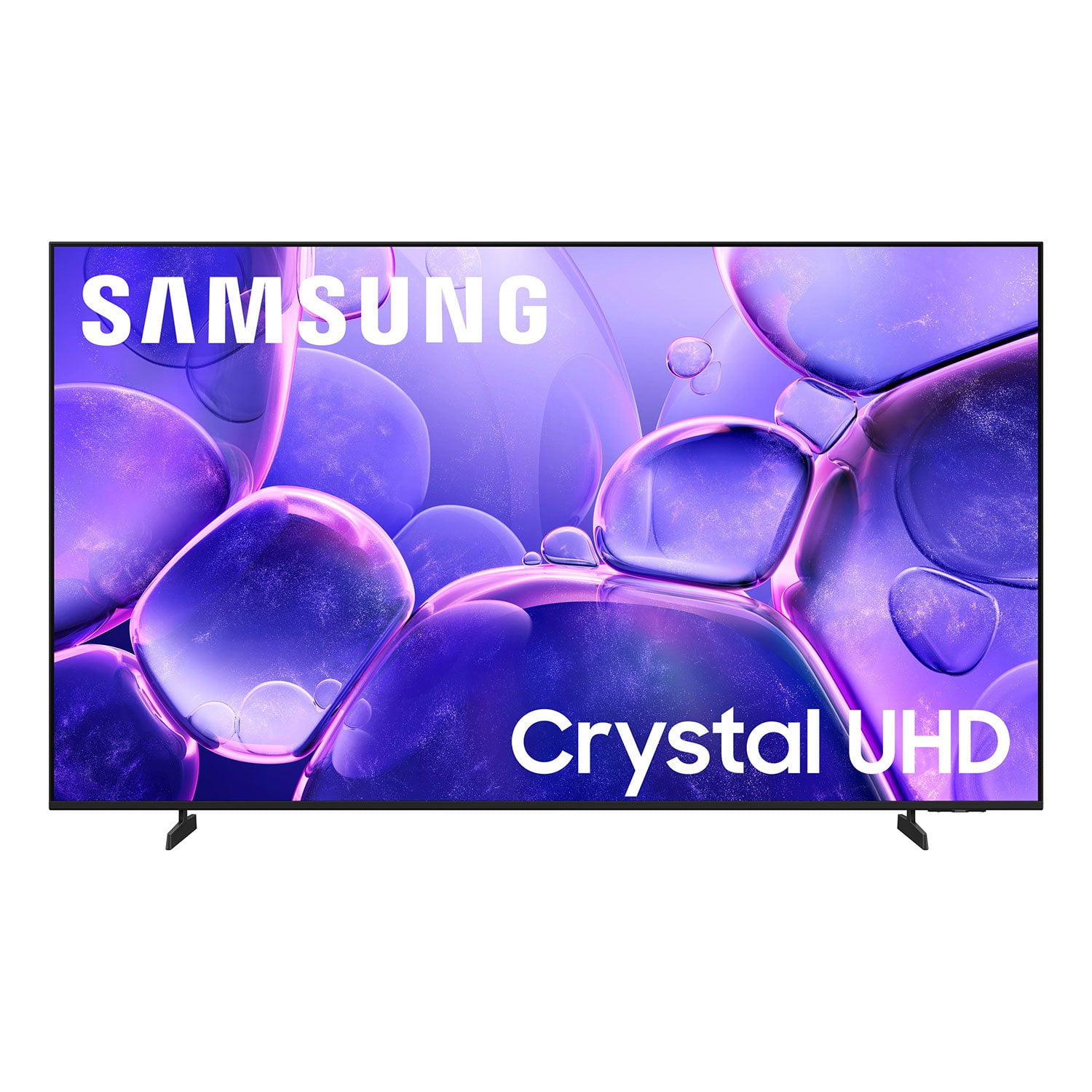
SAMSUNG 70” Class U8000F Series 4K Crystal UHD Smart TV
4.6 out of 5 stars
stars1,560 ratings1,554 reviews
  1. 5 stars75% (1,163)
  2. 4 stars15% (234)
  3. 3 stars5% (77)
  4. 2 stars3% (42)
  5. 1 star3% (44)

Member photos

  • +456 images
Sort by |
Showing 561-570 of 1,554 reviews
Jun 1, 2026
Huskerdo921
5 out of 5 stars review

Excellent TV!

[This review was collected as part of a promotion.] Best tv i ever had! The color, crispness, sound, all unparalleled! Fast interface with no lag. Would buy again!

Review from Samsung US
Helpful?340LGBQNMBLF16007967994
May 20, 2026
John
5 out of 5 stars review

My Samsung

[This review was collected as part of a promotion.] The resolution is excellent with a contrast and brightness that highlights the reality on the screen

Review from Samsung US
Helpful?340LGBQNMBLF16007967994
May 20, 2026
Susuki
4 out of 5 stars review

Clear picture

[This review was collected as part of a promotion.] I love how clear the graphics are and how well the TV works in general. This is the best TV I have ever owned up until now.

Review from Samsung US
Helpful?340LGBQNMBLF16007967994
Jun 5, 2026
Stace
3 out of 5 stars review

Good for price

[This review was collected as part of a promotion.] Sound isn't great. Loses connection to Samsung channels and sometimes drops internet. But good for price paid!!

Review from Samsung US
Helpful?340LGBQNMBLF16007967994
reply from Samsung Advisor

Hi Stace, Thank you for your feedback. If your TV is having trouble maintaining a wireless connection, please try the following: 1. Distance matters – Keep your TV within 50 feet of your router. Avoid placing the router behind walls, furniture, or electronic devices. 2. Minimize interference – Turn off nearby wireless devices that may disrupt the signal. 3. Power cycle both devices – Unplug the TV and router for 30 seconds, then plug them back in. 4. Run diagnostics: o Settings > Support > Device Care > Self Diagnosis > Smart Hub Connection Test o Settings > Support > Device Care > Self Diagnosis > Wi-Fi 5. Update firmware: Settings > Support > Software Update > Update Now 6. Factory reset (if needed): Settings > All Settings > General & Privacy > Reset > Factory Data Reset If you continue to experience issues, please contact Samsung Support at 1-800-SAMSUNG (8AM – 9PM EST Mon – Fri, 8AM – 6PM Sat – Sun). LiveChat support and additional help are available at the ‘Support’ link on our website. ~ Samsung Advisor

May 19, 2026
The shopper
4 out of 5 stars review

Just 1 from being great.

[This review was collected as part of a promotion.] This product has good quality and a nice resolution with many other features. The only problem I don't like, is the Remote 👎 everything else is fantastic.

Review from Samsung US
Helpful?340LGBQNMBLF16007967994
Jun 1, 2026
Jrbug
5 out of 5 stars review

Great tv

[This review was collected as part of a promotion.] Amazing TV with a super clear picture and amazing sound quality. Can be controlled with the remote it comes with or with you samsung phone.

Review from Samsung US
Helpful?340LGBQNMBLF16007967994
Jun 13, 2026
UptownRtk
5 out of 5 stars review

Great product samsung always is...

[This review was collected as part of a promotion.] Samsung always has beautiful picture and perfect tv functions...only lack in sound department (Speaker brand could be better)...

Review from Samsung US
Helpful?340LGBQNMBLF16007967994
Jun 6, 2026
Vall
2 out of 5 stars review

Tv

[This review was collected as part of a promotion.] It's a television. The picture is rather flat and no matter how I adjust the picture it's to dark. But what am I gonna do about it. And I detest AI!

Review from Samsung US
Helpful?340LGBQNMBLF16007967994
reply from Samsung Advisor

Hi Vall, We’re sorry to hear you’re not fully satisfied with the picture quality on your Samsung U8000F TV. If the image appears too dark, we suggest disabling certain energy-saving features, which can automatically adjust brightness and affect how the screen looks. Go to: Settings > All Settings > General & Privacy > Power and Energy Saving, then turn off Brightness Optimization, Energy Saving Solution, Motion Lighting, and/or Contrast Enhancer. You can also adjust the Picture Mode to better suit your environment: Settings > All Settings > Picture > Picture Mode • Standard – Default mode for general viewing • Dynamic – Brighter and clearer, ideal for well-lit rooms • Movie – Best for dark room viewing • Eco – Energy-saving mode • Filmmaker Mode – Preserves content as intended by creators To fine-tune brightness, go to: Home > left directional key > Settings > All Settings > Picture > Expert Settings, then adjust the Brightness level (0–50) to your preference. Lastly, please make sure your TV is running the latest firmware: Home > Home > left directional key > Settings > Support > Software Update > Update Now We hope these tips help improve your viewing experience. If you need further support, feel free to contact us at 1-800-SAMSUNG (8AM – 9PM EST Mon – Fri, 8AM – 6PM Sat – Sun). LiveChat is also available via the ‘Support’ link on our website. ~ Samsung Advisor

May 20, 2026
DenSef
4 out of 5 stars review

Good item for the money

[This review was collected as part of a promotion.] Good brightness Ggod resolution Wish the remote had channel numbers Wish remote was easier to understand and ise

Review from Samsung US
Helpful?340LGBQNMBLF16007967994
May 23, 2026
Waldo
5 out of 5 stars review

A perfect fit!

[This review was collected as part of a promotion.] It’s a perfect fit for my living room, the picture is great and the remote is compact and feature-packed!

Review from Samsung US
Helpful?340LGBQNMBLF16007967994