reply from Samsung Advisor
Hi Chelle,
Thank you for your review and for sharing your experience with your U8000F TV. If you’re not hearing any sound, whether using TV speakers or an external audio device, here are several steps that can help get things working again.
1. Start with Basic Checks
• Make sure the TV isn’t muted and the volume is turned up.
• If using an external audio device, ensure it’s powered on, set to the correct source, and the volume is turned up there as well.
• Unplug your TV for 30 seconds, then plug it back in and power it on.
2. HDMI ARC / eARC Connection
• Use a certified High-Speed HDMI cable with Ethernet. Connect it to the HDMI eARC ports on both the TV and the soundbar/receiver.
• Enable these settings:
o Settings > All Settings > Sound > Expert Settings > HDMI eARC Mode = Auto
o Settings > All Settings > General & Privacy > External Device Manager > Anynet+ (HDMI-CEC) = On
• Check the digital audio format: Settings > All Settings > Sound > Expert Settings > Digital Output Audio Format
o If you're not sure what your connected device supports, set it to Auto.
3. Optical Audio Connection
• Power on the soundbar/receiver before connecting the optical cable.
• Select the correct sound output: Settings > All Settings > Sound > Sound Output = Optical
• Try a different optical cable if no sound is coming through.
4. Bluetooth Audio Connection
• Pair your Bluetooth device: Settings > All Settings > Sound > Sound Output > Bluetooth Speaker List
• If your Bluetooth device doesn’t appear or won’t connect, move it closer to the TV, ensure it’s in pairing mode, and select Scan.
• If paired but no sound, unpair the device and try reconnecting.
5. Wi-Fi / Wireless Speakers
• Confirm the speakers and the TV are on the same Wi-Fi network. Use: Settings > All Settings > Sound > Sound Output > Wi-Fi Speaker Surround Setup
• Reboot both the TV and the Wi-Fi speakers, and check your router for connection strength.
6. Other Helpful Tips
• Run a Sound Test: Settings > Support > Device Care > Self Diagnosis > Sound Test
• Update TV firmware to rule out compatibility issues: Settings > Support > Software Update > Update Now
• If using a cable box or external streaming device, double-check that the device’s audio output settings are set to HDMI or the appropriate output.
If you still don’t hear sound after following these steps, please don’t hesitate to reach out so we can assist further. You can call Samsung Support at at 1-800-SAMSUNG (8AM – 9PM EST Mon – Fri, 8AM – 6PM Sat – Sun), or reach us via text anytime. You can also visit ‘Support’ on our website for:
• Live Chat
• Manuals, Software, & Warranty Info
~ Samsung Advisor

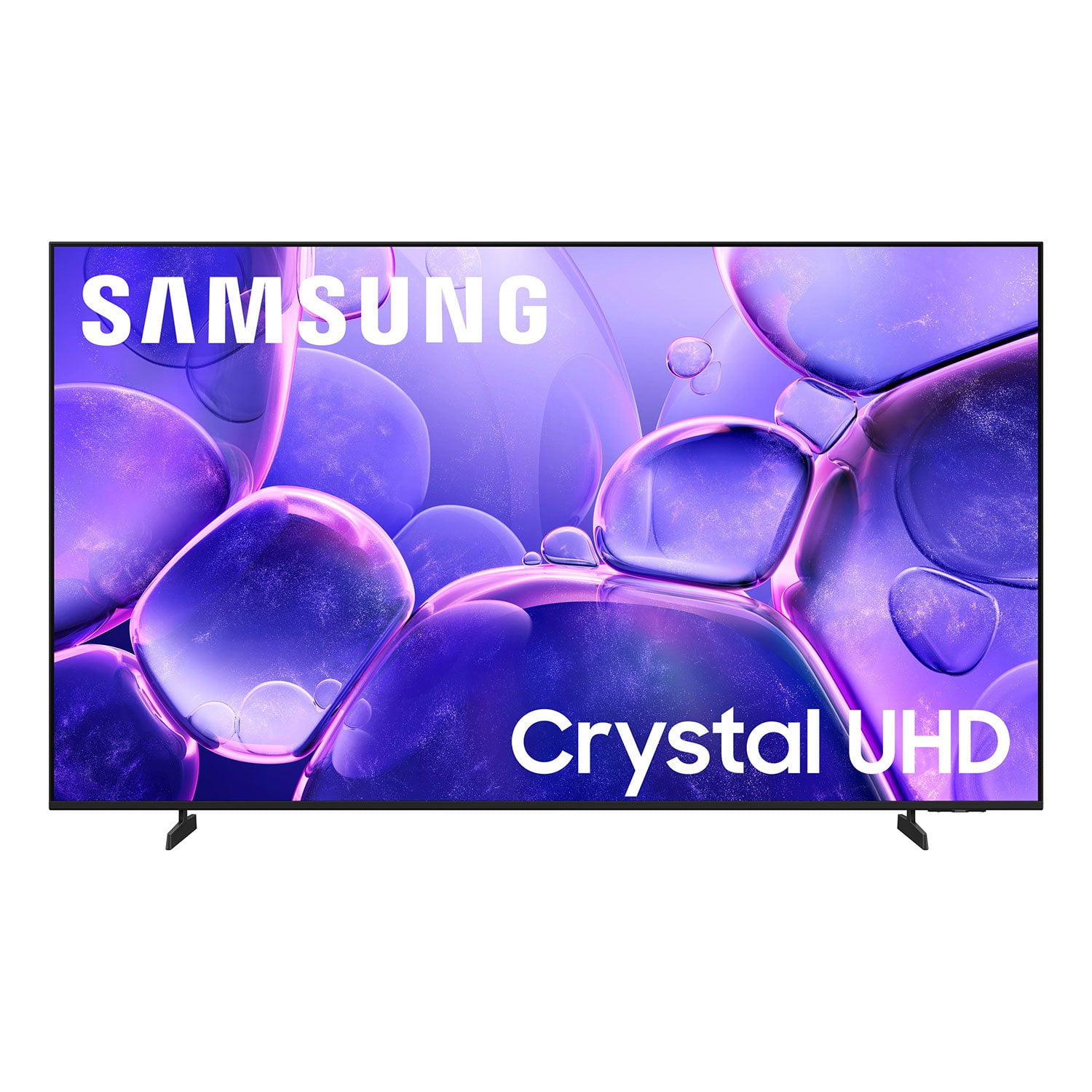 Customer reviews for SAMSUNG 70” Class U8000F Series 4K Crystal UHD Smart TV for