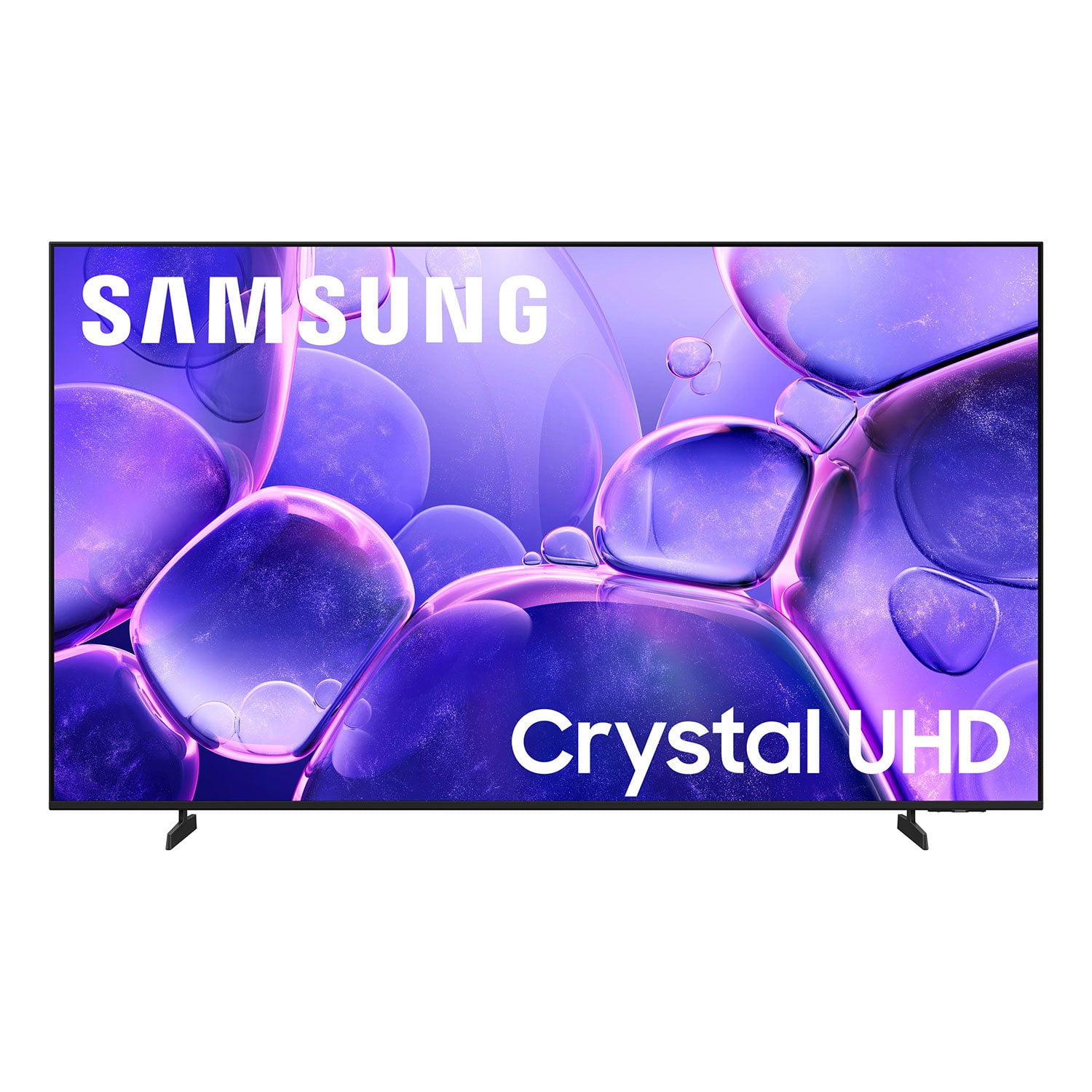
 Customer reviews for SAMSUNG 70” Class U8000F Series 4K Crystal UHD Smart TV for
Member photos

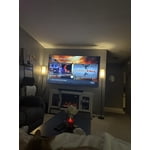
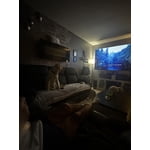
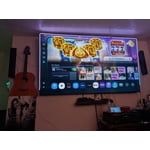 +455 images
Great pic and Features
[This review was collected as part of a promotion.] product is a very good I love the picture I've never seen a TV with a picture like that resolution is great the brightness of it the contrast is great the refresh part of it is easy an interface is really good
Overall happy
[This review was collected as part of a promotion.] The picture on this TV is great. Absolutely no complaints on the picture quality. We are somewhat disappointed in the sound. The sound is clear but difficult to adjust to a suitable volume. One minute we can't hear conversions on show and the next background sounds are blowing us away.
In Love with My Samsung
[This review was collected as part of a promotion.] I am extremely in love with my new tv. I love the way it compliments my living room. My dad came over and helped me mount the tv on the wall, now I don't watch tv in my bedroom anymore. I am always in the living room watching my Samsung. I think I will need one in my bedroom too at this point lol.
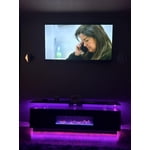
Nice monitor but needs remote control
[This review was collected as part of a promotion.] Very good television in terms of picture and sound quality; HOWEVER, I'm very disappointed in the remote control. It's hard to read, and is lacking a voice control option. This is 2026. I assumed that the remote would be remote operated and was vey surprised to learn the hard way after setting everything up that there was no microphone on the monitor nor was the remote itself voice operated. It sounds trivial but it's not since I have Xfinity running through my set along with all of the standard streaming options and there is too much complexity since I have to navigate two different remotes too fully operate my system.
Hi GNH1897, Thanks for your feedback on the U8000F TV. Please know we are here to help. First, please ensure you are running the latest Firmware Update. Go to Settings> Support> Software Update. In regards to your remote control, we apologize for any confusion, however the U8000F does not come with a built-in voice assistant or microphone. It is however compatible with external Alexa devices. If you need additional support, Samsung is here to help. Please call us at 1-800-SAMSUNG, available 8AM – 9PM EST Mon – Fri, 8AM – 6PM Sat – Sun. You can also chat with a LiveChat agent by clicking the ‘Support’ link on our website. ~ Samsung Advisor
Bad remote
I purchased 2 Samsung 8000F 75 inch TV’s. I’m giving a poor review because the remote control does not work on 1 of the TV’s and I cannot seem to get any service from Samsung. I have been on the phone for hours with multiple people who keep transferring me and have been cut off twice. I just want a new remote control for my brand new TV that actually works. This seems like a simple request.
Hi Mike, Thank you for your feedback. We are sorry to hear about your experience. If your remote isn’t responding, here are a few quick steps to help determine if it’s working correctly: 1. Check the batteries: Remove the back cover of your remote and replace the batteries with a fresh set, ensuring they are inserted in the correct direction. 2. Test for infrared signal: Point the front of the remote at your smartphone camera. While holding down any button, you should see a flashing light through the camera screen. (For iPhone users, the front-facing camera works best.) If you see the light, your remote is working and may need to be re-paired with your TV. 3. Point the remote correctly: Try pointing the remote directly at the TV from about 5-6 feet away. This can help ensure a clearer signal between the remote and the TV. If you still need assistance, please contact Samsung Support at 1-800-SAMSUNG (8AM – 9PM EST Mon – Fri, 8AM – 6PM Sat – Sun), or visit the ‘Support’ link on our website to start a LiveChat session. ~Samsung Advisor
Sound
[This review was collected as part of a promotion.] I am not pleased with this tv and would not recommend it to anyone. I’ve only had the TV about five months. I will be watching the program and all of a sudden the sound goes out. I have checked with the cable company and it’s not them. It’s my television.
Hi Linda, Thank you for your review and for sharing your experience with audio interruptions on your U8000FD TV. If you're experiencing sound dropouts, the steps below are designed to help you troubleshoot across different connection types. HDMI ARC / eARC Connection 1. Use a certified High-Speed HDMI cable with Ethernet and ensure it's firmly connected to the HDMI eARC ports on both the TV and soundbar/receiver. 2. Enable ARC/eARC settings on your TV: o Settings > All Settings > Sound > Expert Settings > HDMI eARC Mode = Auto o Settings > All Settings > General & Privacy > External Device Manager > Anynet+ (HDMI-CEC) = On 3. Adjust Digital Output Audio Format: o Settings > All Settings > Sound > Expert Settings > Digital Output Audio Format o Set this to Auto unless you're using a device that specifically requires Pass-Through. 4. Cold boot your TV by holding the power button on your remote for 5+ seconds. Optical Audio Connection 1. Power on your soundbar or receiver first, then connect the optical cable to ensure proper handshaking. 2. Set the TV’s audio output to Optical: Settings > All Settings > Sound > Sound Output = Optical 3. Ensure cables are secure and not damaged. Try a different optical cable if sound continues to cut out. Bluetooth Connection 1. Bluetooth connections can be sensitive to distance and interference. Keep the Bluetooth device close to the TV, and remove nearby sources of interference (e.g., wireless routers or other Bluetooth devices). 2. For improved stability, use a 5GHz Wi-Fi network if available. 3. If issues persist, we recommend switching to a wired connection (HDMI ARC or Optical) for a more reliable audio experience. Wi-Fi / Wireless Speaker Connections 1. Make sure both your TV and audio device are on the same network band (5GHz is ideal for stability). 2. If you're using Samsung’s Wireless Audio features (e.g., Wi-Fi Speaker Surround Setup), ensure your speaker system is properly added in: Settings > All Settings > Sound > Sound Output > Wi-Fi Speaker Surround Setup 3. If signal issues continue, disconnect and reconnect the speaker from the network and re-add it to the TV. Also Try: • Update your TV's firmware: Settings > Support > Software Update > Update Now • Run a Sound Test • to verify internal sound functions: Settings > Support > Device Care > Self Diagnosis > Sound Test If you’ve tried the steps above and are still experiencing issues, we’re here to help. You can call Samsung Support at 1-800-SAMSUNG (8AM – 9PM EST Mon – Fri, 8AM – 6PM Sat – Sun). Our LiveChat agents are also available by clicking the ‘Support’ link at Samsung.com. ~ Samsung Advisor
New TV new escape
[This review was collected as part of a promotion.] This tv has an amazing resolution. I did not buyout specifically for gaming but just your everyday TV streaming services. The picture is so incredible. I would buy this TV for every room in my house.
TV has issues connecting to network
[This review was collected as part of a promotion.] I've had this TV for one month. Three times it has not been able to connect to my network so I have had to (per instructions) unplug my at&t fiber box & TV for a minute each & then plug them both back in for the TV to connect. Doing one or the other wouldn't do the trick, I had to do them both together. This was in no way do to my at&t. Returning this TV.
Hi Purrr, Thank you for your feedback. Please ensure your TV is running the latest Firmware, version 1132.0. Go to Settings> Support> Software Update. If this firmware version is not yet available on your TV, you can download the update on a USB drive and manually update your TV: 1. On Samsung's website (upper right corner), go to: Support > Manual & Software > Find your TV model, and click on the Firmware – Upgrade File. 2. When the file has finished downloading, locate it and then unzip it. There is normally one folder inside but there may be multiple files. 3. Copy or move all of the files that were included in the zip file to a USB flash drive, but do not place them inside any other folders. If you place the software folders inside a folder on the USB flash drive, the TV or monitor will not find them. 4. Connect the USB drive containing the software upgrade into a USB port on your device. 5. Using your device's remote, navigate to and select Settings, then select All Settings, and then select Support. Select Software Update, select Update Now, and then select Yes if prompted. Your device will search the USB drive for update files. Follow the on-screen instructions to install the updated software. Updates usually take a few minutes; please do not turn off the TV until the update is complete. When the update is finished, it will restart automatically. If you need additional support, Samsung is here to help. Please call us at 1-800-SAMSUNG, available 8AM – 9PM EST Mon – Fri, 8AM – 6PM Sat – Sun. You can also chat with a LiveChat agent by clicking the ‘Support’ link on our website. ~ Samsung Advisor
Excellent picture quality
[This review was collected as part of a promotion.] This TV works very well! The colors are bright the contrast in the pictures are strong it has a refresh rate that keeps the resolution sharp in the picture smooth and flowing even in technically complicated shows It has good energy usage and the connections to the Internet for streaming are strong
We only buy Samsung
[This review was collected as part of a promotion.] This is my third Samsung TV and just had to replace the first one that we got 2013 with this one. This one is much lighter, crisper, brighter. I do wish the remote was better, don’t like the dial and easy to press the wrong way on volume or mute.